---
title: Save survey form to fillable PDF in an Angular app | SurveyJS
description: Export your SurveyJS survey, quiz, or poll to a fillable PDF form in an Angular application. A step-by-step guide to help you get started.
---
# Export Survey to PDF in an Angular Application
PDF Generator for SurveyJS allows your users to save surveys as interactive PDF documents. This tutorial describes how to add the export functionality to your Angular application.
- [Install the `survey-pdf` npm package](#install-the-survey-pdf-npm-package)
- [Configure Export Properties](#configure-export-properties)
- [Export a Survey](#export-a-survey)
[View Full Code on GitHub](https://github.com/surveyjs/code-examples/tree/main/get-started-pdf/angular (linkStyle))
If you are looking for a quick-start application that includes all SurveyJS components, refer to the following GitHub repository: SurveyJS + Angular CLI Quickstart Template.
## Install the `survey-pdf` npm package
PDF Generator for SurveyJS is built upon the jsPDF library and is distributed as a `survey-pdf` npm package. Run the following command to install the package and its dependencies, including jsPDF:
```cmd
npm install survey-pdf --save
```
## Configure Export Properties
Export properties allow you to customize the page format, orientation, margins, font, and other parameters. Refer to the [`IDocOptions`](/Documentation/Pdf-Export?id=idocoptions) interface for a full list of properties. The following code changes the [`fontSize`](/Documentation/Pdf-Export?id=idocoptions#fontSize) property:
```js
import { IDocOptions } from "survey-pdf";
const pdfDocOptions: IDocOptions = {
fontSize: 12
};
```
## Export a Survey
To export a survey, you need to create a `SurveyPDF` instance. Its constructor accepts two parameters: a [survey JSON schema](/Documentation/Library?id=design-survey-create-a-simple-survey#define-a-static-survey-model-in-json) and [export properties](#configure-export-properties). To save a PDF document with the exported survey, call the [`save(fileName)`](/Documentation/Pdf-Export?id=surveypdf#save) method on the `SurveyPDF` instance. If you omit the `fileName` parameter, the document uses the default name (`"survey_result"`).
The code below implements a `savePdf` helper function that instantiates `SurveyPDF`, assigns survey data (user responses) to this instance, and calls the `save(fileName)` method. If you want to export the survey without user responses, do not specify the `SurveyPDF`'s `data` property.
```js
import { IDocOptions, SurveyPDF } from "survey-pdf";
const surveyJson = { /* ... */ };
const pdfDocOptions: IDocOptions = { /* ... */ };
const savePdf = function (surveyData: any) {
const surveyPdf = new SurveyPDF(surveyJson, pdfDocOptions);
surveyPdf.data = surveyData;
surveyPdf.save();
};
```
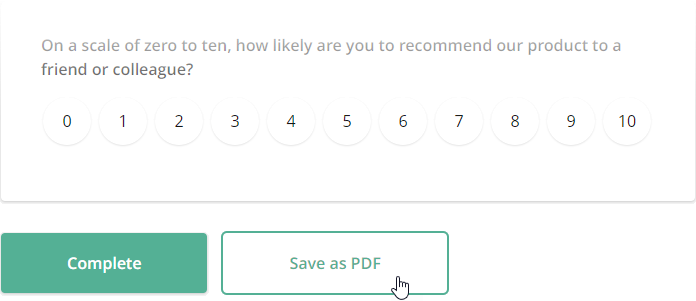
You can use any UI element to call this helper function. For instance, the following code adds a new [navigation button](/Documentation/Library?id=iaction) below the survey and calls the `savePdf` function when a user clicks this button:
```js
import { Component, OnInit } from '@angular/core';
import { Model } from "survey-core";
// ...
@Component({ /* ... */ })
export class AppComponent implements OnInit {
surveyModel: Model;
ngOnInit() {
const survey = new Model(surveyJson);
survey.addNavigationItem({
id: "pdf-export",
title: "Save as PDF",
action: () => savePdf(survey.data)
});
this.surveyModel = survey;
}
}
```
The following image illustrates the resulting UI with the [Default theme](https://surveyjs.io/form-library/documentation/manage-default-themes-and-styles) applied:
 To view the application, run `ng serve` in a command line and open [http://localhost:4200/](http://localhost:4200/) in your browser.
View Full Code
```html
```
```js
// app.component.ts
import { Component, OnInit } from '@angular/core';
import { Model } from "survey-core";
import { SurveyPDF, IDocOptions } from "survey-pdf";
const surveyJson = {
// ...
};
const pdfDocOptions: IDocOptions = {
fontSize: 12
};
const savePdf = function (surveyData: any) {
const surveyPdf = new SurveyPDF(surveyJson, pdfDocOptions);
surveyPdf.data = surveyData;
surveyPdf.save();
};
@Component({
selector: 'app-root',
templateUrl: './app.component.html',
styleUrls: ['./app.component.css']
})
export class AppComponent implements OnInit {
title = 'Export Survey to PDF - SurveyJS for Angular';
surveyModel: Model;
ngOnInit() {
const survey = new Model(surveyJson);
survey.addNavigationItem({
id: "pdf-export",
title: "Save as PDF",
action: () => savePdf(survey.data)
});
this.surveyModel = survey;
}
}
```
```js
// app.module.ts
import { BrowserModule } from '@angular/platform-browser';
import { NgModule } from '@angular/core';
import { SurveyModule } from "survey-angular-ui";
import { AppComponent } from './app.component';
@NgModule({
declarations: [
AppComponent
],
imports: [
BrowserModule,
SurveyModule
],
providers: [],
bootstrap: [AppComponent]
})
export class AppModule { }
```
[View Full Code on GitHub](https://github.com/surveyjs/code-examples/tree/main/get-started-pdf/angular (linkStyle))
## Activate a SurveyJS License
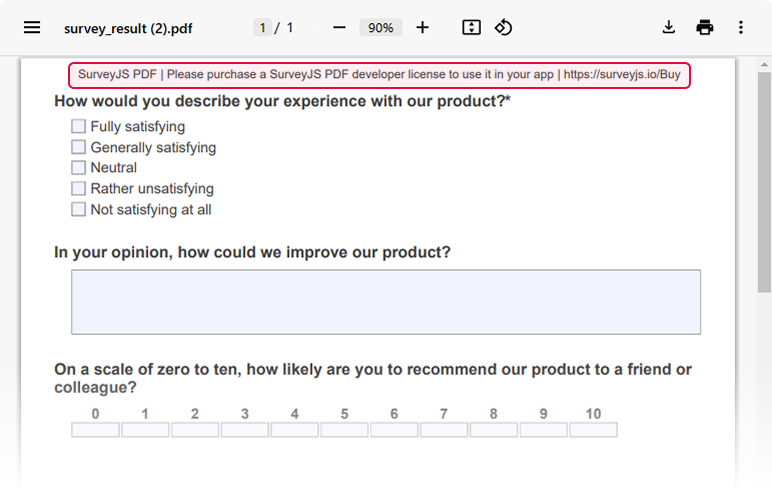
SurveyJS PDF Generator is not available for free commercial use. To integrate it into your application, you must purchase a [commercial license](https://surveyjs.io/licensing) for the software developer(s) who will be working with the PDF Generator APIs and implementing the integration. If you use SurveyJS PDF Generator without a license, an alert banner will appear at the top of each page in an exported PDF document:
 After purchasing a license, follow the steps below to activate it and remove the alert banner:
1. [Log in](https://surveyjs.io/login) to the SurveyJS website using your email address and password. If you've forgotten your password, [request a reset](https://surveyjs.io/reset-password) and check your inbox for the reset link.
2. Open the following page: [How to Remove the Alert Banner](https://surveyjs.io/remove-alert-banner). You can also access it by clicking **Set up your license key** in the alert banner itself.
3. Follow the instructions on that page.
Once you've completed the setup correctly, the alert banner will no longer appear.
## Further Reading
- [Customization Options](/Documentation/Pdf-Export?id=Customization-Options)
- [Export HTML to PDF](/Documentation/Pdf-Export?id=HtmlToPdf)
- [Export Matrix Questions to PDF](/Documentation/Pdf-Export?id=MatrixToPdf)
After purchasing a license, follow the steps below to activate it and remove the alert banner:
1. [Log in](https://surveyjs.io/login) to the SurveyJS website using your email address and password. If you've forgotten your password, [request a reset](https://surveyjs.io/reset-password) and check your inbox for the reset link.
2. Open the following page: [How to Remove the Alert Banner](https://surveyjs.io/remove-alert-banner). You can also access it by clicking **Set up your license key** in the alert banner itself.
3. Follow the instructions on that page.
Once you've completed the setup correctly, the alert banner will no longer appear.
## Further Reading
- [Customization Options](/Documentation/Pdf-Export?id=Customization-Options)
- [Export HTML to PDF](/Documentation/Pdf-Export?id=HtmlToPdf)
- [Export Matrix Questions to PDF](/Documentation/Pdf-Export?id=MatrixToPdf)