---
title: Save survey form to fillable PDF in a JavaScript app | SurveyJS
description: Export your SurveyJS survey, quiz, or poll to a fillable PDF form in a JavaScript application. A step-by-step guide to help you get started.
---
# Export Survey to PDF in a JavaScript Application
PDF Generator for SurveyJS allows your users to save surveys as interactive PDF documents. This tutorial describes how to add the export functionality to your JavaScript application.
[View Full Code on GitHub](https://github.com/surveyjs/code-examples/tree/main/get-started-pdf/html-css-js (linkStyle))
## Link Resources
PDF Generator for SurveyJS is built upon the jsPDF library. Insert links to the jsPDF and SurveyJS PDF Generator scripts within the `` tag on your HTML page. Ensure the base script for all SurveyJS products, `survey-core`, is referenced as well:
```html
```
## Configure Export Properties
Export properties allow you to customize the page format, orientation, margins, font, and other parameters. Refer to the [`IDocOptions`](/Documentation/Pdf-Export?id=idocoptions) interface for a full list of properties. The following code changes the [`fontSize`](/Documentation/Pdf-Export?id=idocoptions#fontSize) property:
```js
const pdfDocOptions = {
fontSize: 12
};
```
## Export a Survey
To export a survey, you need to create a `SurveyPDF` instance. Its constructor accepts two parameters: a [survey JSON schema](/Documentation/Library?id=design-survey-create-a-simple-survey#define-a-static-survey-model-in-json) and [export properties](#configure-export-properties). To save a PDF document with the exported survey, call the [`save(fileName)`](/Documentation/Pdf-Export?id=surveypdf#save) method on the `SurveyPDF` instance. If you omit the `fileName` parameter, the document uses the default name (`"survey_result"`).
The code below implements a `savePdf` helper function that instantiates `SurveyPDF`, assigns survey data (user responses) to this instance, and calls the `save(fileName)` method. If you want to export the survey without user responses, do not specify the `SurveyPDF`'s `data` property.
```js
const surveyJson = { /* ... */ };
const pdfDocOptions = { /* ... */ };
const savePdf = function (surveyData) {
const surveyPdf = new SurveyPDF.SurveyPDF(surveyJson, pdfDocOptions);
surveyPdf.data = surveyData;
surveyPdf.save();
};
```
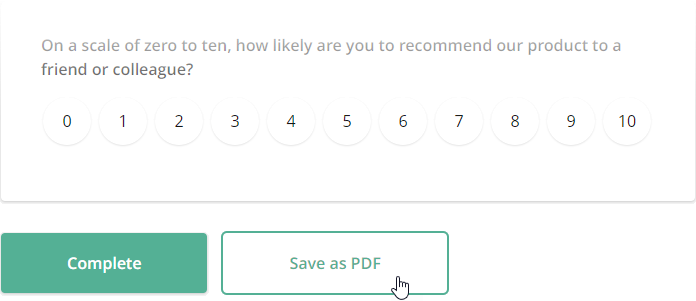
You can use any UI element to call this helper function. For instance, the following code adds a new [navigation button](/Documentation/Library?id=iaction) below the survey and calls the `savePdf` function when a user clicks this button:
```js
const survey = new Survey.Model(surveyJson);
survey.addNavigationItem({
id: "pdf-export",
title: "Save as PDF",
action: () => savePdf(survey.data)
});
```
The following image illustrates the resulting UI with the [Default theme](https://surveyjs.io/form-library/documentation/manage-default-themes-and-styles) applied:
View Full Code
```html
Export Survey to PDF - SurveyJS
```
```js
const surveyJson = {
// ...
};
const survey = new Survey.Model(surveyJson);
const pdfDocOptions = {
fontSize: 12
};
const savePdf = function (surveyData) {
const surveyPdf = new SurveyPDF.SurveyPDF(surveyJson, pdfDocOptions);
surveyPdf.data = surveyData;
surveyPdf.save();
};
survey.addNavigationItem({
id: "pdf-export",
title: "Save as PDF",
action: () => savePdf(survey.data)
});
document.addEventListener("DOMContentLoaded", function() {
survey.render(document.getElementById("surveyContainer"));
});
```
[View Full Code on GitHub](https://github.com/surveyjs/code-examples/tree/main/get-started-pdf/html-css-js (linkStyle))
## Activate a SurveyJS License
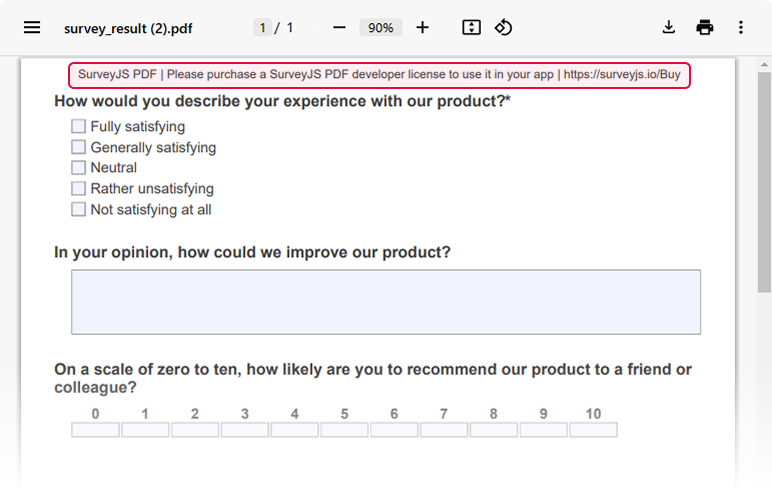
SurveyJS PDF Generator is not available for free commercial use. To integrate it into your application, you must purchase a [commercial license](https://surveyjs.io/licensing) for the software developer(s) who will be working with the PDF Generator APIs and implementing the integration. If you use SurveyJS PDF Generator without a license, an alert banner will appear at the top of each page in an exported PDF document:
After purchasing a license, follow the steps below to activate it and remove the alert banner:
1. [Log in](https://surveyjs.io/login) to the SurveyJS website using your email address and password. If you've forgotten your password, [request a reset](https://surveyjs.io/reset-password) and check your inbox for the reset link.
2. Open the following page: [How to Remove the Alert Banner](https://surveyjs.io/remove-alert-banner). You can also access it by clicking **Set up your license key** in the alert banner itself.
3. Follow the instructions on that page.
Once you've completed the setup correctly, the alert banner will no longer appear.
## Further Reading
- [Customization Options](/Documentation/Pdf-Export?id=Customization-Options)
- [Export HTML to PDF](/Documentation/Pdf-Export?id=HtmlToPdf)
- [Export Matrix Questions to PDF](/Documentation/Pdf-Export?id=MatrixToPdf)
 After purchasing a license, follow the steps below to activate it and remove the alert banner:
1. [Log in](https://surveyjs.io/login) to the SurveyJS website using your email address and password. If you've forgotten your password, [request a reset](https://surveyjs.io/reset-password) and check your inbox for the reset link.
2. Open the following page: [How to Remove the Alert Banner](https://surveyjs.io/remove-alert-banner). You can also access it by clicking **Set up your license key** in the alert banner itself.
3. Follow the instructions on that page.
Once you've completed the setup correctly, the alert banner will no longer appear.
## Further Reading
- [Customization Options](/Documentation/Pdf-Export?id=Customization-Options)
- [Export HTML to PDF](/Documentation/Pdf-Export?id=HtmlToPdf)
- [Export Matrix Questions to PDF](/Documentation/Pdf-Export?id=MatrixToPdf)
After purchasing a license, follow the steps below to activate it and remove the alert banner:
1. [Log in](https://surveyjs.io/login) to the SurveyJS website using your email address and password. If you've forgotten your password, [request a reset](https://surveyjs.io/reset-password) and check your inbox for the reset link.
2. Open the following page: [How to Remove the Alert Banner](https://surveyjs.io/remove-alert-banner). You can also access it by clicking **Set up your license key** in the alert banner itself.
3. Follow the instructions on that page.
Once you've completed the setup correctly, the alert banner will no longer appear.
## Further Reading
- [Customization Options](/Documentation/Pdf-Export?id=Customization-Options)
- [Export HTML to PDF](/Documentation/Pdf-Export?id=HtmlToPdf)
- [Export Matrix Questions to PDF](/Documentation/Pdf-Export?id=MatrixToPdf)