---
title: JS Form Builder Library | Getting Started Guide
description: A step-by-step guide to get started with Survey Creator component in a JavaScript application.
---
# Add Survey Creator / Form Builder to a JavaScript Application
This step-by-step tutorial will help you get started with the [Survey Creator](https://surveyjs.io/create-survey) component in an application built with HTML, CSS, and JavaScript (without frontend frameworks).
[View Full Code on GitHub](https://github.com/surveyjs/code-examples/tree/main/get-started-creator/html-css-js (linkStyle))
> Survey Creator provides individual integration packages for Angular, React, and Vue. If you use one of these frameworks, refer to one of the following tutorials instead:
> - [Get Started in Angular](https://surveyjs.io/survey-creator/documentation/get-started-angular)
> - [Get Started in Vue.js](https://surveyjs.io/survey-creator/documentation/get-started-vue)
> - [Get Started in React](https://surveyjs.io/survey-creator/documentation/get-started-react)
## Link Resources
Survey Creator consists of two parts: `survey-creator-core` (platform-independent code) and `survey-creator-js` (view models). Each part includes style sheets and scripts. Insert links to these resources within the `` tag on your HTML page as shown below. Survey Creator also requires [SurveyJS Form Library resources](/form-library/documentation/get-started-html-css-javascript#link-surveyjs-resources) and a script with predefined theme configurations (if you are going to use [Theme Editor](https://surveyjs.io/survey-creator/documentation/theme-editor)). Link them _before_ the Survey Creator resources:
```html
```
## Configure Survey Creator
To configure the Survey Creator component, specify [its properties](https://surveyjs.io/survey-creator/documentation/api-reference/icreatoroptions) in a configuration object. In this tutorial, the object enables the following properties:
- [`autoSaveEnabled`](https://surveyjs.io/survey-creator/documentation/api-reference/icreatoroptions#autoSaveEnabled)
Automatically saves the survey JSON schema on every change.
- [`collapseOnDrag`](https://surveyjs.io/survey-creator/documentation/api-reference/icreatoroptions#collapseOnDrag)
Collapses pages on the design surface when users start dragging a survey element.
```js
const creatorOptions = {
autoSaveEnabled: true,
collapseOnDrag: true
};
```
Pass the configuration object to the `SurveyCreator` constructor as shown in the code below to instantiate Survey Creator. Assign the produced instance to a constant that will be used later to render the component:
```js
const creator = new SurveyCreator.SurveyCreator(creatorOptions);
```
View Full Code
```html
Survey Creator / Form Builder
```
```js
const creatorOptions = {
autoSaveEnabled: true,
collapseOnDrag: true
};
const creator = new SurveyCreator.SurveyCreator(creatorOptions);
```
## Render Survey Creator
Survey Creator should be rendered in a page element, for instance, a `
`. Add this element to the `` tag of your page and specify its `id` attribute:
```html
```
To render Survey Creator in the page element, call the `render(container)` method on the Survey Creator instance you created in the previous step:
```js
document.addEventListener("DOMContentLoaded", function() {
creator.render(document.getElementById("surveyCreator"));
});
```
If your application uses jQuery, you can render Survey Creator using the `SurveyCreator()` jQuery plugin. Pass the Survey Creator instance to the `model` property of the plugin configuration object.
```js
$(function() {
$("#surveyCreator").SurveyCreator({ model: creator });
});
```
View Full Code
```html
Survey Creator / Form Builder
```
```js
const creatorOptions = {
autoSaveEnabled: true,
collapseOnDrag: true
};
const creator = new SurveyCreator.SurveyCreator(creatorOptions);
document.addEventListener("DOMContentLoaded", function() {
creator.render(document.getElementById("surveyCreator"));
});
```
## Activate a SurveyJS License
Survey Creator is not available for free commercial use. To integrate it into your application, you must purchase a [commercial license](https://surveyjs.io/licensing) for the software developer(s) who will be working with the Survey Creator APIs and implementing the integration. If you use Survey Creator without a license, an alert banner will appear at the bottom of the interface:
After purchasing a license, follow the steps below to activate it and remove the alert banner:
1. [Log in](https://surveyjs.io/login) to the SurveyJS website using your email address and password. If you've forgotten your password, [request a reset](https://surveyjs.io/reset-password) and check your inbox for the reset link.
2. Open the following page: [How to Remove the Alert Banner](https://surveyjs.io/remove-alert-banner). You can also access it by clicking **Set up your license key** in the alert banner itself.
3. Follow the instructions on that page.
Once you've completed the setup correctly, the alert banner will no longer appear.
## Save and Load Survey Model Schemas
Survey Creator produces survey model schemas as JSON objects. You can persist these objects on your server: save updates and restore previously saved schemas. To save a JSON object, implement the [`saveSurveyFunc`](/survey-creator/documentation/api-reference/survey-creator#saveSurveyFunc) function. It accepts two arguments:
- `saveNo`
An incremental number of the current change. Since web services are asynchronous, you cannot guarantee that the service receives the changes in the same order as the client sends them. For example, change #11 may arrive to the server faster than change #10. In your web service code, update the storage only if you receive changes with a higher `saveNo`.
- `callback`
A callback function. Call it and pass `saveNo` as the first argument. Set the second argument to `true` or `false` based on whether the server applied or rejected the change.
The following code shows how to use the `saveSurveyFunc` function to save a survey model schema in the browser's `localStorage` or in your web service:
```js
creator.saveSurveyFunc = (saveNo, callback) => {
// If you use localStorage:
window.localStorage.setItem("survey-json", creator.text);
callback(saveNo, true);
// If you use a web service:
saveSurveyJson(
"https://your-web-service.com/",
creator.JSON,
saveNo,
callback
);
};
// If you use a web service:
function saveSurveyJson(url, json, saveNo, callback) {
fetch(url, {
method: 'POST',
headers: {
'Content-Type': 'application/json;charset=UTF-8'
},
body: JSON.stringify(json)
})
.then(response => {
if (response.ok) {
callback(saveNo, true);
} else {
callback(saveNo, false);
}
})
.catch(error => {
callback(saveNo, false);
});
}
```
[View Demo](/survey-creator/examples/set-how-survey-configuration-changes-are-saved/ (linkStyle))
If you are running a NodeJS server, you can check a survey JSON schema before saving it. On the server, create a `SurveyModel` and call its [`toJSON()`](https://surveyjs.io/form-library/documentation/api-reference/survey-data-model#toJSON) method. This method deletes unknown properties and incorrect property values from the survey JSON schema:
```js
// Server-side code for a NodeJS backend
import { Model } from "survey-core";
const incorrectSurveyJson = { ... };
const survey = new Model(surveyJson);
const correctSurveyJson = survey.toJSON();
// ...
// Save `correctSurveyJson` in a database
// ...
```
To load a survey model schema into Survey Creator, assign the schema to Survey Creator's [`JSON`](https://surveyjs.io/survey-creator/documentation/api-reference/survey-creator#JSON) or [`text`](https://surveyjs.io/survey-creator/documentation/api-reference/survey-creator#text) property. Use `text` if the JSON object is converted to a string; otherwise, use `JSON`. The following code takes a survey model schema from the `localStorage`. If the schema is not found (for example, when Survey Creator is launched for the first time), a default JSON is used:
```js
const defaultJson = {
pages: [{
name: "Name",
elements: [{
name: "FirstName",
title: "Enter your first name:",
type: "text"
}, {
name: "LastName",
title: "Enter your last name:",
type: "text"
}]
}]
};
creator.text = window.localStorage.getItem("survey-json") || JSON.stringify(defaultJson);
```
View Full Code
```html
Survey Creator / Form Builder
```
```js
const creatorOptions = {
autoSaveEnabled: true,
collapseOnDrag: true
};
const defaultJson = {
pages: [{
name: "Name",
elements: [{
name: "FirstName",
title: "Enter your first name:",
type: "text"
}, {
name: "LastName",
title: "Enter your last name:",
type: "text"
}]
}]
};
const creator = new SurveyCreator.SurveyCreator(creatorOptions);
creator.text = window.localStorage.getItem("survey-json") || JSON.stringify(defaultJson);
creator.saveSurveyFunc = (saveNo, callback) => {
window.localStorage.setItem("survey-json", creator.text);
callback(saveNo, true);
// saveSurveyJson(
// "https://your-web-service.com/",
// creator.JSON,
// saveNo,
// callback
// );
};
document.addEventListener("DOMContentLoaded", function() {
creator.render(document.getElementById("surveyCreator"));
});
// function saveSurveyJson(url, json, saveNo, callback) {
// fetch(url, {
// method: 'POST',
// headers: {
// 'Content-Type': 'application/json;charset=UTF-8'
// },
// body: JSON.stringify(json)
// })
// .then(response => {
// if (response.ok) {
// callback(saveNo, true);
// } else {
// callback(saveNo, false);
// }
// })
// .catch(error => {
// callback(saveNo, false);
// });
// }
```
## Manage Image Uploads
When survey authors design a form or questionnaire, they can add images to use as a survey [logo](https://surveyjs.io/form-library/documentation/api-reference/survey-data-model#logo) or [background](https://surveyjs.io/form-library/documentation/api-reference/survey-data-model#backgroundImage), in the survey header, or within [Image](https://surveyjs.io/form-library/examples/add-image-and-video-to-survey/) and [Image Picker](https://surveyjs.io/form-library/examples/image-picker-question/) questions. Those images are embedded in the survey and theme JSON schemas as Base64 URLs. However, this technique increases the schema size. To avoid this, you can upload images to a server and save only image links in the JSON schemas.
To implement image upload, handle the [`onUploadFile`](https://surveyjs.io/survey-creator/documentation/api-reference/survey-creator#onUploadFile) event. Its `options.files` parameter stores the images you should send to your server. Once the server responds with an image link, call the `options.callback(status, imageLink)` method. Pass `"success"` as the `status` parameter and a link to the uploaded image as the `imageLink` parameter.
```js
creator.onUploadFile.add((_, options) => {
const formData = new FormData();
options.files.forEach(file => {
formData.append(file.name, file);
});
fetch("https://example.com/uploadFiles", {
method: "post",
body: formData
}).then(response => response.json())
.then(result => {
options.callback(
"success",
// A link to the uploaded file
"https://example.com/files?name=" + result[options.files[0].name]
);
})
.catch(error => {
options.callback('error');
});
});
```
[View Demo](https://surveyjs.io/survey-creator/examples/file-upload/vanillajs (linkStyle))
View Full Code
```html
Survey Creator / Form Builder
```
```js
const creatorOptions = {
autoSaveEnabled: true,
collapseOnDrag: true
};
const defaultJson = {
pages: [{
name: "Name",
elements: [{
name: "FirstName",
title: "Enter your first name:",
type: "text"
}, {
name: "LastName",
title: "Enter your last name:",
type: "text"
}]
}]
};
const creator = new SurveyCreator.SurveyCreator(creatorOptions);
creator.text = window.localStorage.getItem("survey-json") || JSON.stringify(defaultJson);
creator.saveSurveyFunc = (saveNo, callback) => {
window.localStorage.setItem("survey-json", creator.text);
callback(saveNo, true);
// saveSurveyJson(
// "https://your-web-service.com/",
// creator.JSON,
// saveNo,
// callback
// );
};
// creator.onUploadFile.add((_, options) => {
// const formData = new FormData();
// options.files.forEach(file => {
// formData.append(file.name, file);
// });
// fetch("https://example.com/uploadFiles", {
// method: "post",
// body: formData
// }).then(response => response.json())
// .then(result => {
// options.callback(
// "success",
// // A link to the uploaded file
// "https://example.com/files?name=" + result[options.files[0].name]
// );
// })
// .catch(error => {
// options.callback('error');
// });
// });
document.addEventListener("DOMContentLoaded", function() {
creator.render(document.getElementById("surveyCreator"));
});
// function saveSurveyJson(url, json, saveNo, callback) {
// fetch(url, {
// method: 'POST',
// headers: {
// 'Content-Type': 'application/json;charset=UTF-8'
// },
// body: JSON.stringify(json)
// })
// .then(response => {
// if (response.ok) {
// callback(saveNo, true);
// } else {
// callback(saveNo, false);
// }
// })
// .catch(error => {
// callback(saveNo, false);
// });
// }
```
[View Full Code on GitHub](https://github.com/surveyjs/code-examples/tree/main/get-started-creator/html-css-js (linkStyle))
## (Optional) Enable Ace Editor in the JSON Editor Tab
The JSON Editor tab enables users to edit survey JSON schemas as text. To make the editing process more convenient, you can integrate the Ace code editor. Add the Ace script and the scripts of required Ace extensions to your HTML page. For instance, the following code references the editor itself and the extensions that enable the Find/Replace dialog in Ace and add support for the dark theme:
```html
```
To enable code highlighting, set the path to the directory containing the `ace.js` script using the `AceJsonEditorModel.aceBasePath` property. If you host `ace.js` on your server, specify your server path. If you use a CDN or installed Ace via npm, you can use the following path:
```js
SurveyCreatorCore.AceJsonEditorModel.aceBasePath = "https://unpkg.com/ace-builds/src-min-noconflict/";
```
[View Demo](/survey-creator/examples/ace-editor-integration/vanillajs (linkStyle))
[View Full Code on GitHub](https://github.com/surveyjs/code-examples/tree/main/get-started-creator/html-css-js (linkStyle))
## Further Reading
- [Localization](https://surveyjs.io/Documentation/Survey-Creator?id=localization)
- [Property Grid Customization](https://surveyjs.io/Documentation/Survey-Creator?id=property-grid)
- [Toolbox Customization](https://surveyjs.io/Documentation/Survey-Creator?id=toolbox)
- [Survey Customization](https://surveyjs.io/Documentation/Survey-Creator?id=survey-customization)
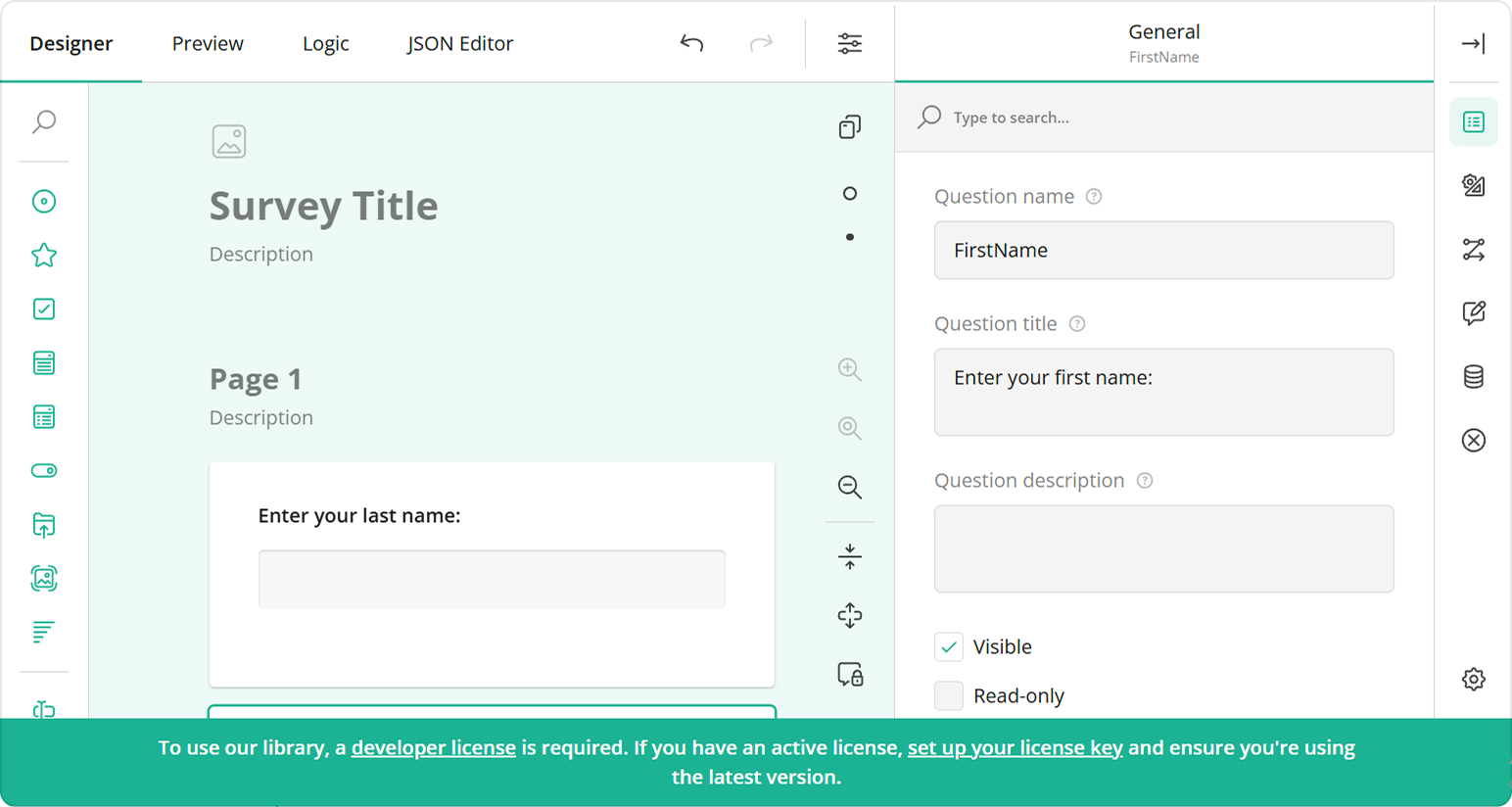 After purchasing a license, follow the steps below to activate it and remove the alert banner:
1. [Log in](https://surveyjs.io/login) to the SurveyJS website using your email address and password. If you've forgotten your password, [request a reset](https://surveyjs.io/reset-password) and check your inbox for the reset link.
2. Open the following page: [How to Remove the Alert Banner](https://surveyjs.io/remove-alert-banner). You can also access it by clicking **Set up your license key** in the alert banner itself.
3. Follow the instructions on that page.
Once you've completed the setup correctly, the alert banner will no longer appear.
## Save and Load Survey Model Schemas
Survey Creator produces survey model schemas as JSON objects. You can persist these objects on your server: save updates and restore previously saved schemas. To save a JSON object, implement the [`saveSurveyFunc`](/survey-creator/documentation/api-reference/survey-creator#saveSurveyFunc) function. It accepts two arguments:
- `saveNo`
An incremental number of the current change. Since web services are asynchronous, you cannot guarantee that the service receives the changes in the same order as the client sends them. For example, change #11 may arrive to the server faster than change #10. In your web service code, update the storage only if you receive changes with a higher `saveNo`.
- `callback`
A callback function. Call it and pass `saveNo` as the first argument. Set the second argument to `true` or `false` based on whether the server applied or rejected the change.
The following code shows how to use the `saveSurveyFunc` function to save a survey model schema in the browser's `localStorage` or in your web service:
```js
creator.saveSurveyFunc = (saveNo, callback) => {
// If you use localStorage:
window.localStorage.setItem("survey-json", creator.text);
callback(saveNo, true);
// If you use a web service:
saveSurveyJson(
"https://your-web-service.com/",
creator.JSON,
saveNo,
callback
);
};
// If you use a web service:
function saveSurveyJson(url, json, saveNo, callback) {
fetch(url, {
method: 'POST',
headers: {
'Content-Type': 'application/json;charset=UTF-8'
},
body: JSON.stringify(json)
})
.then(response => {
if (response.ok) {
callback(saveNo, true);
} else {
callback(saveNo, false);
}
})
.catch(error => {
callback(saveNo, false);
});
}
```
[View Demo](/survey-creator/examples/set-how-survey-configuration-changes-are-saved/ (linkStyle))
If you are running a NodeJS server, you can check a survey JSON schema before saving it. On the server, create a `SurveyModel` and call its [`toJSON()`](https://surveyjs.io/form-library/documentation/api-reference/survey-data-model#toJSON) method. This method deletes unknown properties and incorrect property values from the survey JSON schema:
```js
// Server-side code for a NodeJS backend
import { Model } from "survey-core";
const incorrectSurveyJson = { ... };
const survey = new Model(surveyJson);
const correctSurveyJson = survey.toJSON();
// ...
// Save `correctSurveyJson` in a database
// ...
```
To load a survey model schema into Survey Creator, assign the schema to Survey Creator's [`JSON`](https://surveyjs.io/survey-creator/documentation/api-reference/survey-creator#JSON) or [`text`](https://surveyjs.io/survey-creator/documentation/api-reference/survey-creator#text) property. Use `text` if the JSON object is converted to a string; otherwise, use `JSON`. The following code takes a survey model schema from the `localStorage`. If the schema is not found (for example, when Survey Creator is launched for the first time), a default JSON is used:
```js
const defaultJson = {
pages: [{
name: "Name",
elements: [{
name: "FirstName",
title: "Enter your first name:",
type: "text"
}, {
name: "LastName",
title: "Enter your last name:",
type: "text"
}]
}]
};
creator.text = window.localStorage.getItem("survey-json") || JSON.stringify(defaultJson);
```
After purchasing a license, follow the steps below to activate it and remove the alert banner:
1. [Log in](https://surveyjs.io/login) to the SurveyJS website using your email address and password. If you've forgotten your password, [request a reset](https://surveyjs.io/reset-password) and check your inbox for the reset link.
2. Open the following page: [How to Remove the Alert Banner](https://surveyjs.io/remove-alert-banner). You can also access it by clicking **Set up your license key** in the alert banner itself.
3. Follow the instructions on that page.
Once you've completed the setup correctly, the alert banner will no longer appear.
## Save and Load Survey Model Schemas
Survey Creator produces survey model schemas as JSON objects. You can persist these objects on your server: save updates and restore previously saved schemas. To save a JSON object, implement the [`saveSurveyFunc`](/survey-creator/documentation/api-reference/survey-creator#saveSurveyFunc) function. It accepts two arguments:
- `saveNo`
An incremental number of the current change. Since web services are asynchronous, you cannot guarantee that the service receives the changes in the same order as the client sends them. For example, change #11 may arrive to the server faster than change #10. In your web service code, update the storage only if you receive changes with a higher `saveNo`.
- `callback`
A callback function. Call it and pass `saveNo` as the first argument. Set the second argument to `true` or `false` based on whether the server applied or rejected the change.
The following code shows how to use the `saveSurveyFunc` function to save a survey model schema in the browser's `localStorage` or in your web service:
```js
creator.saveSurveyFunc = (saveNo, callback) => {
// If you use localStorage:
window.localStorage.setItem("survey-json", creator.text);
callback(saveNo, true);
// If you use a web service:
saveSurveyJson(
"https://your-web-service.com/",
creator.JSON,
saveNo,
callback
);
};
// If you use a web service:
function saveSurveyJson(url, json, saveNo, callback) {
fetch(url, {
method: 'POST',
headers: {
'Content-Type': 'application/json;charset=UTF-8'
},
body: JSON.stringify(json)
})
.then(response => {
if (response.ok) {
callback(saveNo, true);
} else {
callback(saveNo, false);
}
})
.catch(error => {
callback(saveNo, false);
});
}
```
[View Demo](/survey-creator/examples/set-how-survey-configuration-changes-are-saved/ (linkStyle))
If you are running a NodeJS server, you can check a survey JSON schema before saving it. On the server, create a `SurveyModel` and call its [`toJSON()`](https://surveyjs.io/form-library/documentation/api-reference/survey-data-model#toJSON) method. This method deletes unknown properties and incorrect property values from the survey JSON schema:
```js
// Server-side code for a NodeJS backend
import { Model } from "survey-core";
const incorrectSurveyJson = { ... };
const survey = new Model(surveyJson);
const correctSurveyJson = survey.toJSON();
// ...
// Save `correctSurveyJson` in a database
// ...
```
To load a survey model schema into Survey Creator, assign the schema to Survey Creator's [`JSON`](https://surveyjs.io/survey-creator/documentation/api-reference/survey-creator#JSON) or [`text`](https://surveyjs.io/survey-creator/documentation/api-reference/survey-creator#text) property. Use `text` if the JSON object is converted to a string; otherwise, use `JSON`. The following code takes a survey model schema from the `localStorage`. If the schema is not found (for example, when Survey Creator is launched for the first time), a default JSON is used:
```js
const defaultJson = {
pages: [{
name: "Name",
elements: [{
name: "FirstName",
title: "Enter your first name:",
type: "text"
}, {
name: "LastName",
title: "Enter your last name:",
type: "text"
}]
}]
};
creator.text = window.localStorage.getItem("survey-json") || JSON.stringify(defaultJson);
```