---
title: Integrate Monaco and Ace JSON Editors into Survey Creator
description: Add Monaco or Ace to the Survey Creator JSON Editor tab. Learn how to install and configure either editor.
source: https://surveyjs.io/survey-creator/documentation/integrate-monaco-or-ace-editor-into-survey-creator
---
# Integrate Third-Party JSON Editors
The [JSON Editor tab](/survey-creator/documentation/end-user-guide/user-interface#json-editor-tab) enables users to edit survey JSON schemas as text. By default, it contains a plain text area. You can integrate [Monaco](https://microsoft.github.io/monaco-editor/) or [Ace](https://ace.c9.io/) to add syntax highlighting, code folding, find and replace, and other code editing features.
## Integrate Monaco
[Monaco Editor](https://microsoft.github.io/monaco-editor/) is the code editor that powers Visual Studio Code. It is open-source and distributed under the [MIT license](https://github.com/microsoft/monaco-editor/blob/main/LICENSE.txt).
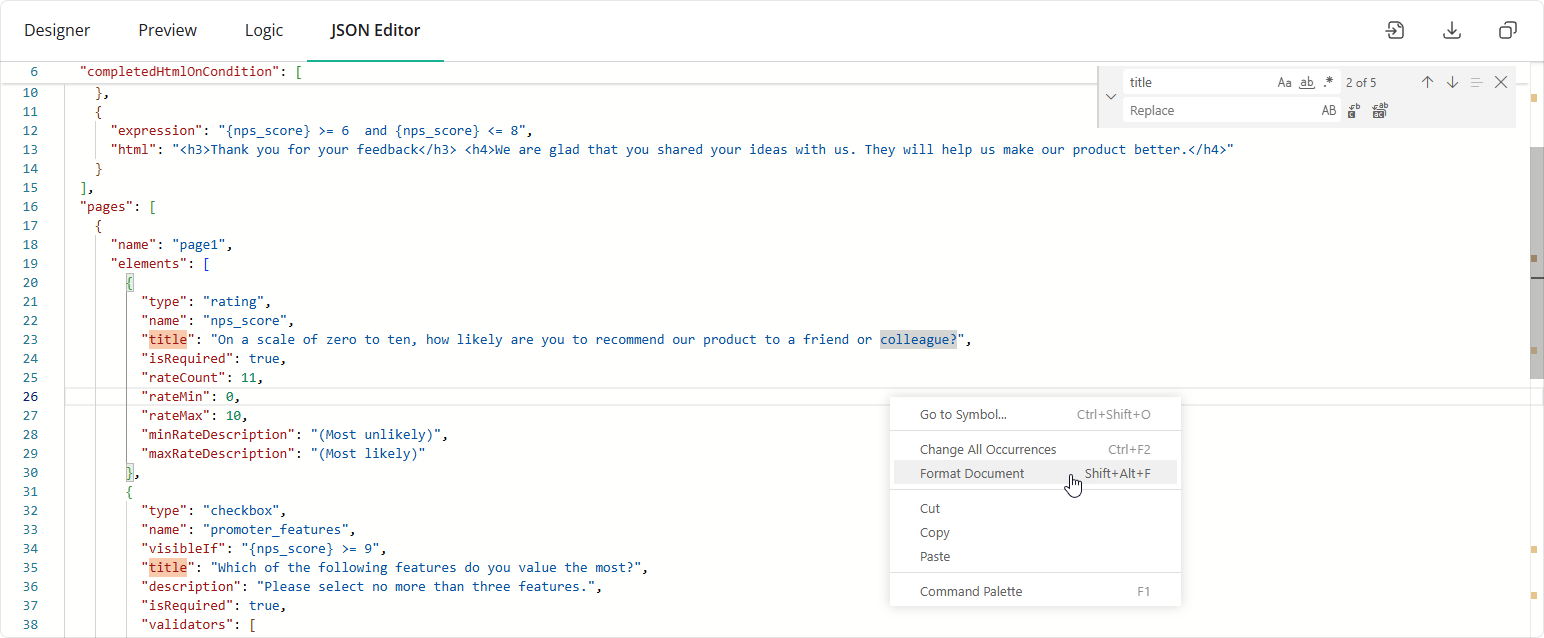 Monaco provides the following features in the JSON Editor tab:
- Syntax highlighting
- Bracket matching
- Code folding
- Find and replace
- JSON formatting through **Format Document** in the context menu
- Underlined errors with messages on hover
- Automatic dark theme when Survey Creator uses a dark color palette
> Monaco integration requires Survey Creator v3.2.6 or newer.
[Demo: Integrate Monaco Editor into Survey Creator](/survey-creator/examples/monaco-editor-integration/ (linkStyle))
### Modular Applications
Install the [`monaco-editor`](https://www.npmjs.com/package/monaco-editor) package:
```sh
npm install monaco-editor
```
Import Monaco and expose it as `window.monaco` before you create a Survey Creator instance. The following code uses `Object.assign()` so that it also works in TypeScript without adding a declaration for `window.monaco`:
```js
import * as monaco from "monaco-editor";
import { SurveyCreatorModel } from "survey-creator-core";
Object.assign(window, { monaco });
const creator = new SurveyCreatorModel();
```
Place the setup in the component or module that initializes Survey Creator. If your application uses server-side rendering (SSR), disable SSR for the component that imports Monaco and renders Survey Creator.
### Classic Script Applications
Install the [`monaco-editor`](https://www.npmjs.com/package/monaco-editor) package:
```sh
npm install monaco-editor
```
If your application loads dependencies with classic `
```
Only the Monaco setup needs to be bundled. The rest of your application can continue to use classic scripts.
### Configure Monaco Workers
Monaco uses web workers for JSON diagnostics, completion, and hover information. For the JSON Editor tab, configure the following workers before creating a Survey Creator instance:
- JSON worker
- Base editor worker
Follow the instructions for your bundler in the [Monaco ESM integration guide](https://github.com/microsoft/monaco-editor/blob/main/docs/integrate-esm.md) or use the following demo as a reference:
[Demo: Integrate Monaco Editor into Survey Creator](/survey-creator/examples/monaco-editor-integration/ (linkStyle))
## Integrate Ace
[Ace](https://ace.c9.io/) is an embeddable code editor with support for extensions. It is open-source and distributed under the [BSD license](https://github.com/ajaxorg/ace/blob/master/LICENSE).
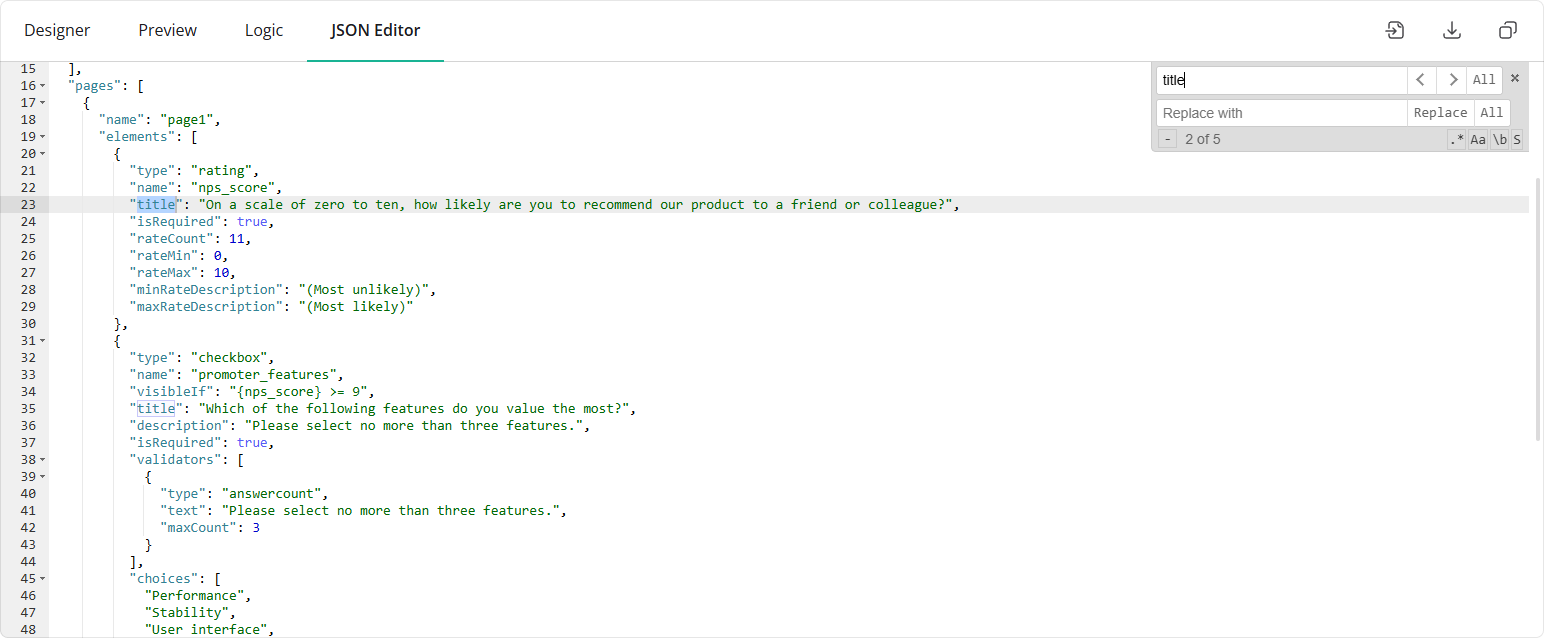 Ace provides the following features in the JSON Editor tab:
- Syntax highlighting
- Bracket matching
- Code folding
- Find and replace
- Error annotations with messages on hover
- Automatic dark theme when Survey Creator uses a dark color palette
[Demo: Integrate Ace Editor into Survey Creator](/survey-creator/examples/ace-editor-integration/ (linkStyle))
### Modular Applications
Install the [`ace-builds`](https://www.npmjs.com/package/ace-builds) package:
```sh
npm install ace-builds
```
Import Ace and the extensions that enable the Find/Replace dialog and support Survey Creator's dark color palette. Set the resource path before creating a Survey Creator instance:
```js
import "ace-builds/src-noconflict/ace";
import "ace-builds/src-noconflict/ext-searchbox";
import "ace-builds/src-noconflict/theme-clouds_midnight";
import { AceJsonEditorModel, SurveyCreatorModel } from "survey-creator-core";
AceJsonEditorModel.aceBasePath = "https://unpkg.com/ace-builds/src-min-noconflict/";
const creator = new SurveyCreatorModel();
```
[Demo: Integrate Ace Editor into Survey Creator](/survey-creator/examples/ace-editor-integration/ (linkStyle))
### Classic Script Applications
Add Ace and its extensions to your HTML page:
```html
```
Set the Ace resource path, then create a Survey Creator instance:
```js
SurveyCreatorCore.AceJsonEditorModel.aceBasePath = "https://unpkg.com/ace-builds/src-min-noconflict/";
const creator = new SurveyCreatorCore.SurveyCreatorModel();
```
[Demo: Integrate Ace Editor into Survey Creator](/survey-creator/examples/ace-editor-integration/ (linkStyle))