---
title: Theme Editor | JavaScript Form Builder by SurveyJS
description: Customize themes in a user-friendly interface to build a theme that engages your respondents and reinforces your brand perception.
---
# Theme Editor
When you create a survey, you want it to look harmonious and consistent with other parts of your application. You can achieve this with Theme Editor, a tool that enables you to create and customize survey UI themes.
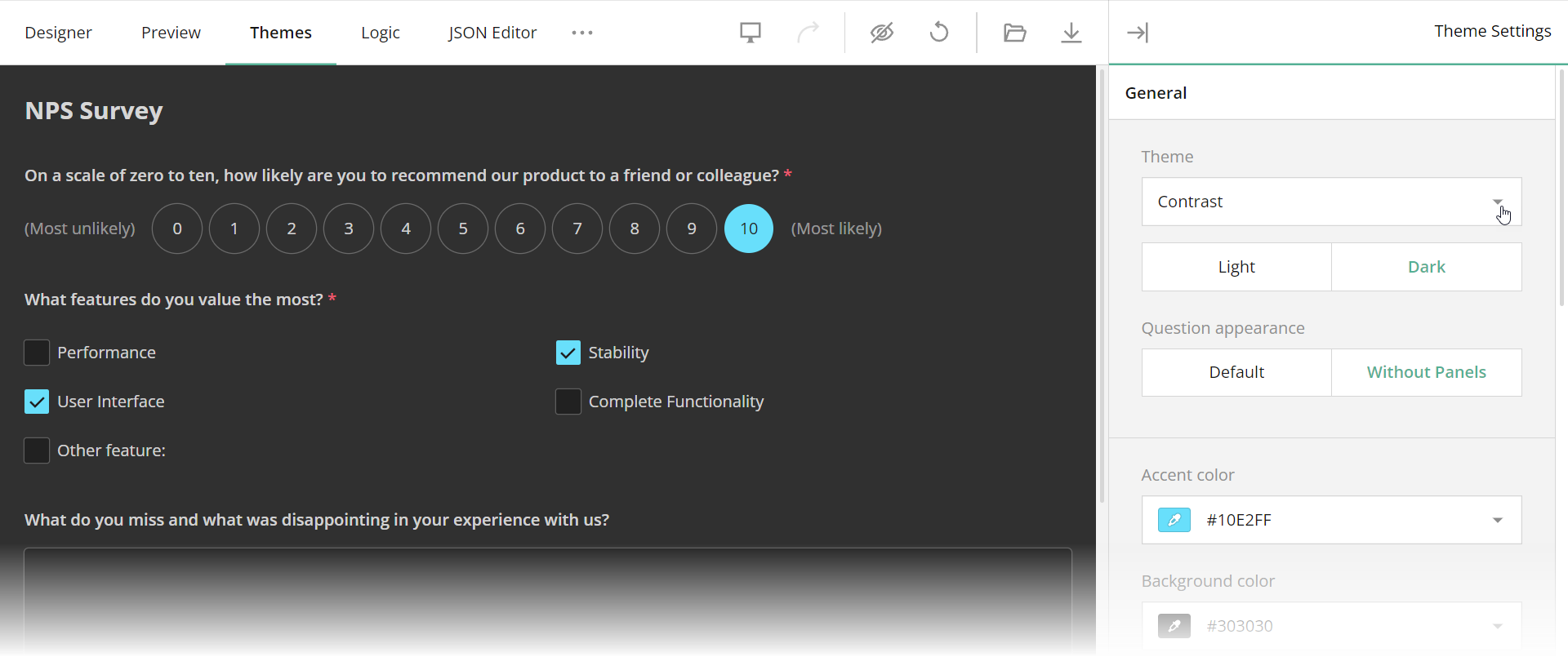 Theme Editor is available online in our [all-in-one demo](/create-free-survey) or as part of Survey Creator. This article describes how to enable Theme Editor in Survey Creator, apply a custom theme to your survey, and set up communication with a server to enable your users to create, apply, and switch themes in your application.
## Enable Theme Editor in Survey Creator
Theme Editor is integrated into Survey Creator as a separate tab. To display the tab, set the [`showThemeTab`](https://surveyjs.io/survey-creator/documentation/api-reference/survey-creator#showThemeTab) property to `true`:
```js
import { SurveyCreatorModel } from "survey-creator-core";
const creatorOptions = {
// ...
showThemeTab: true
};
const creator = new SurveyCreatorModel(creatorOptions);
```
SurveyJS is shipped with a number of [predefined UI themes for surveys](https://surveyjs.io/form-library/documentation/manage-default-themes-and-styles#add-surveyjs-themes-to-your-application). By default, users can customize only the Default theme. To add other themes to Theme Editor, use the following code:
```js
// In modular applications
import SurveyTheme from "survey-core/themes"; // An object that contains all theme configurations
import { registerSurveyTheme } from "survey-creator-core";
registerSurveyTheme(SurveyTheme);
```
```html
```
## Apply a Custom Theme
Theme Editor produces a JSON object with CSS variables and other theme settings. For information on how to obtain this object and apply it to a survey, refer to the following help topic in Form Library documentation: [Create a Custom Theme](/form-library/documentation/manage-default-themes-and-styles#create-a-custom-theme).
If you want to apply a custom theme to a survey being configured in Survey Creator, assign the theme JSON object to `SurveyCreatorModel`'s [`theme`](/survey-creator/documentation/api-reference/survey-creator#theme) property:
```js
import { SurveyCreatorModel } from "survey-creator-core";
const creatorOptions = {
// ...
showThemeTab: true
};
const creator = new SurveyCreatorModel(creatorOptions);
const themeJson = { ... };
creator.theme = themeJson;
```
## Save and Load Custom Themes
Theme JSON objects can be stored on your server to let users save, share, and restore custom themes or switch between them. To save a theme JSON object, implement the `saveThemeFunc` function. It accepts two arguments:
- `saveNo`
An incremental number of the current change. Since web services are asynchronous, you cannot guarantee that the service receives the changes in the same order as the client sends them. For example, change #11 may arrive to the server faster than change #10. In your web service code, update the storage only if you receive changes with a higher `saveNo`.
- `callback`
A callback function. Call it and pass `saveNo` as the first argument. Set the second argument to `true` or `false` based on whether the server applied or rejected the change.
The following code shows how to use the `saveThemeFunc` function to save a survey model schema in the browser's `localStorage` or in your web service:
```js
import { SurveyCreatorModel } from "survey-creator-core";
const creatorOptions = {
// ...
showThemeTab: true
};
const creator = new SurveyCreatorModel(creatorOptions);
creator.saveThemeFunc = (saveNo, callback) => {
// If you use localStorage:
window.localStorage.setItem("survey-theme-json", JSON.stringify(creator.theme));
callback(saveNo, true);
// If you use a web service:
saveThemeJson(
"https://your-web-service.com/",
creator.theme,
saveNo,
callback
);
};
// If you use a web service:
function saveThemeJson(url, json, saveNo, callback) {
fetch(url, {
method: 'POST',
headers: {
'Content-Type': 'application/json;charset=UTF-8'
},
body: JSON.stringify(json)
})
.then(response => {
if (response.ok) {
callback(saveNo, true);
} else {
callback(saveNo, false);
}
})
.catch(error => {
callback(saveNo, false);
});
}
```
To load a theme JSON object into Theme Editor, assign the object to Survey Creator's [`theme`](https://surveyjs.io/survey-creator/documentation/api-reference/survey-creator#theme) property. The following code takes a theme JSON object from the `localStorage`:
```js
const savedTheme = window.localStorage.getItem("survey-theme-json");
if (savedTheme) {
creator.theme = JSON.parse(savedTheme);
}
```
You can also add UI elements that allow users to save, apply, and reuse custom themes. To implement this advanced functionality, refer to the following demo:
[View "Add Reusable Themes" Demo](https://surveyjs.io/survey-creator/examples/save-custom-theme/ (linkStyle))
## Customize the Property Grid
Refer to the following demo for details on Theme Editor's Property Grid customization:
[Manage Theme Settings](/survey-creator/examples/theme-editor-modify-settings-panel/ (linkStyle))
## See Also
- [Themes & Styles](/form-library/documentation/manage-default-themes-and-styles)
- Save and Load Survey Model Schemas: [Angular](https://surveyjs.io/survey-creator/documentation/get-started-angular#save-and-load-survey-model-schemas) | [Vue](https://surveyjs.io/survey-creator/documentation/get-started-vue#save-and-load-survey-model-schemas) | [React](https://surveyjs.io/survey-creator/documentation/get-started-react#save-and-load-survey-model-schemas) | [HTML/CSS/JavaScript](https://surveyjs.io//survey-creator/documentation/get-started-html-css-javascript#save-and-load-survey-model-schemas)
Theme Editor is available online in our [all-in-one demo](/create-free-survey) or as part of Survey Creator. This article describes how to enable Theme Editor in Survey Creator, apply a custom theme to your survey, and set up communication with a server to enable your users to create, apply, and switch themes in your application.
## Enable Theme Editor in Survey Creator
Theme Editor is integrated into Survey Creator as a separate tab. To display the tab, set the [`showThemeTab`](https://surveyjs.io/survey-creator/documentation/api-reference/survey-creator#showThemeTab) property to `true`:
```js
import { SurveyCreatorModel } from "survey-creator-core";
const creatorOptions = {
// ...
showThemeTab: true
};
const creator = new SurveyCreatorModel(creatorOptions);
```
SurveyJS is shipped with a number of [predefined UI themes for surveys](https://surveyjs.io/form-library/documentation/manage-default-themes-and-styles#add-surveyjs-themes-to-your-application). By default, users can customize only the Default theme. To add other themes to Theme Editor, use the following code:
```js
// In modular applications
import SurveyTheme from "survey-core/themes"; // An object that contains all theme configurations
import { registerSurveyTheme } from "survey-creator-core";
registerSurveyTheme(SurveyTheme);
```
```html
```
## Apply a Custom Theme
Theme Editor produces a JSON object with CSS variables and other theme settings. For information on how to obtain this object and apply it to a survey, refer to the following help topic in Form Library documentation: [Create a Custom Theme](/form-library/documentation/manage-default-themes-and-styles#create-a-custom-theme).
If you want to apply a custom theme to a survey being configured in Survey Creator, assign the theme JSON object to `SurveyCreatorModel`'s [`theme`](/survey-creator/documentation/api-reference/survey-creator#theme) property:
```js
import { SurveyCreatorModel } from "survey-creator-core";
const creatorOptions = {
// ...
showThemeTab: true
};
const creator = new SurveyCreatorModel(creatorOptions);
const themeJson = { ... };
creator.theme = themeJson;
```
## Save and Load Custom Themes
Theme JSON objects can be stored on your server to let users save, share, and restore custom themes or switch between them. To save a theme JSON object, implement the `saveThemeFunc` function. It accepts two arguments:
- `saveNo`
An incremental number of the current change. Since web services are asynchronous, you cannot guarantee that the service receives the changes in the same order as the client sends them. For example, change #11 may arrive to the server faster than change #10. In your web service code, update the storage only if you receive changes with a higher `saveNo`.
- `callback`
A callback function. Call it and pass `saveNo` as the first argument. Set the second argument to `true` or `false` based on whether the server applied or rejected the change.
The following code shows how to use the `saveThemeFunc` function to save a survey model schema in the browser's `localStorage` or in your web service:
```js
import { SurveyCreatorModel } from "survey-creator-core";
const creatorOptions = {
// ...
showThemeTab: true
};
const creator = new SurveyCreatorModel(creatorOptions);
creator.saveThemeFunc = (saveNo, callback) => {
// If you use localStorage:
window.localStorage.setItem("survey-theme-json", JSON.stringify(creator.theme));
callback(saveNo, true);
// If you use a web service:
saveThemeJson(
"https://your-web-service.com/",
creator.theme,
saveNo,
callback
);
};
// If you use a web service:
function saveThemeJson(url, json, saveNo, callback) {
fetch(url, {
method: 'POST',
headers: {
'Content-Type': 'application/json;charset=UTF-8'
},
body: JSON.stringify(json)
})
.then(response => {
if (response.ok) {
callback(saveNo, true);
} else {
callback(saveNo, false);
}
})
.catch(error => {
callback(saveNo, false);
});
}
```
To load a theme JSON object into Theme Editor, assign the object to Survey Creator's [`theme`](https://surveyjs.io/survey-creator/documentation/api-reference/survey-creator#theme) property. The following code takes a theme JSON object from the `localStorage`:
```js
const savedTheme = window.localStorage.getItem("survey-theme-json");
if (savedTheme) {
creator.theme = JSON.parse(savedTheme);
}
```
You can also add UI elements that allow users to save, apply, and reuse custom themes. To implement this advanced functionality, refer to the following demo:
[View "Add Reusable Themes" Demo](https://surveyjs.io/survey-creator/examples/save-custom-theme/ (linkStyle))
## Customize the Property Grid
Refer to the following demo for details on Theme Editor's Property Grid customization:
[Manage Theme Settings](/survey-creator/examples/theme-editor-modify-settings-panel/ (linkStyle))
## See Also
- [Themes & Styles](/form-library/documentation/manage-default-themes-and-styles)
- Save and Load Survey Model Schemas: [Angular](https://surveyjs.io/survey-creator/documentation/get-started-angular#save-and-load-survey-model-schemas) | [Vue](https://surveyjs.io/survey-creator/documentation/get-started-vue#save-and-load-survey-model-schemas) | [React](https://surveyjs.io/survey-creator/documentation/get-started-react#save-and-load-survey-model-schemas) | [HTML/CSS/JavaScript](https://surveyjs.io//survey-creator/documentation/get-started-html-css-javascript#save-and-load-survey-model-schemas)