Bootstrap Forms vs. Form Engines: When Is JSON-Driven Worth It?
An employee form with a name, an email address, and a department rarely needs a form engine. HTML provides the controls and basic validation. Bootstrap styles them. A small JavaScript module can handle submission.
Now give each employee up to three emergency contacts, each with its own validation rules. Add a relocation page that appears only when needed. Then reuse those rules in a second workflow and change them for both. At that point, the comparison shifts from how you declare fields to how much behavior your team has to maintain.
We built the same employee workflow twice, using Bootstrap 5.3.8 in both versions and SurveyJS Form Library 3.2.3 in one. The examples below show which parts move into JSON and which parts still belong to your application.
| Stage | What Changes |
|---|---|
| 1. Employee Contact | Three required fields |
| 2. Employment Details | Conditional fields and a cross-field date rule |
| 3. Emergency Contacts | One to three contacts with independent rules |
| 4. Full Onboarding | A relocation page that depends on an answer |
| 5. Reuse and Change | Two workflows share a revised policy |
From the companion project's folder, run the following commands and open the local URL printed by Vite.
npm ci
npm run dev
Each stage shows both forms side by side. Select Fill sample data on either side, review the answers, and select Complete to see that form's response JSON. The demo displays responses locally. The native JavaScript below uses simplified examples to isolate the behavior under comparison. The companion project contains the complete implementations.
Stage 1 — Start With Three Required Fields
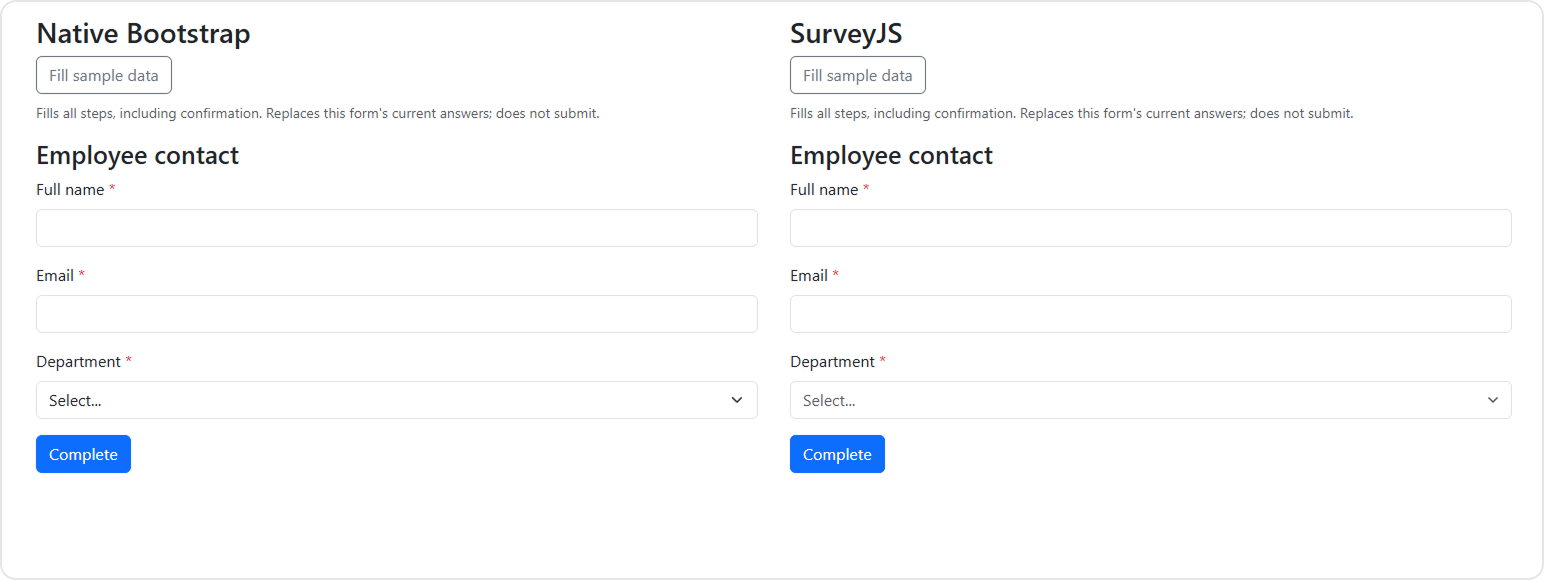
For Full name, Email, and Department, HTML already expresses the basic constraints. Here's the native email field.
<div class="mb-3" data-field="email">
  <label class="form-label" for="email">
    Email
    <span data-required>
      <span class="required-marker" aria-hidden="true">*</span>
    </span>
  </label>
  <input
    class="form-control"
    type="email"
    id="email"
    name="email"
    aria-describedby="email-error"
    required
  >
  <div class="invalid-feedback" id="email-error" hidden></div>
</div>
Bootstrap styles the input, the browser validates it, and our markup supplies the asterisk. The demo fills the invalid-feedback element with its own error message and moves focus to the first invalid field. With SurveyJS, the question definition supplies the same field and lets the engine render its validation feedback.
{
  "type": "text",
  "name": "email",
  "title": "Email",
  "inputType": "email",
  "isRequired": true,
  "autocomplete": "email"
}
For three stable fields, we would usually keep the native implementation. Although JSON makes the field definitions cleaner, a new definition format and runtime dependency offer little benefit when the browser already handles most of the requirements.
Stage 2 — Add Conditional Fields and Cross-Field Validation
Fixed-term employees need a contract end date on or after their start date. Remote and hybrid employees need a home working address. Office and hybrid employees need an office location.
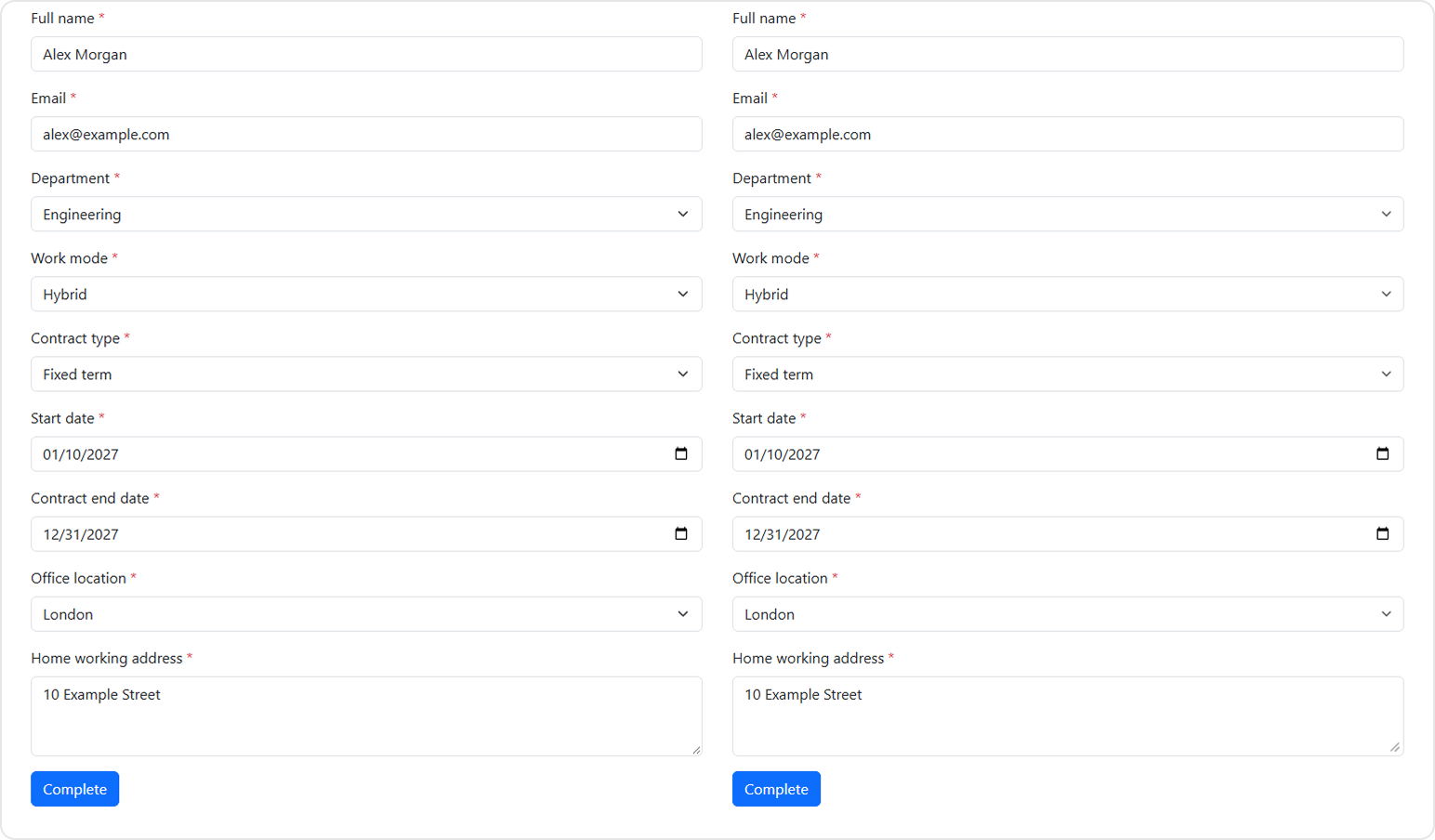
In the native version, the work-mode rules live in small predicates that both implementations can be tested against.
export const homeWorker = (mode) => mode === "remote" || mode === "hybrid";
export const officeWorker = (mode) => mode === "office" || mode === "hybrid";
A field helper shows or hides one wrapper, enables or disables its control, and updates the required marker. It takes visibility and required state separately so a visible field can stay optional.
const mark = '<span class="required-marker" aria-hidden="true">*</span>';

function setField(scope, name, visible, required) {
  const wrapper = scope.querySelector(`[data-field="${name}"]`);
  if (!wrapper) return;

  wrapper.hidden = !visible;

  const control = wrapper.querySelector("input,select,textarea");
  control.disabled = !visible;
  control.required = visible && required;
  wrapper.querySelector("[data-required]").innerHTML = control.required
    ? mark
    : "";
}
One synchronization function applies the rules on initialization and on every input and change event.
const get = (name) => form.elements.namedItem(name);

function syncConditions() {
  const workMode = get("workMode").value;

  setField(form, "contractEnd", get("contractType").value === "fixed", true);
  setField(form, "officeLocation", officeWorker(workMode), true);
  setField(form, "homeAddress", homeWorker(workMode), true);

  const startDate = get("startDate");
  const contractEnd = get("contractEnd");
  contractEnd.min = startDate.value;
  contractEnd.setCustomValidity(
    contractEnd.value && startDate.value && contractEnd.value < startDate.value
      ? "End date must be on or after start date."
      : "",
  );
}
The date rule doesn't need to check the contract type: when the field is hidden, its control is disabled, and the browser skips validation for disabled controls.
The SurveyJS end-date question keeps the visibility condition and date rule next to the field.
{
  "type": "text",
  "name": "contractEnd",
  "title": "Contract end date",
  "inputType": "date",
  "visibleIf": "{contractType} = 'fixed'",
  "isRequired": true,
  "validators": [
    {
      "type": "expression",
      "expression": "{contractEnd} >= {startDate}",
      "text": "End date must be on or after start date."
    }
  ]
}
The office and home address questions use the same visibleIf pattern, for example "{workMode} = 'remote' or {workMode} = 'hybrid'" for the home address.
Both demos preserve hidden drafts. A remote employee who switches to Office and back can recover the home address. Disabled native controls keep their values but are excluded from form data. SurveyJS also keeps hidden answers while the form is in progress and, by default, removes them on completion. The demo disables this cleanup with clearInvisibleValues: "none" so that the form stays editable after each completion, and a shared response mapper drops inactive answers from both versions' responses.
Stage 3 — Repeat a Contact With Its Own Rules
Employees can add one to three contacts. Each contact needs a name, a relationship, and a preferred contact method. The selected method determines whether that row requires an email address or a phone number.
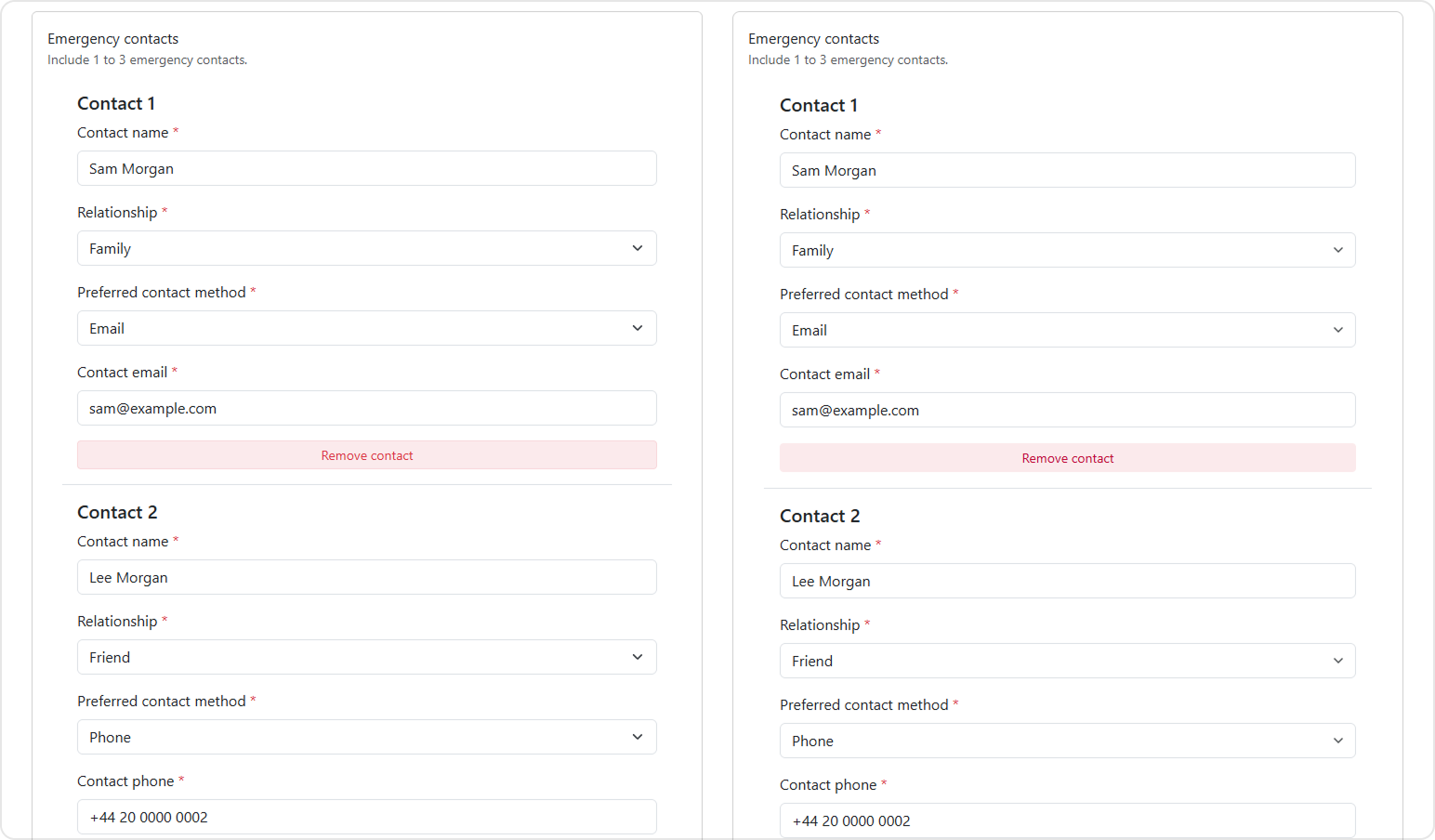
This is where the native code grows. Each row needs a stable identity, its own visibility and validation state, and a place in the serialized response.
A shared factory describes the fields in one contact. It receives a local() function that turns each key into a row-scoped ID.
export function contactFields(local, options) {
  return (
    local("name", "Contact name", { required: true }) +
    local("relationship", "Relationship", {
      required: true,
      choices: [
        ["Family", "Family"],
        ["Partner", "Partner"],
        ["Friend", "Friend"],
      ],
    }) +
    local("contactMethod", "Preferred contact method", {
      required: true,
      choices: [
        ["email", "Email"],
        ["phone", "Phone"],
      ],
    }) +
    local("email", "Contact email", { type: "email", hidden: true }) +
    local("phone", "Contact phone", { type: "tel", hidden: true })
  );
}
The form creates each row, gives it an ID that never changes, and binds the factory's fields to that ID. Rows are numbered by position, so removing one renumbers the rest.
const contactsRoot = form.querySelector("#contacts");
const rows = () => [...contactsRoot.children];
let nextContactId = 0;

function updateContactButtons() {
  form.querySelector("#add-contact").disabled = rows().length >= 3;
  rows().forEach((row, index) => {
    row.querySelector("h4").textContent = `Contact ${index + 1}`;
    row.classList.toggle("border-top", index > 0);
    row.querySelector("[data-remove]").hidden = rows().length === 1;
    row
      .querySelector("button")
      .setAttribute("aria-label", `Remove contact ${index + 1}`);
  });
}

function addContact(focus = true) {
  if (rows().length >= 3) return;

  const row = document.createElement("section");
  row.id = `contact-${nextContactId++}`;
  row.className = "contact";
  row.setAttribute("aria-labelledby", `${row.id}-title`);

  const local = (key, title, properties = {}) =>
    field(`${row.id}-${key}`, title, { ...properties, key });
  row.innerHTML =
    `<h4 id="${row.id}-title" class="fs-5 fw-medium px-3 pt-3 mb-2"></h4>` +
    `<div class="px-3">${contactFields(local, options)}</div>` +
    `<div data-remove class="px-3 pb-3">` +
    `<button type="button" class="btn btn-sm btn-danger bg-danger bg-opacity-10 text-danger border-danger border-opacity-10 w-100">Remove contact</button>` +
    `</div>`;

  row.querySelector("button").onclick = () => {
    if (rows().length <= 1) return;

    const index = rows().indexOf(row);
    row.remove();
    updateContactButtons();
    rows()[Math.min(index, rows().length - 1)].querySelector("input").focus();
    form.querySelector("#contact-status").textContent = "Contact removed.";
  };

  contactsRoot.append(row);
  updateContactButtons();
  syncConditions();

  if (focus) {
    row.querySelector("input").focus();
    form.querySelector("#contact-status").textContent = "Contact added.";
  }
}

form.querySelector("#add-contact").onclick = () => addContact();
addContact(false);
syncConditions() from Stage 2 gains a loop that applies the contact-method rule to each row, using the same setField() helper scoped to that row. emergencyPhoneRequired() is a policy predicate. Under the original policy it returns true only when the method is "phone".
for (const row of rows()) {
  const method = row.querySelector('[data-key="contactMethod"]').value;
  setField(row, `${row.id}-email`, method === "email", true);
  setField(
    row,
    `${row.id}-phone`,
    emergencyPhoneRequired(method, options),
    true,
  );
}
On submission, each row becomes one object that contains only its enabled fields.
data.contacts = rows().map((row) =>
  Object.fromEntries(
    [...row.querySelectorAll("[data-key]")]
      .filter((c) => !c.disabled)
      .map((c) => [c.dataset.key, c.value]),
  ),
);
Bootstrap supplies the layout and control styles. The application owns the contact lifecycle. Removing the middle contact, for example, must preserve the other rows' values, keep their labels associated with the same inputs, renumber the remaining contacts, and move focus to a sensible place.
With SurveyJS, the Dynamic Panel owns row creation, removal, numbering, and collection limits. Each panel evaluates the template against its own answers.
{
  "type": "paneldynamic",
  "name": "contacts",
  "title": "Emergency contacts",
  "description": "Include 1 to 3 emergency contacts.",
  "descriptionLocation": "underTitle",
  "templateTitle": "Contact {panelIndex}",
  "panelCount": 1,
  "minPanelCount": 1,
  "maxPanelCount": 3,
  "addPanelText": "Add contact",
  "removePanelText": "Remove contact",
  "templateElements": [
    {
      "type": "text",
      "name": "name",
      "title": "Contact name",
      "isRequired": true
    },
    {
      "type": "dropdown",
      "renderAs": "select",
      "name": "relationship",
      "title": "Relationship",
      "choices": ["Family", "Partner", "Friend"],
      "isRequired": true
    },
    {
      "type": "dropdown",
      "renderAs": "select",
      "name": "contactMethod",
      "title": "Preferred contact method",
      "choices": [
        { "value": "email", "text": "Email" },
        { "value": "phone", "text": "Phone" }
      ],
      "isRequired": true
    },
    {
      "type": "text",
      "name": "email",
      "title": "Contact email",
      "inputType": "email",
      "isRequired": true,
      "visibleIf": "{panel.contactMethod} = 'email'"
    },
    {
      "type": "text",
      "name": "phone",
      "title": "Contact phone",
      "inputType": "tel",
      "isRequired": true,
      "visibleIf": "{panel.contactMethod} = 'phone'"
    }
  ]
}
The {panel.contactMethod} reference is local to each contact. Try adding two contacts, one with Email and one with Phone. Each row has a different required field, and both versions return the contacts as an array.
Stage 4 — Add Pages That Depend on Answers
The workflow has four standard pages for personal details, employment, emergency contacts, and workplace setup. A fifth page asks for a destination city and move date when the employee answers Yes to Are you relocating? on the employment page.
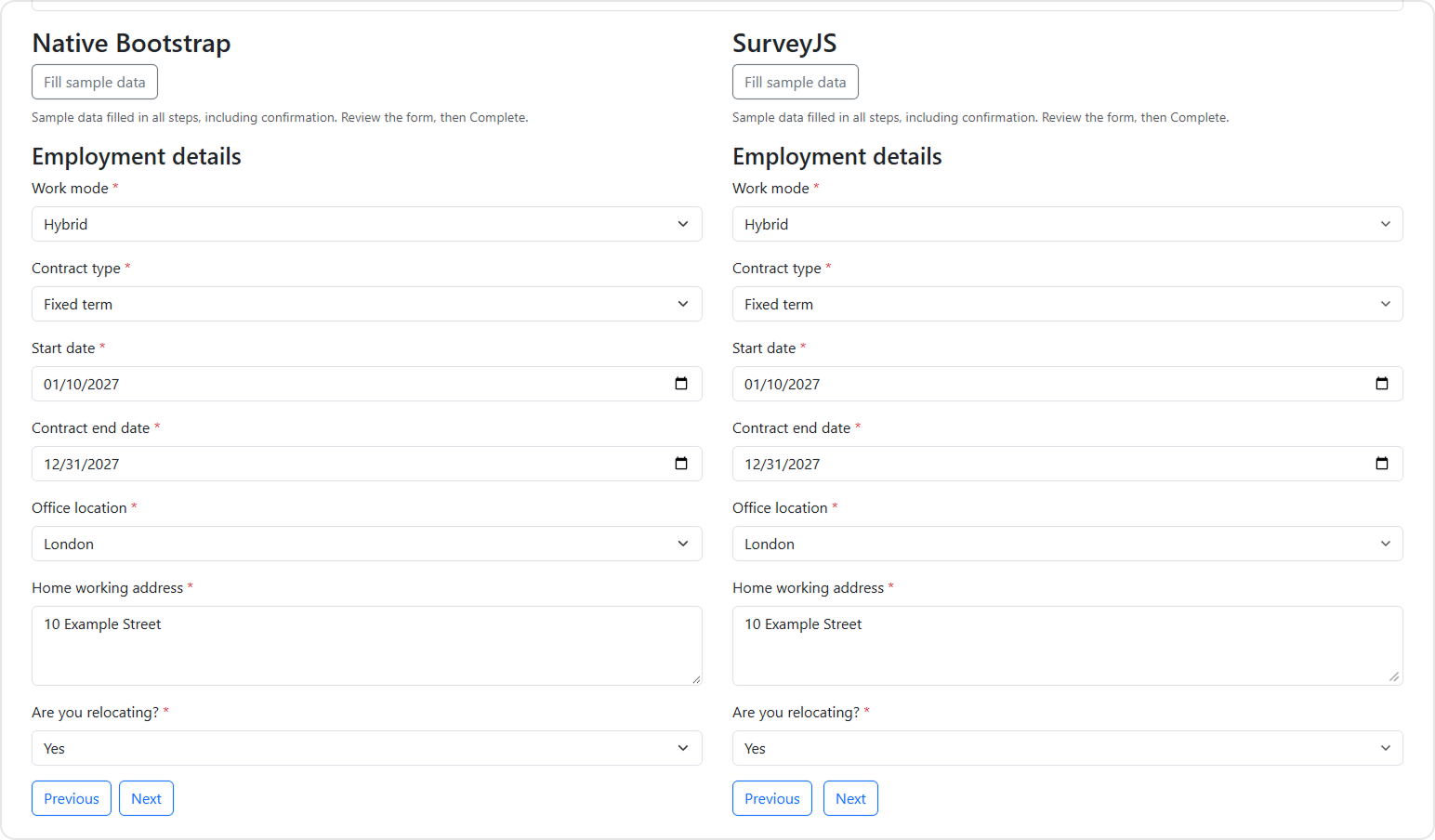
In the native version, every page is a <section data-page> element. A data-active attribute records whether the page currently takes part in the workflow, and a current variable tracks the page on screen.
const allPages = [...form.querySelectorAll("[data-page]")];
const activePages = () => allPages.filter((p) => p.dataset.active === "true");
let current = allPages[0];
syncConditions() from Stage 2 now also controls the relocation page. Disabling its inputs keeps them out of validation and form data. They keep their values in case the employee switches back.
const relocating = get("relocates").value === "yes";
const page = form.querySelector('[data-page="relocation"]');
page.dataset.active = String(relocating);
page.querySelectorAll("input").forEach((c) => (c.disabled = !relocating));

refreshPages();
refreshPages() shows the current page and keeps the navigation buttons and step announcement in sync with the active page list.
function refreshPages(focus = false) {
  const active = activePages();
  if (!active.includes(current)) current = active[0];

  allPages.forEach((p) => (p.hidden = p !== current));
  const index = active.indexOf(current);
  form.querySelector("#previous").hidden = index === 0;
  form.querySelector("#next").hidden = index === active.length - 1;
  form.querySelector("#complete").hidden = index !== active.length - 1;
  form.querySelector("#progress").textContent =
    `Step ${index + 1} of ${active.length}`;

  if (focus) current.querySelector("h3").focus();
}
Validation runs one page at a time. If a page has errors, the form switches to it and focuses the first invalid control. showError() is the demo's inline-feedback helper from Stage 1.
function validatePage(page) {
  const controls = [...page.querySelectorAll("input,select,textarea")];
  controls.forEach((control) => showError(control, true));
  const invalid = controls.find((control) => !control.checkValidity());
  if (!invalid) return true;

  current = page;
  refreshPages();
  invalid.focus();

  return false;
}
Previous moves back without validating. Next validates the current page before moving forward. Complete validates every active page in order and stops at the first one with errors.
form.querySelector("#previous").onclick = () => {
  current = activePages()[activePages().indexOf(current) - 1];
  refreshPages(true);
};

form.querySelector("#next").onclick = () => {
  syncConditions();
  if (validatePage(current)) {
    current = activePages()[activePages().indexOf(current) + 1];
    refreshPages(true);
  }
};

form.addEventListener("submit", (event) => {
  event.preventDefault();
  syncConditions();
  for (const page of activePages()) if (!validatePage(page)) return;

  const values = new FormData(form);
  const data = Object.fromEntries(values);
  data.contacts = readContacts(); // the Stage 3 row mapping
  data.equipment = values.getAll("equipment");
  data.confirmation = values.getAll("confirmation");

  preview(data, options);
});
The application has to keep the active page list in sync with the relocation answer, manage focus and announcements between pages, and exclude inactive pages from submission. With SurveyJS, a condition on the page controls whether it participates in navigation and validation.
{
  "name": "relocation",
  "title": "Relocation",
  "visibleIf": "{relocates} = 'yes'",
  "elements": [
    {
      "type": "text",
      "name": "relocationCity",
      "title": "Destination city",
      "isRequired": true
    },
    {
      "type": "text",
      "name": "moveDate",
      "title": "Move date",
      "inputType": "date",
      "isRequired": true
    }
  ]
}
To see the effect, set Are you relocating? to Yes, enter a city, go back, and change the answer to No. Next skips the relocation page, and its values are excluded from the response. Switch back to Yes, and both versions restore the city you entered.
Stage 5 — Change Shared Requirements Across Two Workflows
New hire and Profile update share the contact rules. Only New hire includes equipment and delivery questions, and Profile update starts prefilled with an existing employee's answers. Select Revised policy and then Load comparison to apply the following changes.
| Rule | Original Policy | Revised Policy |
|---|---|---|
| Contact phone | Required for contacts who prefer Phone | Required for every contact |
| Contact notes | Absent | Optional in both workflows |
| Delivery instructions | Optional for remote and hybrid new hires | Required for remote and hybrid new hires |
Native Bootstrap and JavaScript
The native version already has a shared contact factory and policy predicates, so both screens get the contact changes from the same code. The phone predicate from Stage 3 gains a revised-policy branch, and a new predicate decides when delivery instructions are required.
export const emergencyPhoneRequired = (method, options) =>
  method === "phone" || (options.stage === 5 && options.revision === "revised");

export const deliveryRequired = (options) =>
  options.stage === 5 &&
  options.revision === "revised" &&
  options.variant === "new-hire";
The contact factory shows the phone field from the start under the revised policy and adds an optional notes field.
export function contactFields(local, options) {
  const revised = options.stage === 5 && options.revision === "revised";

  return (
    local("name", "Contact name", { required: true }) +
    local("relationship", "Relationship", {
      required: true,
      choices: [
        ["Family", "Family"],
        ["Partner", "Partner"],
        ["Friend", "Friend"],
      ],
    }) +
    local("contactMethod", "Preferred contact method", {
      required: true,
      choices: [
        ["email", "Email"],
        ["phone", "Phone"],
      ],
    }) +
    local("email", "Contact email", { type: "email", hidden: true }) +
    local("phone", "Contact phone", { type: "tel", hidden: !revised }) +
    (revised ? local("notes", "Contact notes") : "")
  );
}
The per-row loop in syncConditions() doesn't change. It already passes emergencyPhoneRequired() to setField() as the phone field's visibility, so under the revised policy every contact shows a required phone field.
The New hire form handles delivery separately. Because setField() takes visibility and required state separately, the field can be visible but optional under the original policy and required under the revised one.
if (variant === "new-hire")
  setField(
    form,
    "deliveryNotes",
    homeWorker(get("workMode").value),
    deliveryRequired(options),
  );
SurveyJS
Each workflow has its own definition, so the revised policy is a change to both JSON files. In each workflow's contact template, the phone question loses its visibleIf condition and a notes question is added.
{
  "type": "text",
  "name": "phone",
  "title": "Contact phone",
  "inputType": "tel",
  "isRequired": true
},
{
  "type": "text",
  "name": "notes",
  "title": "Contact notes"
}
The New hire definition also makes delivery instructions required. The visibility condition is unchanged.
{
  "type": "comment",
  "rows": 3,
  "name": "deliveryNotes",
  "title": "Delivery instructions",
  "visibleIf": "{workMode} = 'remote' or {workMode} = 'hybrid'",
  "isRequired": true
}
The demo builds both definitions from one generator, but the published JSON is what gets versioned and deployed. public/maintenance-diff.json lists the changed paths in each workflow's definition (three for New hire, two for Profile update) next to the native functions that changed. To share the contact template across definitions, you can also register it once as a composite question type. The demo keeps separate definitions so that each change stays visible in plain JSON.
The Shared Response Contract
The policy change doesn't stop at the form. Both versions use the same response mapper, and it has to include the phone number for every contact and the new notes field under the revised policy.
payload.emergencyContacts = (data.contacts ?? []).map((c) => ({
  name: c.name ?? "",
  relationship: c.relationship ?? "",
  contactMethod: c.contactMethod ?? "",
  ...(c.contactMethod === "email" ? { email: c.email ?? "" } : {}),
  ...(c.contactMethod === "phone" || revision === "revised"
    ? { phone: c.phone ?? "" }
    : {}),
  ...(stage === 5 && revision === "revised" ? { notes: c.notes ?? "" } : {}),
}));
The response also records definitionVersion (1 for the original policy, 2 for the revised one), so each stored response can be traced back to the rules that produced it.
How the Bootstrap Theme Adapter Fits
Import Bootstrap first, followed by the SurveyJS core and adapter stylesheets. Call setupThemeAdapter("bootstrap") before creating the model.
import "bootstrap/dist/css/bootstrap.min.css";
import { Model, setupThemeAdapter } from "survey-core";
import "survey-js-ui";
import "survey-core/survey-core.css";
import "survey-core/themes/adapters/bootstrap-default.css";

setupThemeAdapter("bootstrap");
const survey = new Model(definition);
| Layer | What It Does in the Demo |
|---|---|
| Bootstrap adapter stylesheet | Maps supported Bootstrap colors, typography, and borders to SurveyJS, including light and dark modes |
setupThemeAdapter() |
Sets defaults such as descriptions below inputs and errors below questions |
| Explicit form settings | Sets widthMode: "responsive", renderAs: "select" for dropdowns, and rows: 3 for comment fields |
| Optional aligned layout | Adds scoped CSS for spacing, headings, navigation density, and the Add contact button |
Use Adapter only to see the adapter with the demo's explicit settings. Switch to Aligned layout to see the additional CSS used to bring the two versions closer. The demo records those adjustments in public/styling-audit.json. For more on the integration, see the Bootstrap Form Builder and JSON Form Library and the v3.2.2 release notes.
When Is JSON-Driven Worth It?
| If Your Main Concern Is | What to Weigh |
|---|---|
| A few stable fields | Native controls cover much of the behavior with a small dependency footprint. |
| Conditional fields on one form | A shared helper may be enough to synchronize visibility, validation, and submitted values. |
| Repeatable records and conditional pages across workflows | A form engine lets each definition reuse row management, expression evaluation, and navigation. |
| Definitions that change independently | Version the definitions, record which version produced each response, and coordinate backend validation with policy changes. |
Both approaches still need a response contract, server-side validation, storage, and tests for the business rules. When contact notes become part of that contract, both versions need to map and test the new field.
For the first form in this tutorial, we'd keep native controls. SurveyJS Form Library is the MIT-licensed renderer used here. If your application also needs a visual editor for form authors, Survey Creator is a separate component. Refer to our Survey Creator overview and Licensing FAQ for its integration and licensing options. The point at which JSON-driven becomes worthwhile is the point at which the behavior and reuse it provides are worth more to your team than building and maintaining equivalent infrastructure yourselves.