Nested Forms in SurveyJS — Add Readable Summaries to Repeatable Subforms (Part 2)
A supplier may ship dozens of SKUs. Asking for each product on its own page is tedious; dumping every field in one long block is hard to review. What respondents need is a compact list of what they already entered with the option to expand an item, fix a typo, or remove a line.
SurveyJS does this with entry title templates on a Dynamic Panel. Each nested entry shows a short summary (for example, Powder-coated shelving unit · set · 21d · €340). This provides a scannable list for data entry and form review—not a server-backed data grid with filtering, sorting, or record lookup.
In This Series
This three-part guide uses a supplier registration example to show how to build nested forms in SurveyJS:
- Part 1 — Collect related records in one submission
- Part 2 — Add readable summaries to repeatable subforms (this article)
- Part 3 — Link parent answers to nested subforms
Example
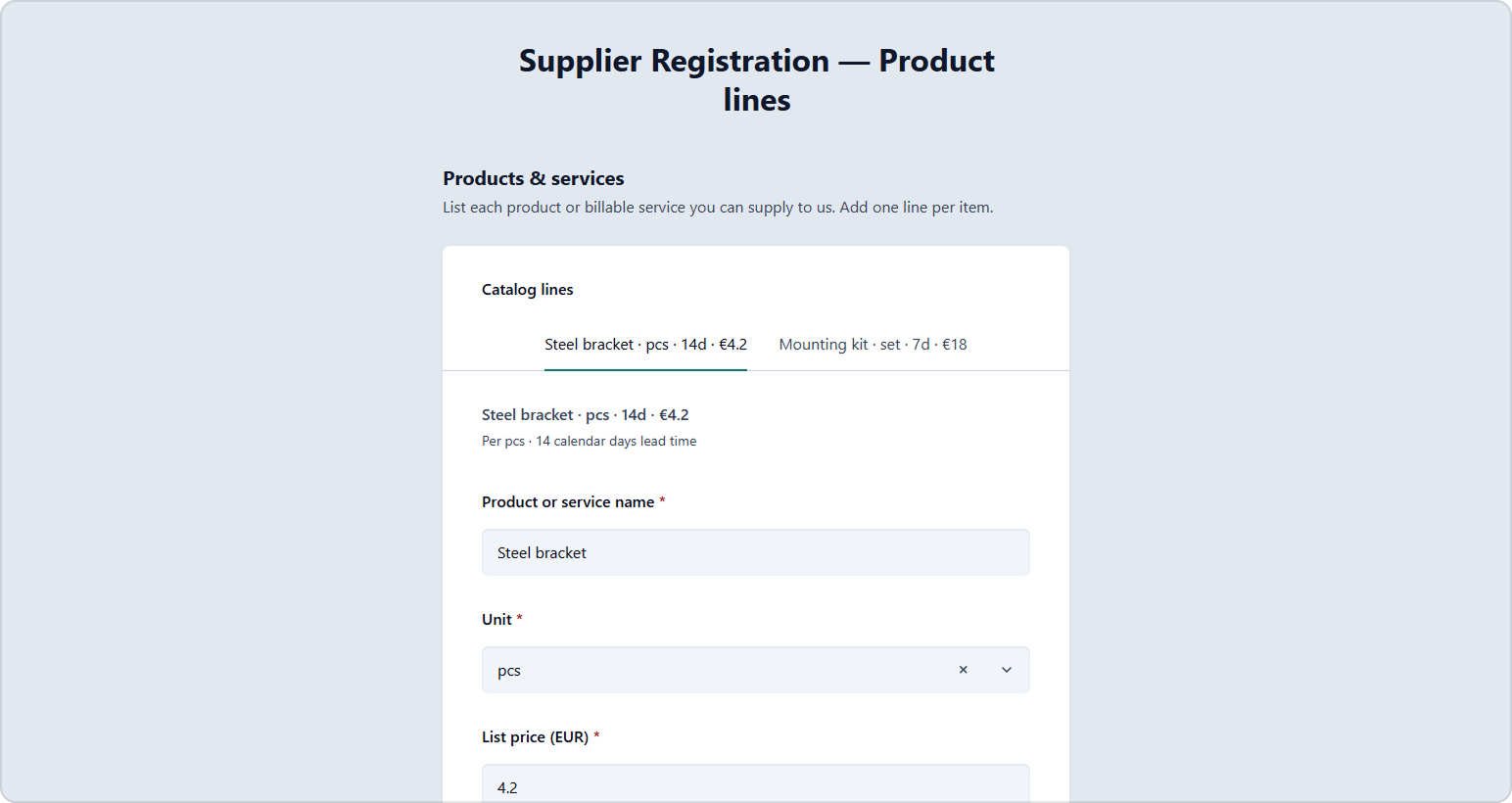
Try the following live demo. Add product lines in tab mode. Switch between tabs, watch titles update from New product line to a compact summary with unit, lead time, and price.
Business Scenario: Product Catalog Lines
Continuing our supplier onboarding flow, the purchasing team also needs product or service lines the vendor can supply:
- Product name
- Unit of measure
- List price
- Lead time (days)
Users add lines one by one. In tab mode, each line appears as its own tab. After a few entries, tab titles might look like this:
ISO 4762 M8 bolt kit · pcs · 5d · €2.40Powder-coated shelving unit · set · 21d · €340Annual PM contract (site visit) · hour · 1d · €95Custom CNC machining · kg · 14d · €18.50
Before a product name is entered, the tab shows a placeholder such as New product line. As the respondent fills in unit, lead time, and price, the title grows into the full summary—without opening each tab to see what it contains.
Survey JSON
Enable tab mode with "displayMode": "tab", then bind templateTabTitle to a hidden Expression question. The expression builds a compact summary and falls back to a placeholder when {panel.productName} is empty.
{
  "title": "Supplier Registration — Product lines",
  "pages": [
    {
      "name": "products",
      "title": "Products & services",
      "description": "List each product or billable service you can supply to us. Add one line per item.",
      "elements": [
        {
          "type": "paneldynamic",
          "name": "productLines",
          "title": "Catalog lines",
          "templateElements": [
            {
              "type": "expression",
              "name": "tabTitle",
              "visible": false,
              "expression": "iif({panel.productName} empty, 'New product line', {panel.productName} + ' · ' + {panel.unit} + ' · ' + {panel.leadTimeDays} + 'd · €' + {panel.listPrice})"
            },
            {
              "type": "text",
              "name": "productName",
              "title": "Product or service name",
              "isRequired": true
            },
            {
              "type": "dropdown",
              "name": "unit",
              "title": "Unit",
              "isRequired": true,
              "choices": [
                "pcs",
                "set",
                "kg",
                "hour"
              ]
            },
            {
              "type": "text",
              "name": "listPrice",
              "title": "List price (EUR)",
              "isRequired": true,
              "inputType": "number",
              "min": 0
            },
            {
              "type": "text",
              "name": "leadTimeDays",
              "title": "Lead time (days)",
              "isRequired": true,
              "inputType": "number",
              "min": 0
            }
          ],
          "templateTitle": "{panel.tabTitle}",
          "templateTabTitle": "{panel.tabTitle}",
          "templateDescription": "Per {panel.unit} · {panel.leadTimeDays} calendar days lead time",
          "panelCount": 1,
          "minPanelCount": 1,
          "maxPanelCount": 20,
          "confirmDelete": true,
          "confirmDeleteText": "Remove this product line?",
          "addPanelText": "Add product line",
          "removePanelText": "Remove line",
          "displayMode": "tab"
        },
        {
          "type": "expression",
          "name": "lineCount",
          "title": "Lines added",
          "expression": "countInArray({productLines}, 'productName')"
        }
      ]
    }
  ]
}
Tab Titles with Placeholders
The approach follows the tabbed Dynamic Panel demo:
- Add a hidden Expression question (
"visible": false) insidetemplateElements. - Use
iif({panel.productName} empty, 'New product line', ...)to return a placeholder or the full summary. - Set both
templateTabTitleandtemplateTitleto{panel.tabTitle}so tabs and entry headers stay in sync.
Use {panelIndex} in the placeholder if you prefer numbered tabs: 'Product line #' + {panelIndex}.
Other Summary Formats
The same hidden Expression approach works for other nested records. Choose a format that matches how your team reads the data:
| Pattern | Expression idea | Example tab title |
|---|---|---|
| Name + role | {panel.fullName} + ' · ' + {panel.role} |
Elena Rossi · Procurement lead |
| Name + price only | {panel.productName} + ' — €' + {panel.listPrice} |
Stainless hinge — €12.80 |
| Name + quantity + unit | {panel.productName} + ' · ' + {panel.moq} + ' ' + {panel.unit} + ' MOQ' |
Cable gland · 500 pcs MOQ |
| Conditional prefix | iif({panel.inStock} = 'yes', 'In stock · ', 'Backorder · ') + {panel.productName} |
In stock · ISO 4762 M8 bolt kit |
Keep separators consistent (· or —) so tabs align visually when users scan a long catalog.
Simpler Option: One Field in the Tab Title
When the tab title uses a single question—{panel.productName}—you do not need a hidden Expression. Set templateTabTitle to {panel.productName} and tabTitlePlaceholder to New product line on the Dynamic Panel. The placeholder appears until the user enters a product name.
{
  "type": "paneldynamic",
  "name": "productLines",
  "templateTabTitle": "{panel.productName}",
  "tabTitlePlaceholder": "New product line",
  "templateElements": [
    {
      "type": "text",
      "name": "productName",
      "title": "Product or service name"
    }
  ]
}
Use the hidden Expression from the main example when the tab title combines several fields (name · unit · lead time · price) or needs conditional logic.
Display Modes for Long Nested Sections
For many similar entries, choose a display mode that reduces clutter:
| Mode | Best for |
|---|---|
| List (default) | Short lists; several expanded sections at once |
| Tabs | Medium lists; one entry visible, quick switching (used in the JSON above) |
| Carousel | Mobile-friendly step-through of entries |
All three modes support summarized titles. Pick based on how many fields each nested record contains—not on reporting needs.
Optional: Total at the Parent Level
You can show simple aggregates on the parent form using expressions. To count catalog lines, use the countInArray function with the Dynamic Panel question and the template field name:
countInArray(question, valueField, filter?)
question– The panel array, for example{productLines}.valueField– A question name insidetemplateElements, for example'productName'.filter(optional) – A Boolean expression evaluated per panel row.
Example: "expression": "countInArray({productLines}, 'productName')" counts panels where productName is not empty.
For price rollups per line, store numeric values and sum in your server or use calculated fields when appropriate.
Sample Result JSON
{
  "productLines": [
    {
      "productName": "ISO 4762 M8 bolt kit",
      "unit": "pcs",
      "listPrice": 2.4,
      "leadTimeDays": 5
    },
    {
      "productName": "Powder-coated shelving unit",
      "unit": "set",
      "listPrice": 340,
      "leadTimeDays": 21
    },
    {
      "productName": "Annual PM contract (site visit)",
      "unit": "hour",
      "listPrice": 95,
      "leadTimeDays": 1
    }
  ],
  "lineCount": 3
}
Design Tips
- Keep nested templates short — four to six fields per subform entry works well.
- Put the identifier first — use a hidden Expression for tab titles when the summary combines several fields or needs a placeholder.
- Set
minPanelCountto match policy — require at least one catalog line before submit. - Use
confirmDeleteon financial or compliance data — prevents accidental loss of a line item.
What's Next
Part 3 covers conditional nested sections: show a Safety Data Sheet (SDS) subform with file uploads only when the supplier handles hazardous materials.