Nested Forms in SurveyJS — Collect Related Records in One Submission (Part 1)
Procurement teams often need more than a company name and tax ID. A supplier profile includes related records, such as contact persons, product lines, bank details, and compliance certificates. Sending users through separate forms creates drop-off, duplicate data entry, and messy back-office matching.
SurveyJS solves this with nested forms built from Dynamic Panel—a parent form that contains repeatable subforms (child sections). Respondents add as many entries as needed, and your backend receives a single JSON payload with structured nested arrays.
In This Series
This three-part guide uses a supplier registration example to show how to build nested forms in SurveyJS:
- Part 1 — Collect related records in one submission (this article)
- Part 2 — Add readable summaries to repeatable subforms
- Part 3 — Link parent answers to nested subforms
Example
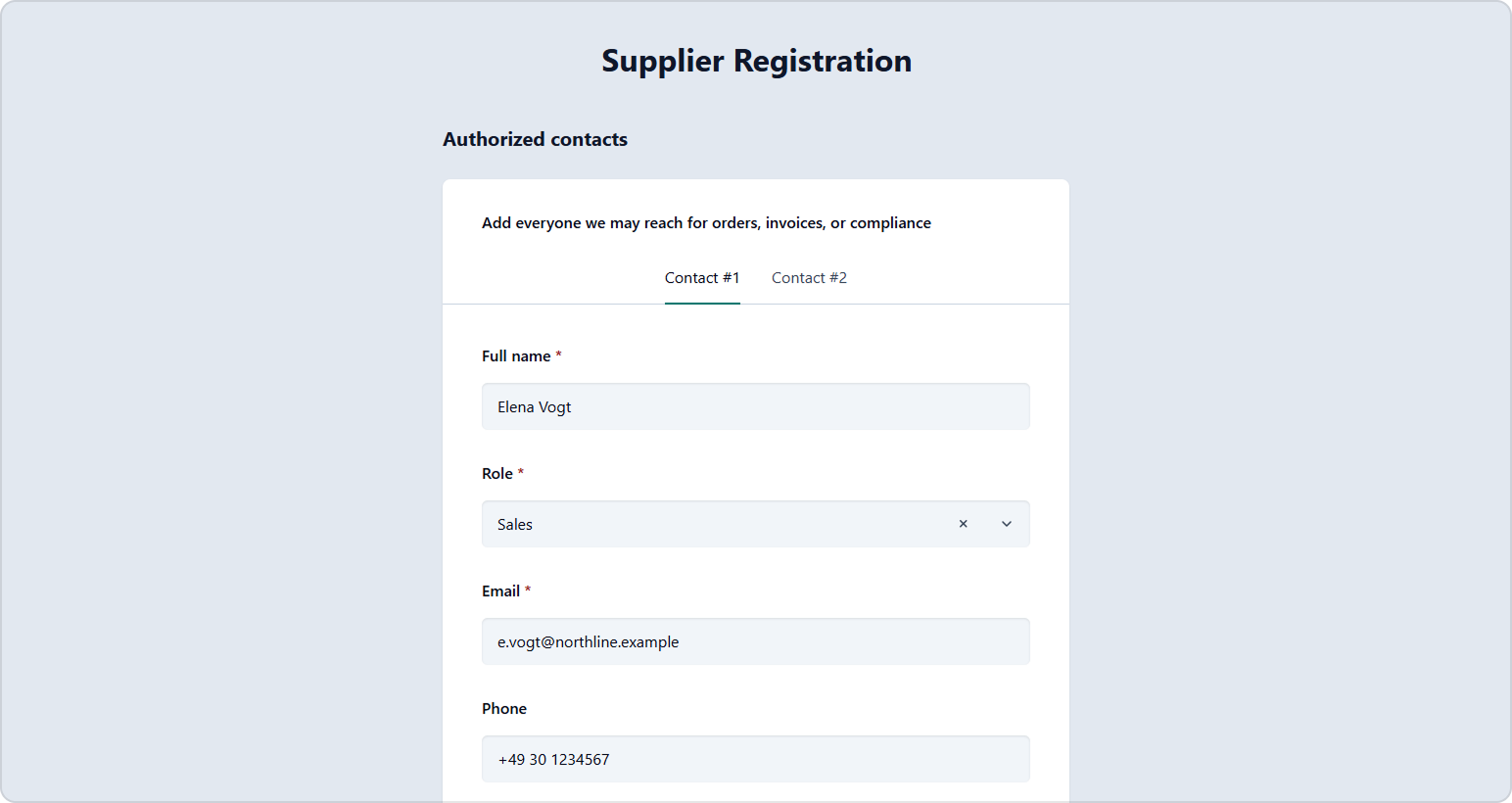
Try the following live demo. Fill out a supplier registration form with company details and a repeatable contacts subform. Add or remove contacts.
Business Scenario: Supplier Onboarding
A purchasing manager asks a new vendor to complete one Supplier Registration form:
- Parent section — Legal company details (one record).
- Nested subform — Authorized contacts (one or many records).
Each contact has the same field structure (name, role, email, and phone). The respondent clicks "Add contact" until every relevant person is listed.
How It Works: Dynamic Panel as a Subform
In SurveyJS, a repeatable nested section is called a Dynamic Panel (paneldynamic). The panel holds a template of questions. Each added entry is created from that template and stores answers as an object in an array.
{
  "title": "Supplier Registration",
  "pages": [
    {
      "name": "company",
      "title": "Company details",
      "elements": [
        {
          "type": "text",
          "name": "legalName",
          "title": "Legal company name",
          "isRequired": true
        },
        {
          "type": "text",
          "name": "taxId",
          "title": "Tax ID / VAT number",
          "isRequired": true
        },
        {
          "type": "dropdown",
          "name": "country",
          "title": "Country of registration",
          "isRequired": true,
          "choices": [
            "United States",
            "United Kingdom",
            "Germany",
            "Other"
          ]
        }
      ]
    },
    {
      "name": "page-contacts",
      "title": "Authorized contacts",
      "elements": [
        {
          "type": "paneldynamic",
          "name": "contacts",
          "title": "Add everyone we may reach for orders, invoices, or compliance",
          "templateElements": [
            {
              "type": "text",
              "name": "fullName",
              "title": "Full name",
              "isRequired": true
            },
            {
              "type": "dropdown",
              "name": "role",
              "title": "Role",
              "isRequired": true,
              "choices": [
                "Sales",
                "Billing",
                "Technical",
                "Compliance"
              ]
            },
            {
              "type": "text",
              "name": "email",
              "title": "Email",
              "isRequired": true,
              "inputType": "email"
            },
            {
              "type": "text",
              "name": "phone",
              "title": "Phone"
            }
          ],
          "templateTabTitle": "Contact #{panelIndex}",
          "panelCount": 1,
          "minPanelCount": 1,
          "maxPanelCount": 5,
          "addPanelText": "Add contact",
          "removePanelText": "Remove contact",
          "displayMode": "tab"
        }
      ]
    }
  ]
}
Sample Result JSON
When the form is submitted, parent fields are stored at the top level. Nested entries are stored as an array:
{
  "legalName": "Northline Components GmbH",
  "taxId": "DE123456789",
  "country": "Germany",
  "contacts": [
    {
      "fullName": "Elena Vogt",
      "role": "Sales",
      "email": "e.vogt@northline.example",
      "phone": "+49 30 1234567"
    },
    {
      "fullName": "Jonas Meier",
      "role": "Billing",
      "email": "billing@northline.example"
    }
  ]
}
This structure maps cleanly to a one-to-many relationship in your CRM or ERP: one supplier row and many contact rows linked by supplier ID.
When to Use a Nested Subform
| Situation | Use a nested subform |
|---|---|
| Number of child records is unknown upfront | |
| Each child record has the same fields | |
| Data must be captured in one session | |
| User needs to review or edit a list of entries they just added | (entry titles help — see Part 2) |
| User needs to browse or filter historical records | (use your app or reporting layer) |
Key Settings for Nested Business Forms
minPanelCount/maxPanelCount– Set limits (for example, at least one billing contact and at most five contacts).panelCount– Shows one empty contact by default so users know what to fill in.addPanelText/removePanelText– Use plain business language instead of generic labels.
SurveyJS is built primarily for data collection. Nested sections help respondents enter related records during a single form session. Tabular layouts can support that workflow, but full data-grid features—loading records from a server, filtering, sorting, and browsing existing data—are usually handled in your application, not inside the form.
What's Next
In Part 2, we enhance the respondent experience: each nested entry gets a readable summary title so the parent form feels like a scannable list—not a wall of duplicate fields.