How to Create Multilingual Surveys that Include Spanish with SurveyJS
SurveyJS Form Builder includes built-in translation and localization capabilities that enable form designers to create multilingual forms and surveys efficiently. With localization deeply integrated into its core, SurveyJS provides over 50 language dictionaries out of the box and offers scalable translation management options for large or distributed projects.
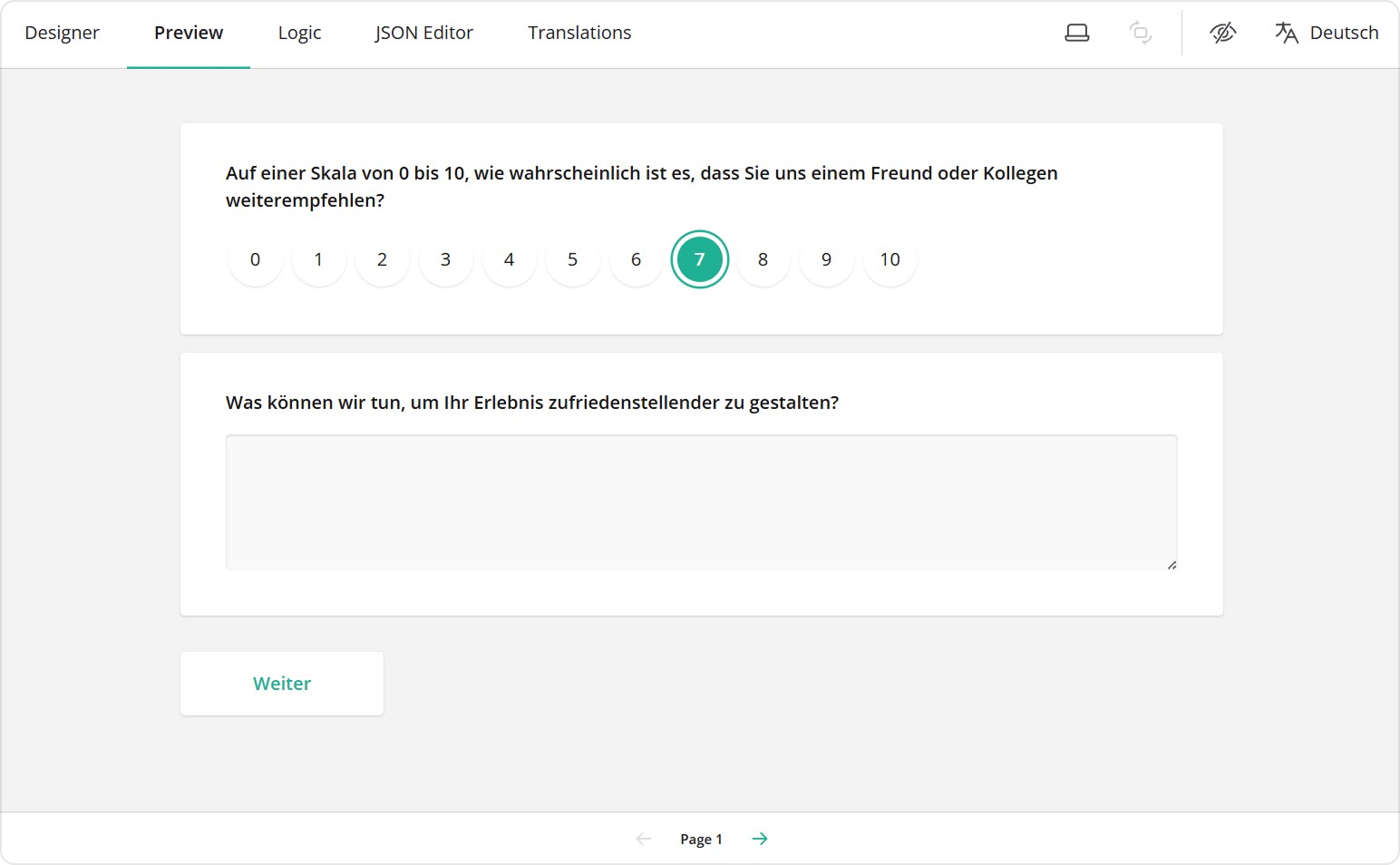
In this blog post, we introduce two translation mechanisms available in SurveyJS: manual translation for full editorial control and AI-powered translation for rapid, high-quality, context-aware localization.
Enable Form Localization in SurveyJS
Prerequisites
To begin translating your forms, you need SurveyJS Form Builder integrated into your application as well as the SurveyJS localization engine and language dictionaries. SurveyJS Form Builder supports React, Angular, Vue, and vanilla JavaScript. Follow the setup instructions for your framework:
To load localization dictionaries and enable the language engine, refer to the following documentation. You can choose to load all languages or only the locales required in your application:
Localization Architecture
SurveyJS localization covers two types of content:
- UI elements — Navigation controls, error messages, and other built-in interface strings.
- Survey contents — Question titles, descriptions, choices, placeholders, and other user-authored texts.
UI elements are localized automatically using the provided dictionaries. You can refine these translations or add your own dictionary when necessary. Survey content, on the other hand, is fully controlled by authors and can be localized manually or through AI-assisted workflows.
Manual Translation
Designer Tab
The Designer tab provides a simple and intuitive way to localize smaller surveys. Start by configuring your form in English. Then select a different language in the Property Grid and replace English text on the design surface and in the Property Grid with its translation.
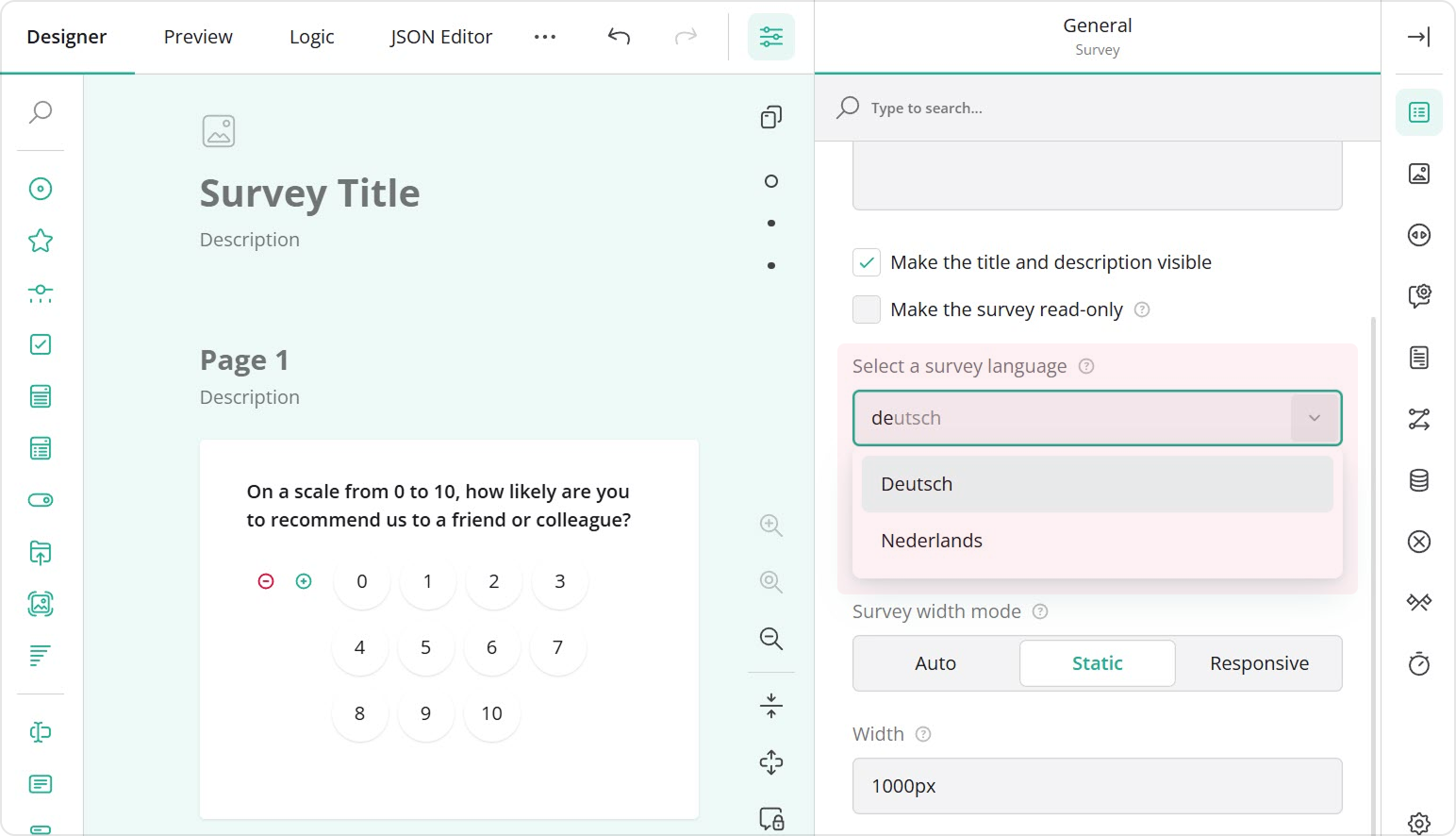
Translations are stored in the survey JSON schema. Each localizable property contains an object with the default value and one or more locale-specific values. The example below shows a Rating Scale question with English and German translations for the title property:
{
  "type": "rating",
  "name": "nps-score",
  "title": {
    "default": "On a scale from 0 to 10, how likely are you to recommend us to a friend or colleague?",
    "de": "Auf einer Skala von 0 bis 10, wie wahrscheinlich ist es, dass Sie uns einem Freund oder Kollegen weiterempfehlen?"
  },
  "rateCount": 11,
  "rateMin": 0,
  "rateMax": 10
}
Translations Tab
The Translations tab provides a translation grid where each row corresponds to a localizable string and each column represents a language. The first column displays the default source language. This layout helps you translate surveys into multiple languages more efficiently.
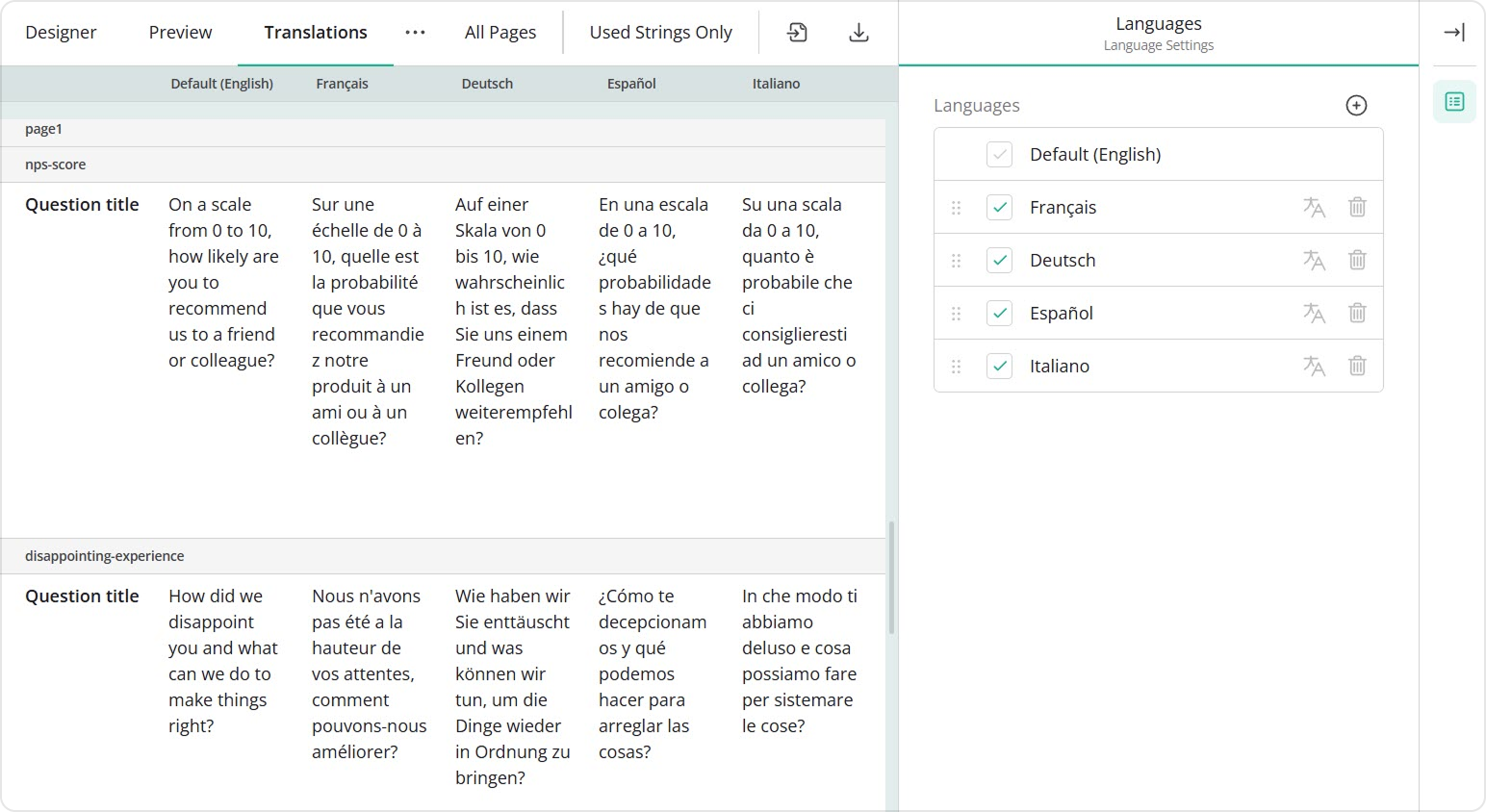
To get started, click Add Language and choose the locales required for your survey. Then add translations directly in the corresponding grid columns.
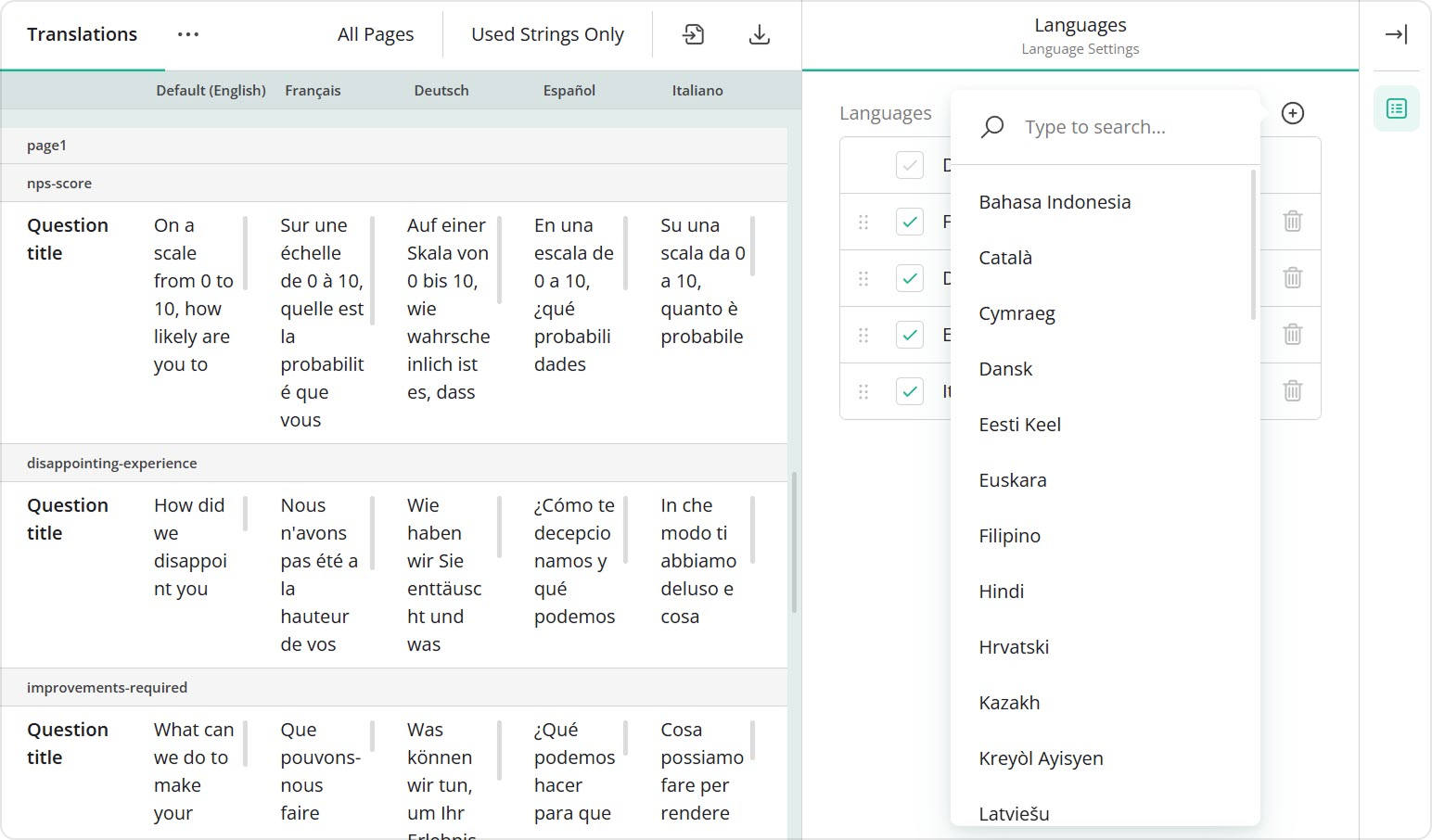
If you are currently working on a specific language, for example Spanish, you can hide other languages by unchecking them in the sidebar. This hides columns in the UI but does not remove languages from your survey JSON schema. To remove a language entirely, click the trash bin icon next to the locale.
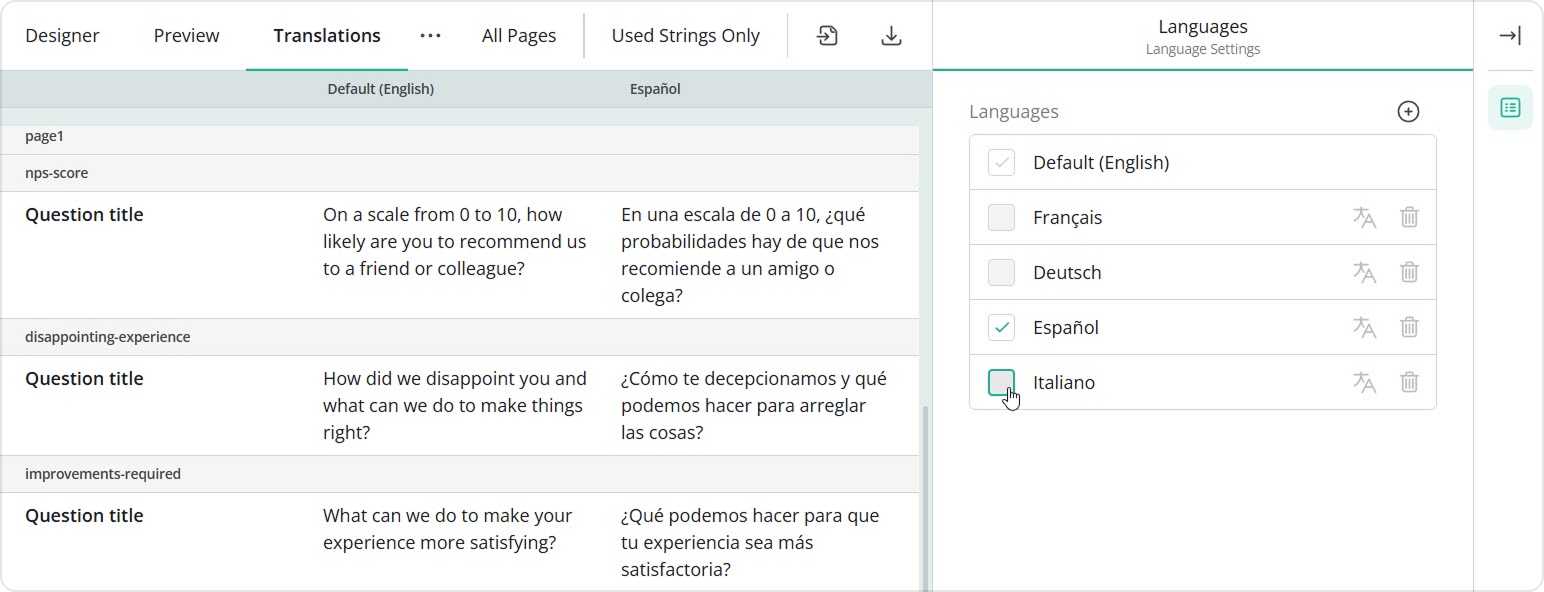
To enable the Translations tab, set the showTranslationTab property to true when configuring Survey Creator options:
const creatorOptions = {
   showTranslationTab: true,
   //...
};
const creator = new SurveyCreator.SurveyCreator(creatorOptions);

// In modular applications:
import { SurveyCreatorModel } from "survey-creator-core";

const creatorOptions = {
   showTranslationTab: true,
   //...
};
const creator = new SurveyCreatorModel(creatorOptions);
By default, users can translate surveys into any supported language. To restrict the list of available locales, configure the surveyLocalization.supportedLocales array:
Survey.surveyLocalization.supportedLocales = ["en", "de", "es", "fr"];

// In modular applications
import { surveyLocalization } from 'survey-core';
surveyLocalization.supportedLocales = ["en", "de", "es", "fr"];
AI Translation
AI-powered translation can significantly accelerate survey localization. To use AI translation in Survey Creator, deploy your language model and expose an API endpoint that SurveyJS can call.
SurveyJS supports two primary AI-driven localization workflows:
One-Click Survey Localization
In this workflow, you define the source and target languages and add a single Localize Survey button to the form builder. When this button is clicked, the entire survey is translated automatically. Authors can then refine translations directly in the Designer or Property Grid.
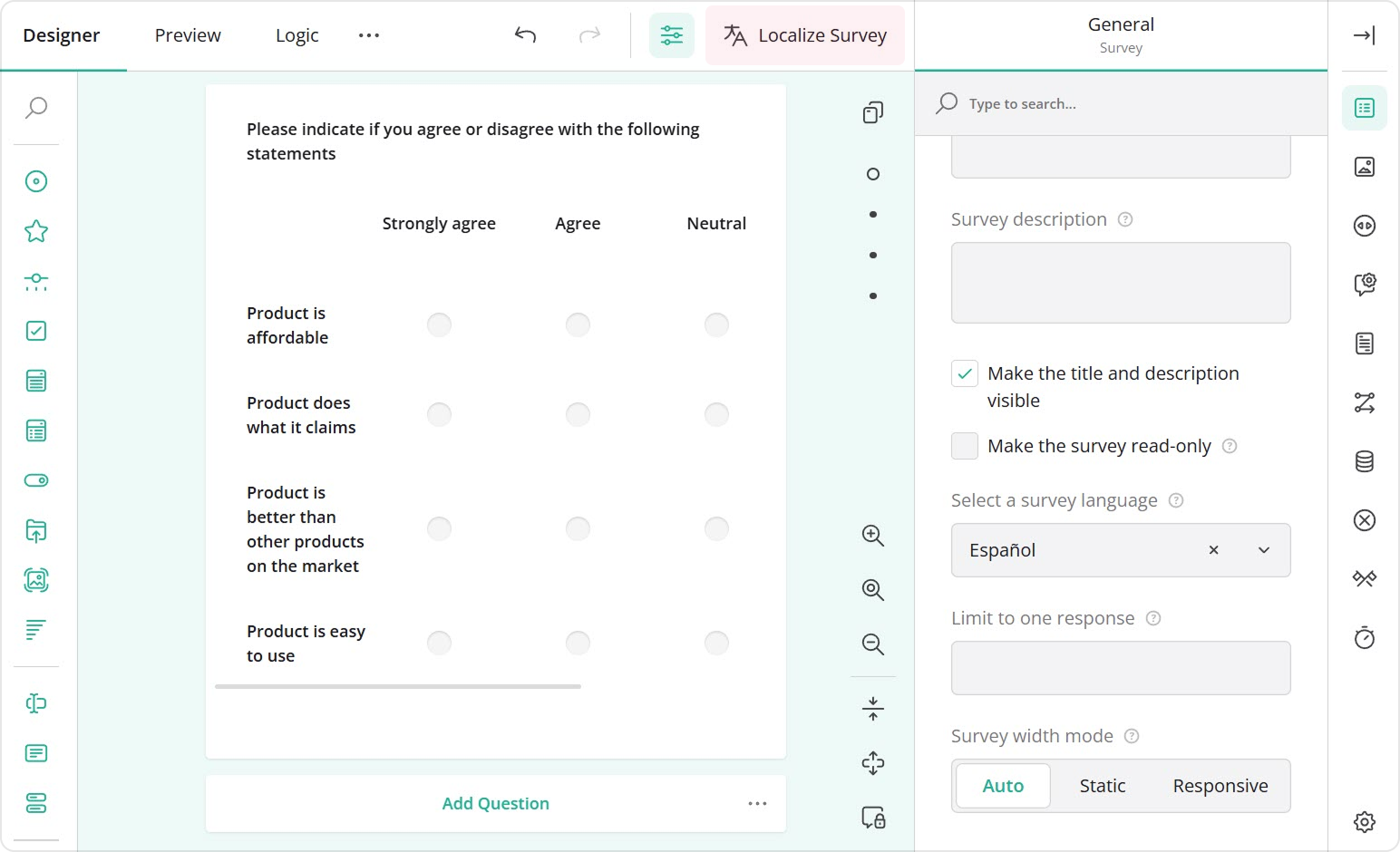
For implementation details, refer to this example:
One-Click Survey Localization Using AI
Auto-Translate Individual Languages
This workflow allows authors to select languages in the Translations tab, auto-translate content for each language, and edit translations in the grid.
Click the Auto-translate button next to a target language to open the automatic translation dialog.
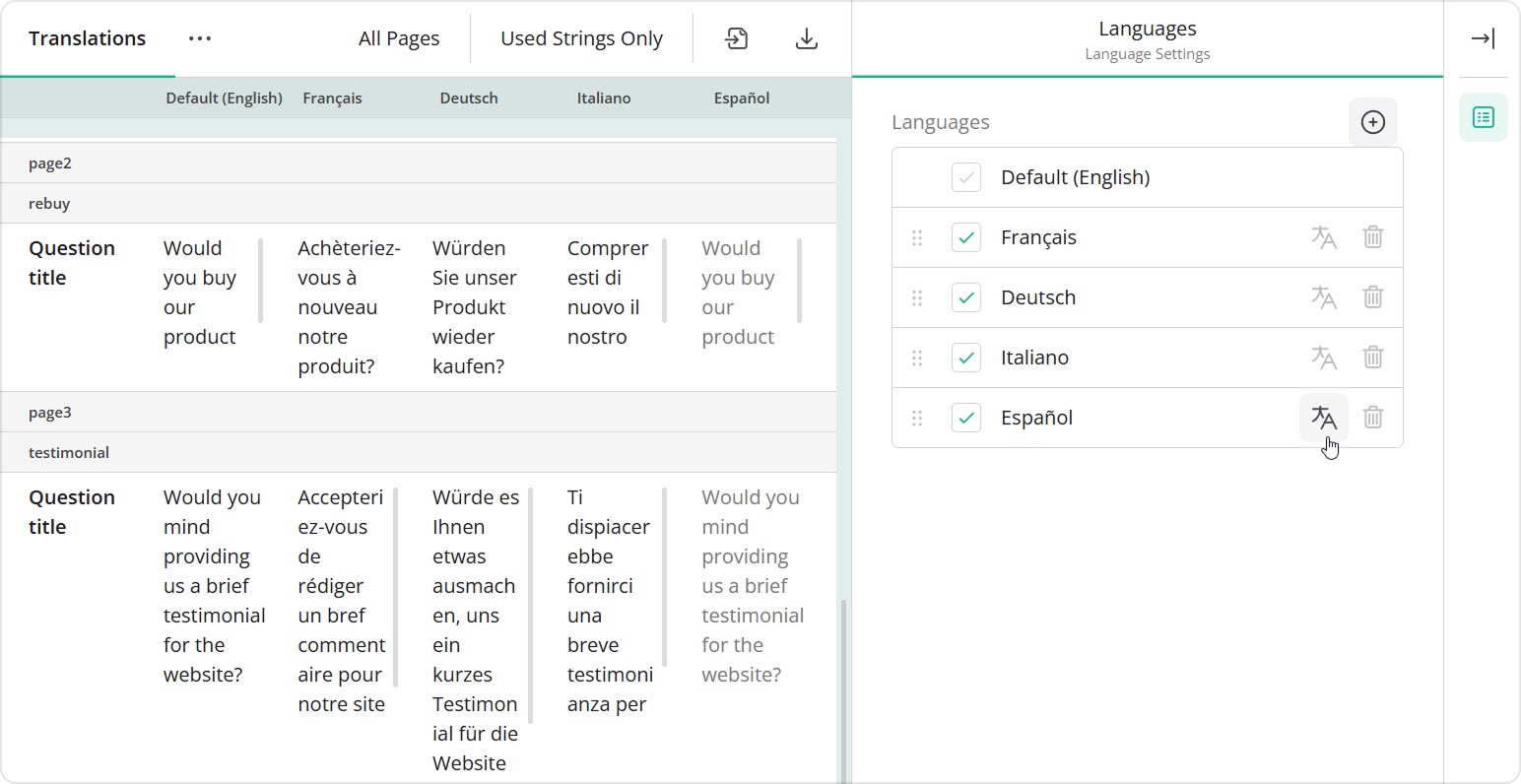
Inside the dialog, click Auto-translate All. The deployed AI model receives source strings and returns translated text. The grid populates with the results, which authors can adjust as needed.

For a full implementation guide, see the following demo:
Advanced Localization Features
Beyond basic translation, SurveyJS offers additional capabilities designed to support complex localization scenarios in multilingual applications.
Right-to-Left (RTL) Language Support
For right-to-left languages such as Arabic, Hebrew, and Persian, SurveyJS automatically adjusts the survey layout to reflect correct reading direction. This includes text alignment, component mirroring, and repositioning of interface elements such as validation icons, dropdown arrows, radio buttons, checkboxes, and matrix cells. Simply set the survey locale to an RTL language, and the Form Builder applies the necessary transformations.

Dynamic Language Selection
SurveyJS also allows respondents to switch languages while completing a survey. In Survey Creator, a language selector is available by default within the Preview tab:
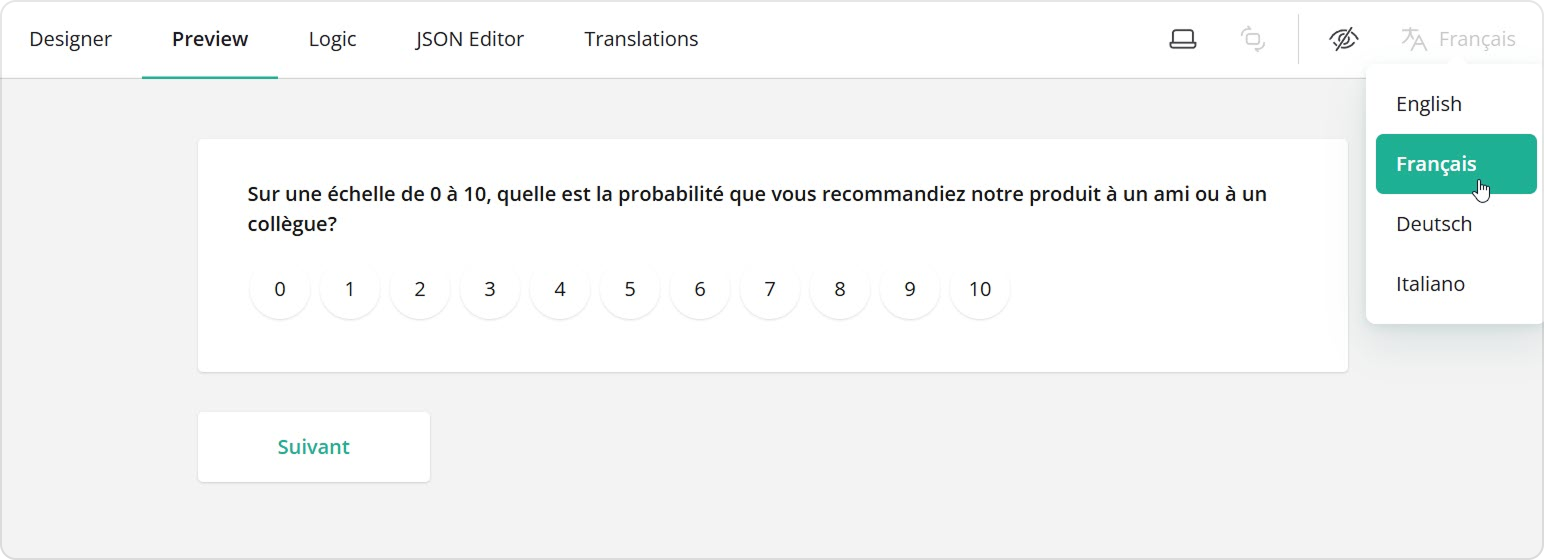
For standalone surveys, you can provide a custom language-switching UI—typically a dropdown. When respondents change languages mid-survey, SurveyJS preserves all existing answers and immediately updates visible text using the appropriate translations. This is especially useful for international audiences who may begin in one language and switch to another for specific terminology. Language names can also be displayed in their native scripts to ensure accessibility for all users.
For a working example, see the following demo:
Create Custom Locale
SurveyJS ships with UI translations for more than 50 languages, but you may need to introduce a new language or adapt existing translations to match your organization's terminology. Creating a custom locale involves defining the full set of UI strings and registering them through the localization API. After registration, the custom locale appears alongside built-in languages and behaves identically.
This approach also supports regional variants. For example, you can define separate locales for European and Brazilian Portuguese or for different English variants (US, UK, AU), each with region-specific vocabulary and phrasing.
For implementation details, refer to the following help topic: