Extract Survey Responses from Paper Forms and PDFs with AI + SurveyJS
TL;DR: A lightweight, open-source alternative to Rossum and ABBYY—for teams collecting form + survey data online and on paper. No duplicate paper/web specs, less manual re-entry, fewer reconciliation errors, and query-ready data from both channels.
Running surveys/forms in the real world always hits the same wall—some responses come in online, some come in on paper, and someone ends up (imperfectly) retyping the paper ones into a spreadsheet or a database. The two channels never share a schema, so reporting needs reconciliation, and "the source of truth" lives in someone's head.
That gap costs you far more than you think. A 2012 PubMed study found that 12.6% of all data entries—roughly one in eight—contained discrepancies between paper records and their electronic counterparts, occurring at twice the rate in paper-based collection as in electronic collection. In healthcare, where paper form volume is highest, Applied Innovation estimates manual data entry error rates reach 20%, and Solum Health puts the downstream cost of those errors at approximately $20 billion a year in denied insurance claims.
Regardless of industry, the underlying problem—two disconnected channels producing data that must be reconciled by hand—exists anywhere paper forms are still in use.
We can do better.
We'll define a form once, as a JSON schema. That same JSON will drive the web form, the AI extraction of scanned or photographed paper forms and PDFs, and the server-side validation before any write hits the database. Unlike traditional OCR, the extractor uses a multimodal LLM guided by your schema—it knows your field names, types, and choices before it reads the image. The result: a lightweight, open-source alternative to enterprise IDP platforms like Rossum and ABBYY, where digital and paper responses land in the same table, same keys, ready to query.
The libraries used are both MIT-licensed and free:
SurveyJS Form Library
Renders the digital form and exposes a programmaticModelyou can validate against on the server.AI Form Response Extractor
A free and open-source alternative to enterprise IDP software like ABBYY. Takes a scan or photo of a filled paper form plus the same survey JSON, and returns structured answers mapped to your fields.
How to Collect Survey Data Online and Offline with One JSON Schema
The core idea is this:
One schema file
survey.jsonis the contract—fields, types, choices, and validation rules—shared by every part of the system.Two ingestion paths
For digital submissions, your rendered form UI submitssurvey.datafrom the browser. For paper submissions, you scan in a filled form (PDF or JPEG/PNG)—and it goes through the SurveyJS AI Form Response Extractor.One validation layer
The server loads the samesurvey.jsonand validates every incoming payload—online or paper—before anything is persisted.One database
Responses from both sources then land in the same table, with the same keys, distinguished only by asourcecolumn.
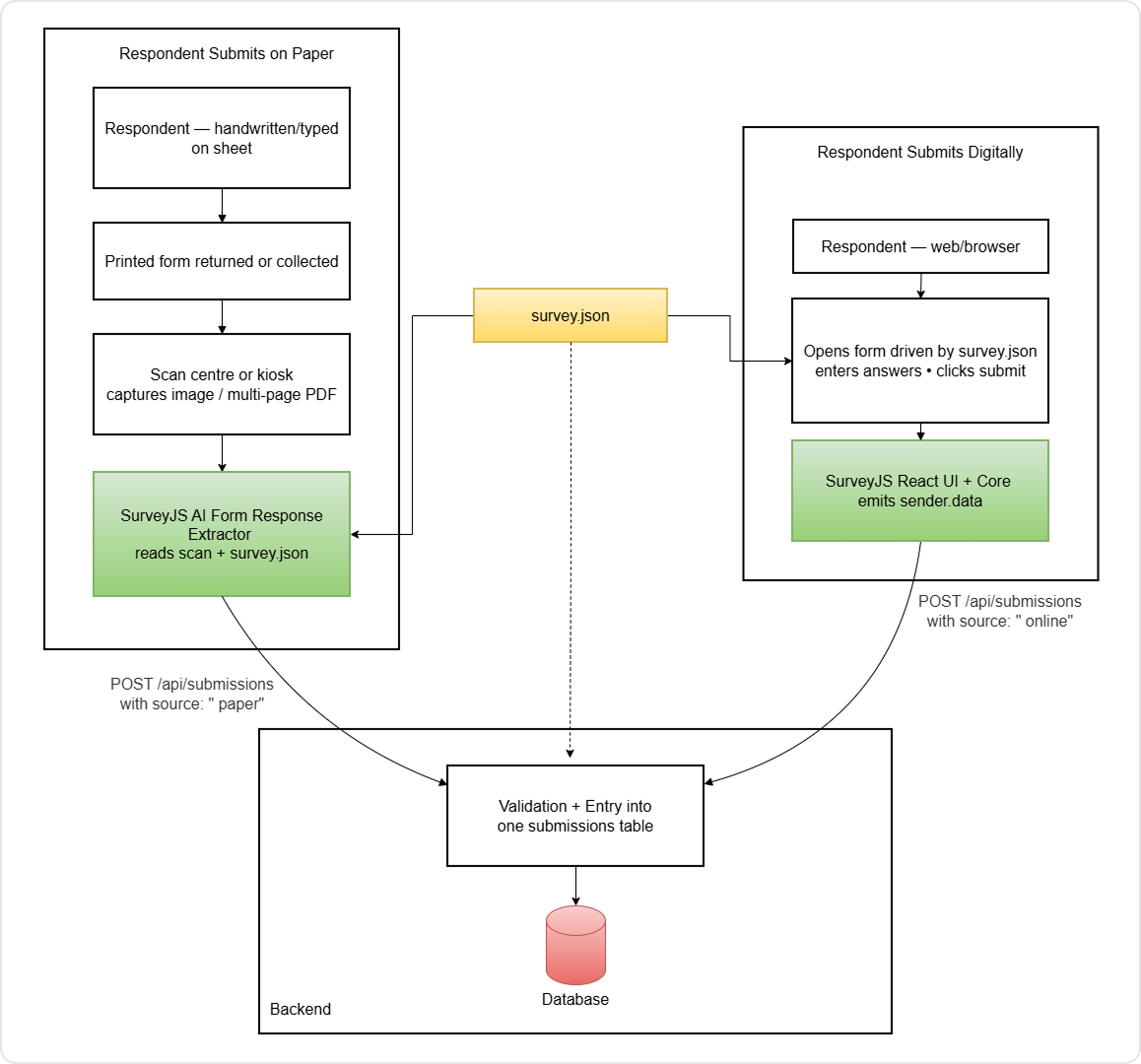
You do not need separate definitions for paper and web. You do not keep a second "paper form spec" alongside survey.json or widen the database with duplicate columns whenever a question changes. The database stores responses as JSON keyed by each question's name, so structural changes ship in one file (survey.json) from both ingestion paths.
You also do not re-implement required fields, emails, ratings, or choice lists in backend code by hand—the same SurveyJS Model you use in the browser runs on the server, so rules stay aligned with what respondents see.
Define a SurveyJS JSON Schema for Online and Paper Forms
Everything starts with a SurveyJS JSON schema. Let's consider a simple Customer Feedback form covering the question types most teams actually use: short text, an email field, a 1-5 rating, single-choice, and a long-text comment.
{
  "title": "Customer Feedback",
  "pages": [
    {
      "name": "page1",
      "elements": [
        {
          "type": "text",
          "name": "fullName",
          "title": "Full Name",
          "isRequired": true
        },
        {
          "type": "text",
          "name": "email",
          "title": "Email Address",
          "inputType": "email"
        },
        {
          "type": "rating",
          "name": "satisfaction",
          "title": "How satisfied are you with our service?"
        },
        {
          "type": "radiogroup",
          "name": "recommend",
          "title": "Would you recommend us?",
          "choices": [
            "Yes",
            "No",
            "Maybe"
          ]
        },
        {
          "type": "comment",
          "name": "feedback",
          "title": "Additional comments"
        }
      ]
    }
  ]
}
The SurveyJS Form Library supports many more element types and layouts. Check the official Form Library demos overview for matrices, dynamic panels, masked input fields, etc.
A few things in here matter for both paths:
nameis the storage key
Whatever you put inname(fullName,email,satisfaction,recommend,feedback) is what appears insurvey.datafrom the browser and in the extractor's data for scans. Pick stable, machine-friendly names; you will live with them in your database.titleis what users see and what the LLM reads
Keep titles unambiguous. For the paper path, the extractor uses the title text from the schema to identify fields on the scan—vague labels make extraction harder.Choice values matter
Forradiogroup,dropdown, andcheckbox, the stored value is the option'svalue(or the string itself, if you used a plain string array). The extractor normalizes the display text it finds on paper back to that canonical value.Required and typed fields are enforced on both paths
isRequired: trueandinputType: "email"are not just UI hints; they become server-side rules when we load the schema into a SurveyJSModelto validate incoming payloads.
You can author this JSON by hand using the Form Library API or visually in Survey Creator. The pipeline we use here does not care how the JSON was produced; it only cares that the same file is reachable by the browser app, the server, and the extraction script.
Save the file as survey.json at the root of your project. The next sections load it from three places: the React app that renders the form, the extraction script that processes scans, and the API that validates and stores submissions.
How to Collect Survey Responses Online with SurveyJS
The digital path uses SurveyJS Form Library to render the form in the browser and hand you the answers as a plain JSON object when the respondent submits. No template engine, no field-by-field state management—you load the schema, render the <Survey> component, and read survey.data in the onComplete event handler.
Install the runtime packages:
npm i survey-core survey-react-ui
SurveyJS UI is available for React, Angular, Vue 3, and plain JavaScript.
Then point the model at survey.json and POST the result to your backend:
import { useMemo } from 'react';
import { Model } from 'survey-core';
import { Survey } from 'survey-react-ui';
import 'survey-core/survey-core.css';
import surveyJson from '../survey.json';

export function FeedbackForm() {
  const model = useMemo(() => {
    const m = new Model(surveyJson);

    m.onComplete.add(async (survey) => {
      const res = await fetch('/api/submissions', {
        method: 'POST',
        headers: { 'Content-Type': 'application/json' },
        body: JSON.stringify({
          source: 'online',
          payload: survey.data,
        }),
      });
      if (!res.ok) {
        const message = await res.text();
        alert(`Save failed: ${message || res.status}`);
      }
    });

    return m;
  }, []);

  return <Survey model={model} />;
}
survey.data is the canonical SurveyJS data object: keys are question names, values follow the type of each question (string, number, array for checkbox, etc.). For the schema above, a completed submission looks like this:
{
  "fullName": "Walter S. Skinner",
  "email": "skinner@example.com",
  "satisfaction": 5,
  "recommend": "Yes",
  "feedback": "Truly enjoyed your chai latte."
}
That object is the target shape for the entire system. Everything else—the paper extractor, the server validator, the database row—speaks this exact language, keyed by fullName, email, satisfaction, recommend, feedback.
Just remember that client-side validation already runs before onComplete. SurveyJS enforces isRequired, inputType: "email", and per-question validators in the browser. By the time you POST survey.data, you can assume it satisfies the schema as seen by the browser. The server still re-validates against the same schema—because clients should never be the only enforcement point.
You should also wrap the payload with a source field. The handler sends { source: 'online', payload: survey.data }, not just survey.data. This lets the same API endpoint accept both online and paper submissions and store them in one place. The paper path sends { source: 'paper', payload: result.data, ... } with the same payload shape.
That's it. From the dev perspective, online collection is simply render SurveyJS → POST survey.data.
Extract Survey Responses from Paper Forms, PDFs, and Images with AI
Instead of someone retyping a scan into a web form, the SurveyJS AI Form Response Extractor can extract answers from documents and images using AI—it sends the PDF or scan and your survey.json to a multimodal LLM of your choice, asks it to fill out the form, and returns the answers in the same shape as survey.data.
Remember, this library treats the survey schema as a contract: it builds the prompt from your question titles, types, and choices; calls the model; parses the response; validates it against a Zod schema generated from the form definition; and gives you back a structured result with per-field confidence scores.
Install the package and an LLM SDK (let's use OpenAI's SDK here):
npm i ai-form-response-extractor openai
There's three built-in LLM backends—they all read the relevant API keys from your .env file. Match the provider you pass against this table:
| Backend | Environment variable(s) |
|---|---|
openai(...) |
OPENAI_API_KEY |
anthropic(...) |
ANTHROPIC_API_KEY – install @anthropic-ai/sdk instead of openai above |
ollama(...) |
No API key – can use an optional OLLAMA_BASE_URL if needed (defaults to http://localhost:11434 if omitted); Ollama must be running. |
Set variables in your .env file accordingly:
OPENAI_API_KEY=sk-...
ANTHROPIC_API_KEY=sk-ant-...
# OLLAMA_BASE_URL=http://127.0.0.1:11434   # only if not default
Once that's done, here's our complete extraction script:
import { readFileSync } from 'node:fs';
import { createExtractor } from 'ai-form-response-extractor';
import { openai } from 'ai-form-response-extractor/providers';

const surveyJson = JSON.parse(readFileSync('./survey.json', 'utf-8'));
const image = readFileSync('./scans/customer-1.png');

const extractor = createExtractor({
  provider: openai('gpt-5.4-mini'),
  adapter: 'surveyjs',
  options: {
    confidenceThreshold: 0.75,
    maxRetries: 2,
    preprocessImage: true,
  },
});

const result = await extractor.extractFromImage({
  image,
  formDefinition: surveyJson,
});

console.log(result.data);
console.log(result.confidence);
console.log(result.uniqueId);
A run against a scanned Customer Feedback form returns exactly what the digital path produced:
{
  "fullName": "Walter S. Skinner",
  "email": "skinner@example.com",
  "satisfaction": 5,
  "recommend": "Yes",
  "feedback": "Truly enjoyed your chai latte."
}
A few things that are easy to miss, though:
adapter: 'surveyjs'is what makes the output shapes match
The adapter walks the SurveyJS JSON, generates prompts that include each field'sname+title, and normalizes model output back to canonicalnamekeys and choicevalues. Without it, you would be hand-mapping free-form model output to your schema.extractFromImageaccepts images in various formats
Supported inputs includeBuffer,Uint8Array, file paths, URLs, base64 data URLs, and arrays of pages. For multi-page scans, pass an ordered array of page images. Digital and scanned-image PDFs are also supported on providers that accept native PDF input (OpenAI and Anthropic do; the Ollama provider is image-only).result.confidenceis an array, not a single number
Each entry is a{ fieldName, value, confidence, flagged }record.flagged: truemeans the model's reported confidence for that field fell belowconfidenceThreshold—this is your hook for routing to human review rather than storing directly.result.uniqueIdis auto-detected from QR first, then text-pattern fallback
The extractor checks QR codes first, then regex matches (UUID,ID:,REF:patterns) from decoded document bytes. If you print forms with a unique ID per respondent, this is what lets you merge a paper response with an existing online submission.Swap providers in one line, if you want
You're not vendor-locked to any AI/LLM solution. Replaceopenai('gpt-5.4-mini')withanthropic('claude-sonnet-4-20250514')or even a localollama('gemma4:e4b')and the rest of the script is unchanged.
More on model choice in the Accuracy section at the end of the article.
At this point you have a result.data object that is structurally identical to survey.data from the web form. But we're not done—the next section is where the unification gets enforced: we load survey.json on the server and run the same validation rules against both payloads before saving responses to the database.
Validate Online and Paper Survey Submissions with the Same SurveyJS Schema
SurveyJS does not just render forms—its Model class is the same validation engine on a Node server as it is in the browser. So you can take an incoming payload, build a Model from survey.json, assign the payload to survey.data, and call validate(). Any failures map back to the same isRequired, inputType, and choice rules the browser uses. This is very useful—there is no second validator to maintain.
This further enforces a single source of truth. Without it, anyone can POST { source: 'online', payload: { foo: 'bar' } } and your database happily stores garbage that does not match survey.json.
Wrap the check in a small helper so both the API/digital and the paper paths can call it:
import { readFileSync } from 'node:fs';
import { Model } from 'survey-core';

let cached: Record<string, unknown> | undefined;
function loadSurvey() {
  if (!cached) cached = JSON.parse(readFileSync('./survey.json', 'utf-8'));
  return cached;
}

export type ValidationResult =
  | { ok: true }
  | { ok: false; errors: string[] };

export function validatePayload(payload: Record<string, unknown>): ValidationResult {
  const survey = new Model(loadSurvey());
  survey.data = payload;

  const result = survey.validate(false, false);
  if (result === undefined) {
    return { ok: false, errors: ['Survey uses asynchronous validators; not supported here.'] };
  }
  if (result) return { ok: true };

  const errors: string[] = [];
  for (const q of survey.getAllQuestions()) {
    for (const err of q.errors) {
      const text = err.getText();
      if (text) errors.push(`${q.name}: ${text}`);
    }
  }
  return { ok: false, errors };
}
These conditions are enforced—all derived from survey.json:
Required fields are filled
A POST that omitsfullNameis rejected—the schema marks itisRequired: true.Email is valid
Apayload.emailof"not-an-email"fails underinputType: "email", online and on paper alike.Choices are constrained
Arecommendvalue of"Sometimes"is rejected; only"Yes","No", and"Maybe"pass.Rating is in range
Asatisfactionof7fails therateMin: 1, rateMax: 5envelope.
The two arguments to validate(false, false) are fireCallback and focusFirstError—both UI concerns. Passing false for both disables them, which is the right call on a server with no DOM. The return value is true for valid, false for invalid, or undefined if any validator is asynchronous (a separate code path you opt into with onServerValidateQuestions).
Both ingestion paths call this helper before writing anything.
How to Combine Paper and Online Survey Results in One Database
With validation centralized, the API endpoint that accepts both online and paper submissions can stay simple. The important thing is that the same handler validates both payload types—there is no /api/online vs /api/paper split.
import express from 'express';
import { validatePayload } from './validate-submission-payload.js';
import { insertSubmission } from './db.js';

const app = express();
app.use(express.json({ limit: '2mb' }));

app.post('/api/submissions', (req, res) => {
  const { source, payload, confidence, uniqueId, needsReview } = req.body ?? {};

  if (source !== 'online' && source !== 'paper') {
    return res.status(400).json({ error: 'source must be "online" or "paper"' });
  }
  if (!payload || typeof payload !== 'object' || Array.isArray(payload)) {
    return res.status(400).json({ error: 'payload must be a JSON object' });
  }

  const result = validatePayload(payload);
  if (!result.ok) {
    return res.status(400).json({ error: 'payload does not match survey.json', details: result.errors });
  }

  const id = insertSubmission({ source, payload, confidence, uniqueId, needsReview });
  res.status(201).json({ id });
});
insertSubmissionstringifies thepayloadbefore submitting it to the database and parses it back on read.
The paper script does the same validation locally before writing, so a bad LLM response never reaches the database:
const result = await extractor.extractFromImage({ image, formDefinition: surveyJson });

const validation = validatePayload(result.data as Record<string, unknown>);
if (!validation.ok) {
  console.error('Validation failed:', validation.errors);
  process.exit(1);
}

await fetch('http://localhost:8787/api/submissions', {
  method: 'POST',
  headers: { 'Content-Type': 'application/json' },
  body: JSON.stringify({
    source: 'paper',
    payload: result.data,
    confidence: result.confidence,
    uniqueId: result.uniqueId,
    needsReview: result.confidence.some((c) => c.flagged),
  }),
});
We'll use SQLite for this tutorial, but the pattern carries over to any storage solution you might use (almost 1:1 if you use PostgreSQL). We'll need one table, use one row per submission, save our form response payload as JSON, plus a handful of metadata columns:
CREATE TABLE submissions (
  id           INTEGER PRIMARY KEY AUTOINCREMENT,
  source       TEXT NOT NULL CHECK (source IN ('online', 'paper')),
  payload      TEXT NOT NULL,
  confidence   TEXT,
  unique_id    TEXT,
  needs_review INTEGER NOT NULL DEFAULT 0,
  created_at   TEXT NOT NULL DEFAULT (datetime('now'))
);
Notice what is not in this SQL: there are no columns named after our form fields: full_name, email, satisfaction, recommend, or feedback. Those keys live inside the payload JSON.
The table simply describes a submission—its origin, its review state, its confidence record—and lets survey.json define the shape of the answers. If you want to add a question to the form, you edit survey.json instead, our single source of truth. Your database does not change, neither does your API. Both paths pick up the new question on the next deploy.
How to Store Online and Offline Form Submissions Together in a Database
After running both paths against the same form, the database has two rows in one table: one from the browser, one from a scanned paper copy of the same form. Both speak the same JSON dialect.
A GET /api/submissions shows them side by side:
[
  {
    "id": 2,
    "source": "online",
    "payload": {
      "fullName": "Fox Mulder",
      "email": "trustno1@example.com",
      "satisfaction": 3,
      "recommend": "No",
      "feedback": "Too many questionnaires."
    },
    "unique_id": null,
    "needs_review": 0,
    "created_at": "2026-05-13 09:40:05"
  },
  {
    "id": 1,
    "source": "paper",
    "payload": {
      "fullName": "Walter S. Skinner",
      "email": "skinner@example.com",
      "satisfaction": 5,
      "recommend": "Yes",
      "feedback": "Truly enjoyed your chai latte."
    },
    "unique_id": null,
    "needs_review": 0,
    "created_at": "2026-05-13 09:37:50"
  }
]
A query like this works uniformly across both rows, because both rows have the same keys:
SELECT json_extract(payload, '$.satisfaction')
  AS rating, source
  FROM submissions
That is the whole point. With a unified SurveyJS pipeline, paper responses are first-class data alongside online responses, not a separate spreadsheet someone is maintaining by hand.
That's everything.
How Accurate Is AI Form Extraction from Paper Forms?
For scanned form data extraction via LLM, the clean outputs above are what you should expect from a strong multimodal model. In practice, how accurate the paper path is depends almost entirely on which model you put behind the provider factory.
A frontier model like openai('gpt-5.4-mini') or equivalent is pretty much perfect on typical printed or photographed forms, including the rating control and the email field in this schema. For most teams shipping this in production, it is the path of least surprise.
Local Ollama models vary widely. Smaller multimodal models like gemma4:e4b will get the structure right but might make field-level mistakes. In our test against the same Customer Feedback form, it returned a skimmer@example.com instead of skinner@example.com. Larger local models do better, obviously. If you self-host, plan to evaluate a few options against representative scans before committing.
The SurveyJS AI Form Response Extractor gives you a safety net regardless. Note how confidenceThreshold flags fields whose model-reported confidence is below the bar; result.confidence exposes the per-field record; and your needsReview flag (set from any flagged field) is the natural place to route a submission to human review instead of writing it straight to the database.
Pick the model that fits your accuracy requirements and hosting constraints, and use the confidence machinery to handle the cases where it gets things wrong.
Next Steps: Human Review, Response Merging, and Multi-Page Forms
At this point you have a working hybrid pipeline: one survey.json, two ingestion paths, one validator, one table. Where to go from here? Take your pick:
Human-in-the-loop review
When a submission lands withneeds_review = 1, render it back into a SurveyJS form on a review screen withsurvey.data = row.payload, let a reviewer correct fields, and write the validated result. The form is the editor, for free.Merging duplicates with
mergeResponses
If you print forms with unique IDs (QR codes, respondent IDs) and someone submits both online and on paper, the library'smergeResponseshelper reconciles the pair into one record using aprefer-online,prefer-paper, orhighest-confidencestrategy.Multi-page forms
Pass an ordered array of page images (or a multi-page PDF on providers that support it) toextractFromImage, the SurveyJS adapter handles the rest without any API changes.Generating the paper form itself
If you want the paper form to match the digital one visually, SurveyJS PDF Generator builds a printable PDF directly from the samesurvey.jsonyou have been using throughout.
None of this changes the contract: survey.json defines the questions, both paths produce the same JSON dialect, and the server validates both payloads with the same SurveyJS Model. That is what makes hybrid data collection for paper and digital forms a one-schema problem instead of a two-system reconciliation problem.
FAQ: AI Form Data Extraction for Paper and Online Surveys
Q: What is hybrid data collection for paper and digital forms?
A: Hybrid data collection is the practice of running the same survey or form across two channels simultaneously—a digital form respondents fill in online, and a paper form respondents fill in by hand—and merging both into a single structured dataset. The challenge is that the two channels historically produce incompatible outputs (JSON vs scanned document.) This pipeline eliminates that gap by using a multimodal LLM to extract answers from paper scans and normalize them to the same JSON shape as the digital submissions.
Q: What is the difference between AI form data extraction and traditional OCR?
A: Traditional OCR converts pixels to text in reading order. It has no concept of your form's structure, question names, or allowed values—you get a flat string you then have to parse and map yourself. AI form data extraction is schema-guided: it receives both the image and your survey JSON, uses question titles and types to understand what it is looking for, and returns structured JSON keyed to your field names with confidence scores. It also handles checkboxes, rating scales, radio groups, and layout variations that simple OCR cannot.
Q: Can I combine paper and online survey results in the same database?
A: Yes—that's exactly what this is for. The SurveyJS adapter normalizes paper extraction output to the same key-value shape as survey.data from the browser form. Both are written to the same table with the same payload structure. The only difference is a source column (online vs paper) and, for paper rows, a confidence and needs_review field.
Q: How accurate is AI extraction from scanned paper forms?
A: Accuracy is model-dependent. With a frontier model like gpt-5.4-mini, field-level accuracy on clean printed forms is near-perfect. With smaller local models (Ollama), expect occasional field-level mistakes—a rating off by one, a transposed character in an email address. The library's confidence scoring and confidenceThreshold option give you a hook to route low-confidence extractions to human review rather than storing them directly.
Q: Does the paper form need to look exactly like the digital form?
A: No. Unlike template-based OCR tools that rely on fixed field positions, the SurveyJS AI Form Response Extractor matches answers to schema fields by reading question labels and context. A hand-drawn form, a pre-printed survey from a third party, or a photographed whiteboard with answers next to labels will all work as long as the content is legible and labels are recognizable. Accuracy improves when the form is generated from the same survey.json—via SurveyJS PDF Generator, for example—but it is not required.
Q: Do I need to run my own server, or can I use a managed API?
A: The extraction step calls whichever LLM provider you configure—OpenAI and Anthropic are managed APIs; Ollama runs locally. The rest of the pipeline (validation, storage, API server) is application code you run yourself. There is no SurveyJS-hosted extraction service; the library is open-source and runs in your own Node.js environment.
Q: What happens if I add a new question to the form later?
A: Update survey.json only. The browser form, the extractor prompt, the server-side validator, and result.data output all derive from that file, so they pick up the new question automatically on the next run. Existing database rows will not have a value for the new question—the payload column is a JSON blob, so there is no migration required. If you need to report on the new field across historical data, you can backfill with null or handle the missing key in your query.
Q: Is this approach suitable for multi-page paper forms?
A: Yes. Pass an ordered array of page images (or a native PDF on supported providers like OpenAI and Anthropic) to extractFromImage. The SurveyJS adapter assembles a single structured result across all pages. The Ollama provider is image-only for now, and does not accept PDFs natively.
Q: Is this a good open-source alternative to enterprise IDP like FlexiCapture and Hyperscience?
A: Yes. The SurveyJS AI Form Response Extractor is MIT-licensed and designed explicitly as a lightweight alternative to enterprise Intelligent Document Processing platforms. Of course, it does not include workflow orchestration, vendor-managed hosting, or SLA support—those are the trade-offs you make for a self-hosted, zero-licensing-cost solution. For structured forms, it covers the same extraction and normalization capabilities for only the cost of your LLM (free, if local.)