Collaborative Form Filling
Collaborative form filling enables multiple participants to complete the same form at the same time. Each participant opens a local SurveyJS form instance connected to a shared room. Answer changes appear for everyone in that room, while presence indicators show participants' current questions and cursors.
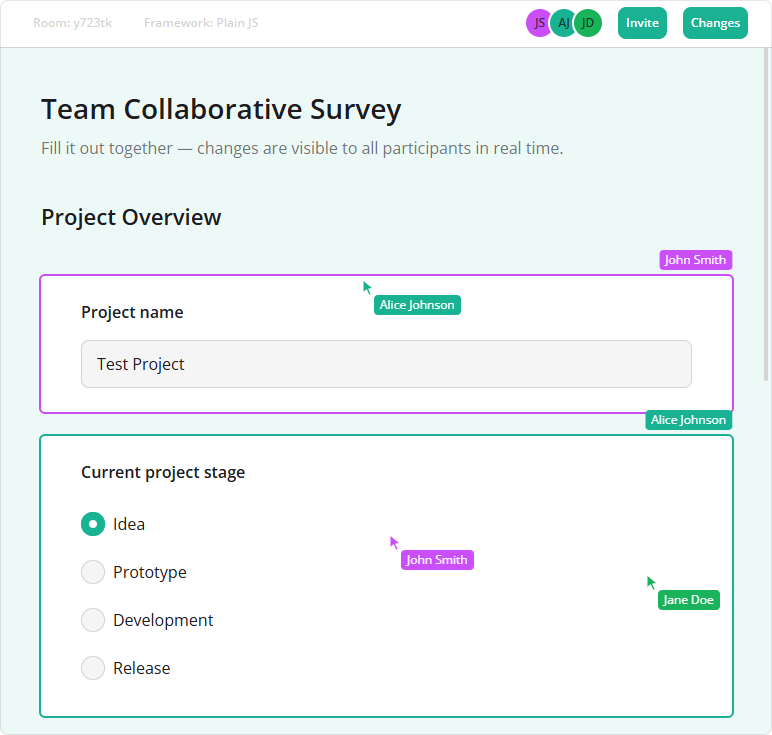
SurveyJS Form Library provides a CollaborationPlugin that synchronizes answers and displays a participants bar, invite links, presence indicators, and change history. Your application supplies the connection and server that exchange updates between participants.
Demo: Collaborative Form Filling
Use Cases
Collaborative form filling is useful when several people contribute to one response:
Assisted data entry
A support representative helps a customer complete a form while both see the same answers.Shared applications
Team members complete different sections of an application, such as project details, schedules, and budgets.Joint reviews
Participants review and correct a shared draft before submitting it.
All participants work on one shared answer set. Use separate response records when you need independent submissions from individual respondents. For collaboration on questions, choices, and form settings, see the following help topic:
Documentation: Collaborative Form Editing
Setup Instructions
Run the Reference Application
The Collaborative Form Filling repository contains a Node.js server and React, Angular, Vue 3, and vanilla JavaScript clients. Participants using different clients can join the same room.
- Clone the repository:
git clone https://github.com/surveyjs/collaborative-form-filling.git cd collaborative-form-filling - Install dependencies, build the clients, and start the server:
npm install npm run build npm run start - Open
http://localhost:3001. In the lobby, select a framework, enter your display name, and create a room with a room ID. Use the sample form or provide your own survey JSON schema. - Click Invite and open the copied link in another browser tab, browser, or device that can reach the server. Join the same room and change an answer to verify that it appears for both participants.
A localhost link works only on the device running the server; use a reachable server address when inviting participants on other devices.
Connect a Form in Your Application
Import CollaborationPlugin from survey-core/collaboration and include both the Form Library and collaboration stylesheets. The plugin does not open a network connection itself. Its onEvent event produces outgoing messages, and its apply(message) method accepts incoming messages.
In the following code, surveyJson is your form definition, roomId identifies the shared room, and inviteUrl is its join link:
import { Model } from "survey-core";
import { CollaborationPlugin } from "survey-core/collaboration";
import "survey-core/survey-core.css";
import "survey-core/collaboration.css";

const survey = new Model(surveyJson);
const collab = new CollaborationPlugin(survey, {
  info: [{ label: "Room", value: roomId }],
  getInviteLink: () => inviteUrl,
});

// Forward plugin events through your WebSocket connection.
collab.onEvent.add((_, { message }) => {
  if (ws.readyState === WebSocket.OPEN) {
    ws.send(JSON.stringify(message));
  }
});

// Apply messages from the server, including the initial room state.
ws.onmessage = (event) => collab.apply(JSON.parse(event.data));
Here, ws is a WebSocket connected to a server that follows the collaboration protocol. Attach the message handler before the server sends the initial room state, then render survey with your framework's SurveyJS component.
When removing the form, call collab.dispose() and close the WebSocket connection. For message forwarding, reconnection, and cleanup, you can reuse the reference application's WebSocket connection helper. This helper is example application code rather than an export from a SurveyJS npm package.
Set Up the Server and Storage
Run the reference server or implement its collaboration protocol in your preferred backend. For each room, the server keeps a form schema and an answer snapshot, sends the current state to new participants, and forwards answer and presence updates to other participants in that room. It must send the initial state before subsequent updates and preserve update order.
For production use, implement room access checks and save the shared response in your database. Define who can submit the response and when the room becomes read-only. Collaboration updates do not submit a completed response automatically—use your app's result storage workflow:
Documentation: Store Survey Results
File storage is also an application responsibility. Handle Form Library's onUploadFiles and onClearFiles events and share the resulting file URLs as answer values. The reference application's file handling example demonstrates this approach:
Limitations
Keep these limitations in mind when using the plugin and reference app:
Competing changes
Synchronization uses last-write-wins at the question-value level. If participants update the same answer, a later update can replace an earlier one. Array and object answers, such as matrix or dynamic-panel values, are shared as whole values rather than merged field by field.Temporary storage in the reference server
Rooms and uploaded files are stored in memory. A server restart clears them, and an empty room is deleted after its configured grace period. Add persistent storage if participants must return later.Offline changes
The reference client replaces local answers with the server snapshot on reconnect. Changes made while disconnected are lost.Connection-scoped history
The Changes panel contains edits observed during the current connection and resets when an initial state is reapplied. It does not provide a durable audit trail.Access control
The reference application has no authentication or room authorization. An invite link or room ID alone does not establish a participant's permissions.
See Also
Send feedback to the SurveyJS team
Need help? Visit our support page