How to Create a Form that Repeats a Group of Fields for Each Selected Option
About Bindings
In some cases, you may need to collect repeatable sets of data from respondents—for example, family members to include in an insurance policy, previous addresses, or test results. Survey Creator allows you to do this using the Dynamic Panel element.
A Dynamic Panel includes the main title (for example, List the countries you've visited in the past 10 years) and individual dynamic titles for each repeatable group of fields. Since you may not know how many entries a respondent needs to provide, a Dynamic Panel allows them to add entries as needed.
When configuring a Dynamic Panel, you can define fixed limits for the number of entries:
- Initial number of entries – the number shown when the respondent reaches the question (default:
0) - Minimum number of entries – the required minimum (default:
0) - Maximum number of entries – the allowed maximum (default:
100)
However, in some cases, you may want the number of entries to be set dynamically—for example, based on selected choices in a multi-select question (such as a Multi-Select Dropdown or Checkboxes) or a numeric input from a Single-Line Input question. You can achieve this using the Bindings property. It connects the Dynamic Panel to another question and automatically adjusts the number of available entries based on the respondent's input.
This guide explains how to:
How to Repeat Form Fields for Each Selected Option
In this example, we use a Multi-Select Dropdown (Tag Box) question. The same configuration applies to a Checkbox question.
Configure the Multi-Select Question
- Add a Multi-Select Dropdown question to your form.
- Set a Question name (ID), Question title, and, optionally, a Question description.
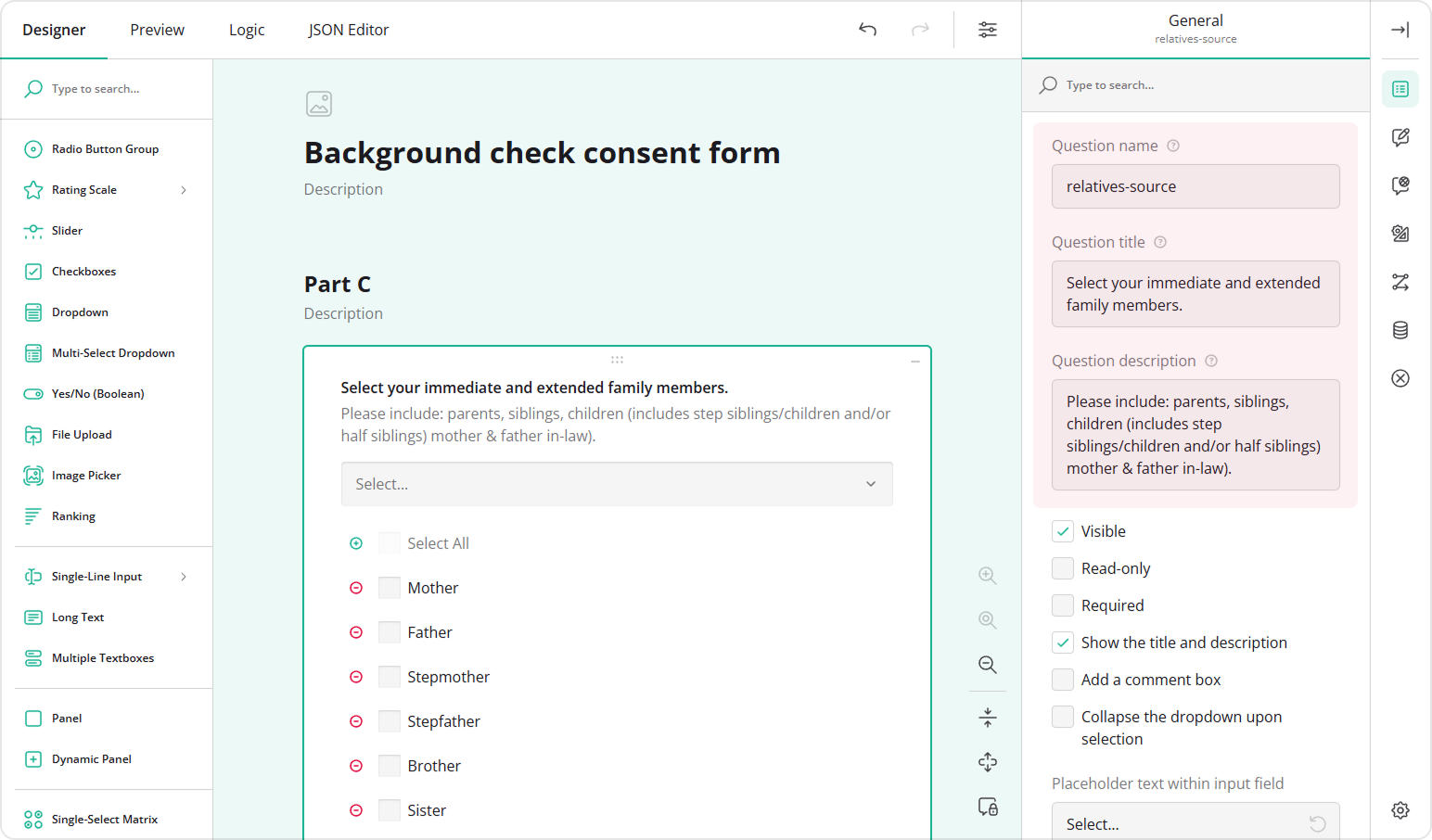
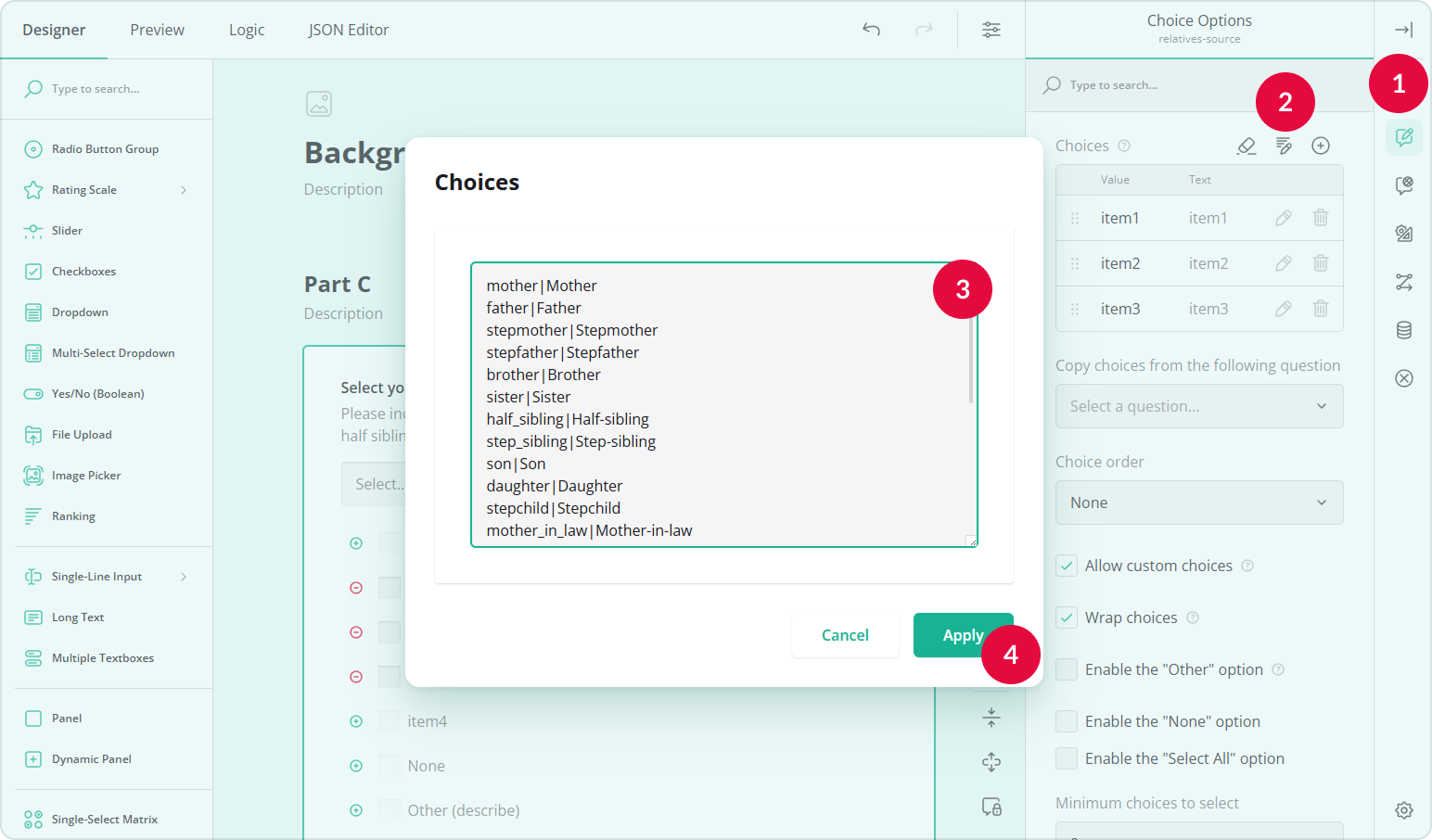
- In the Choice Options category, locate the Choices table and click the Pen icon to enter the choices in bulk.
- Enter your choice options in the popup using the
choiceValue|choiceTextformat. - Click Apply.
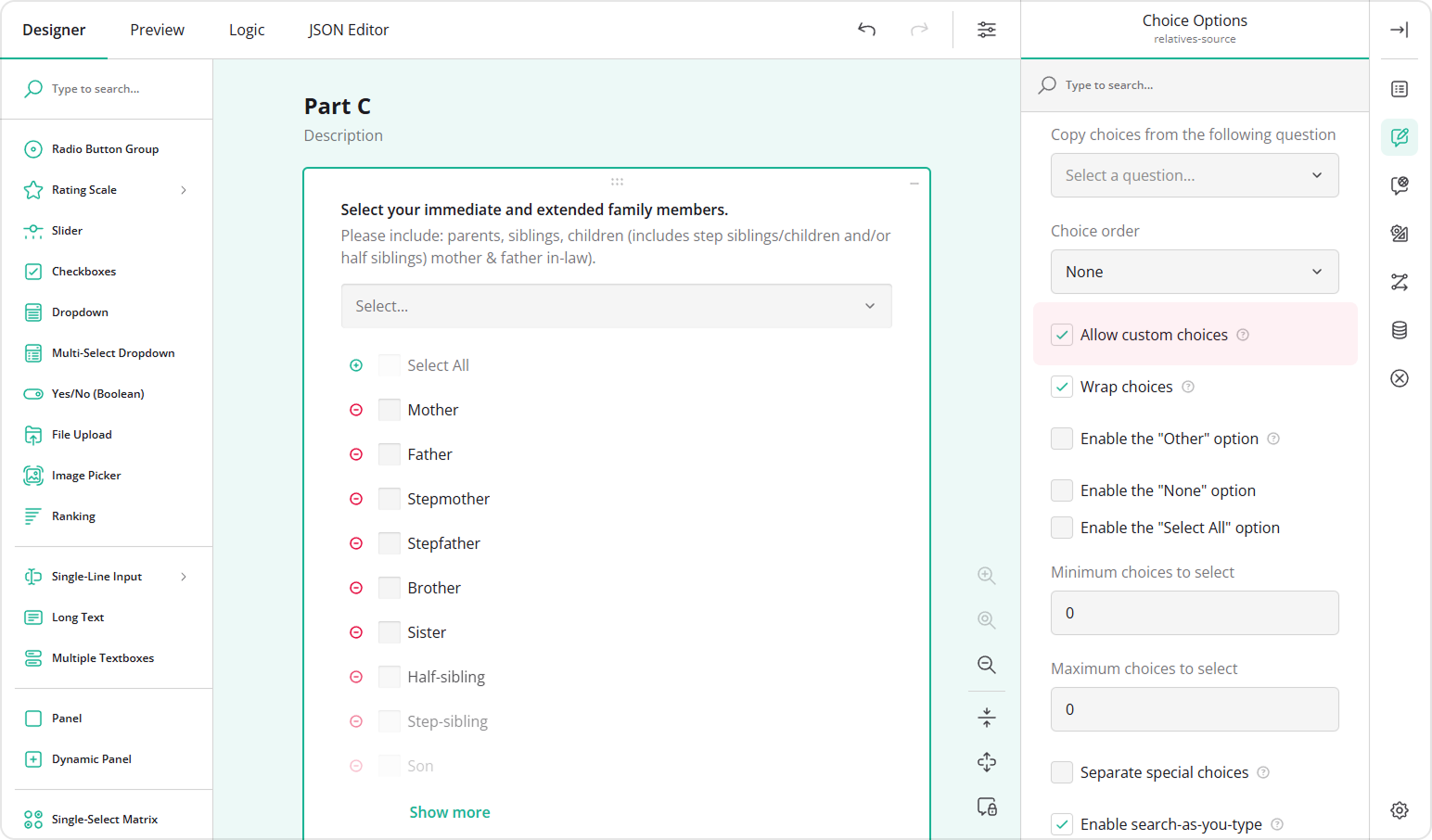
- (Optional) Enable Allow custom choices if respondents should be able to create additional choice options that might be missing.
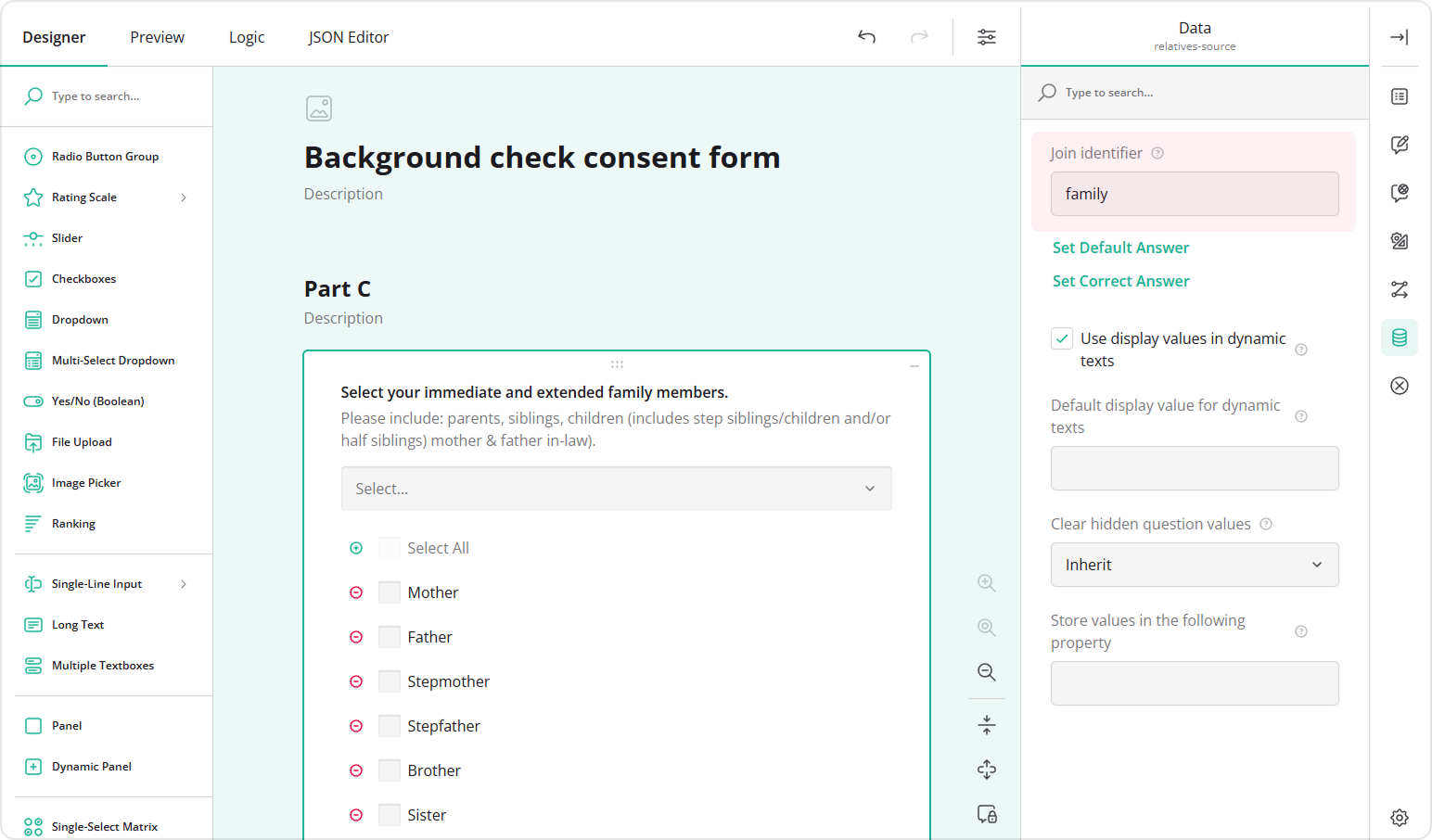
- Go to the Data category and locate Join identifier.
- Enter a value that will connect this question with the Dynamic Panel (for example,
family).
Configure the Dynamic Panel
- Add a Dynamic Panel question to your form.
- Set a Panel name, Panel title, and, optionally, a Panel description.
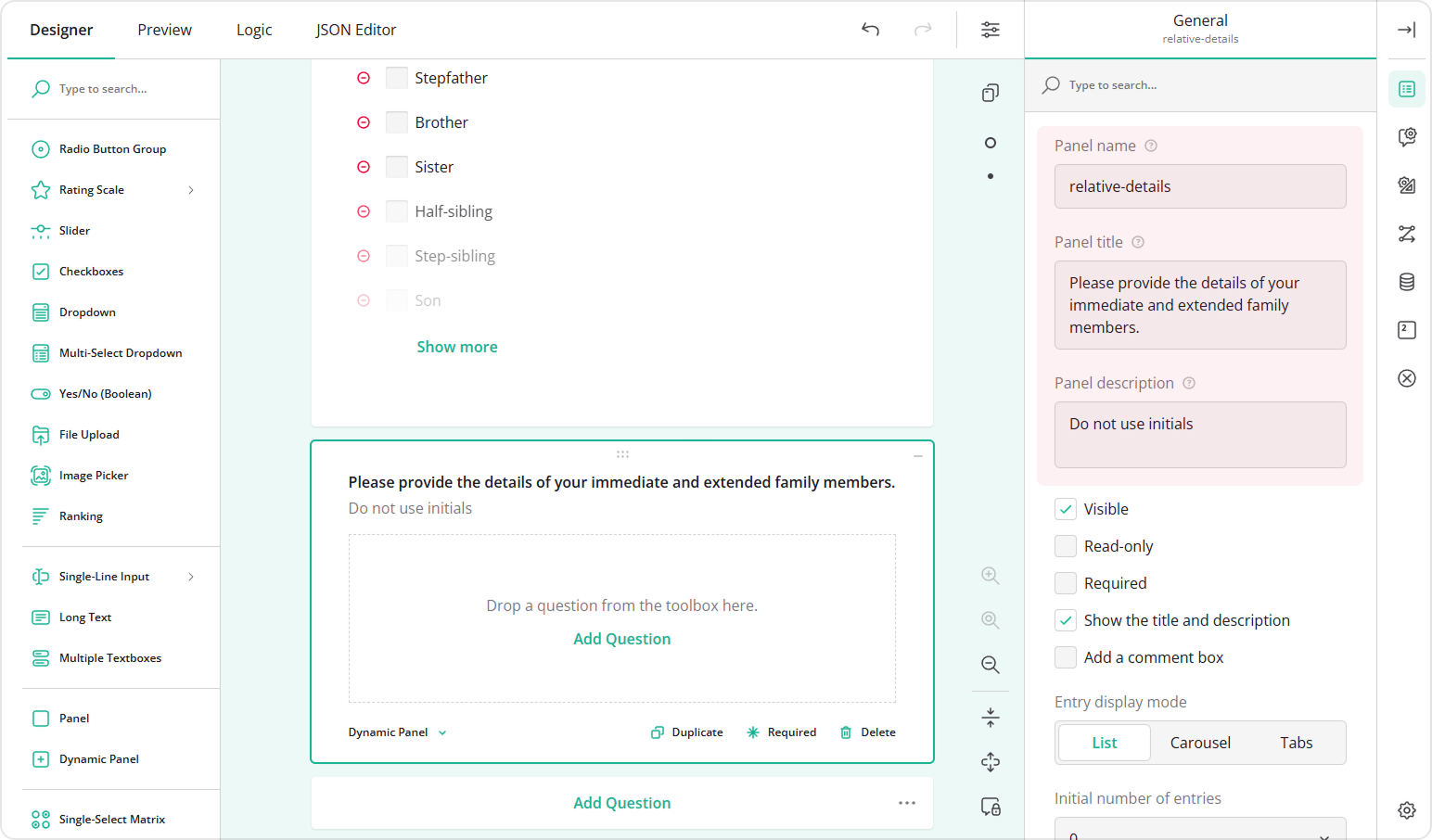
- Add the questions you want to repeat inside the panel.
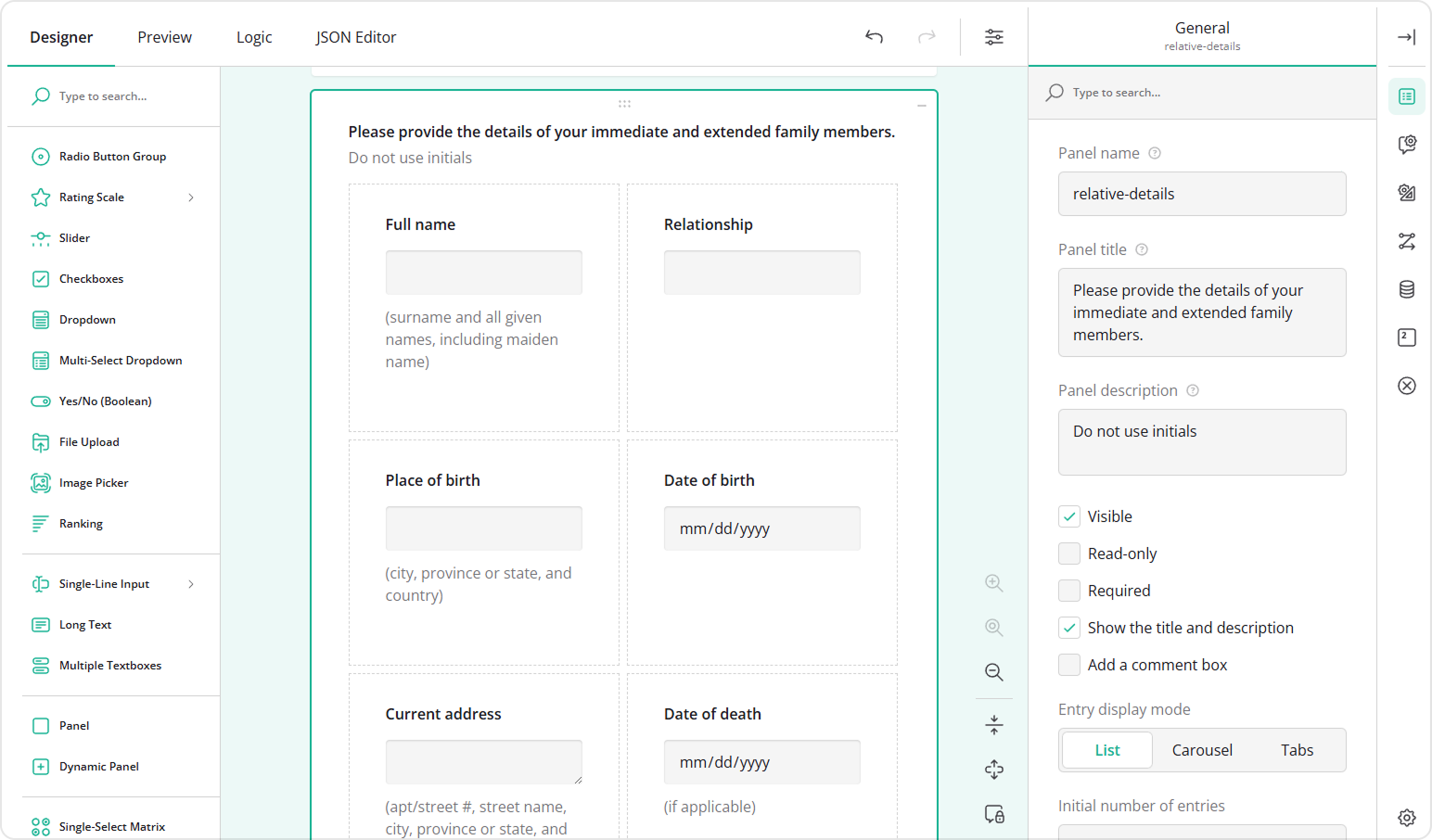
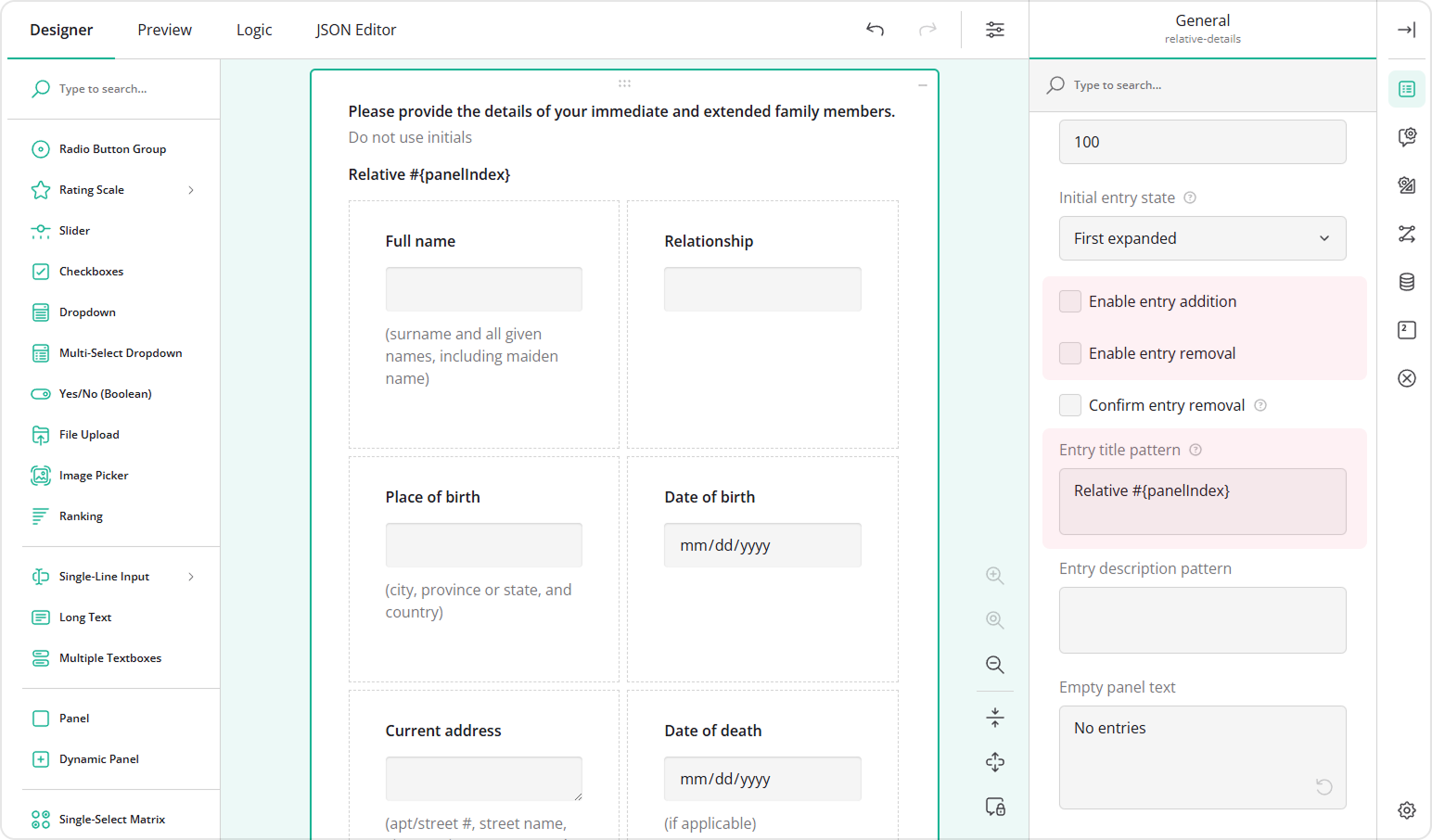
- In the General category unselect the Enable entry addition and Enable entry removal properties. This ensures that respondents cannot manually remove or add new entries, and their number is controlled only by the bindings.
- To create a dynamic title for each entry, locate the Entry title pattern property.
- Enter a title pattern, for example:
Relative #{panelIndex}. The{panelIndex}placeholder represents the entry's position among all entries. You can also use{visiblePanelIndex}to show the entry's position among visible entries, which is useful if the entries have dynamic visibility.
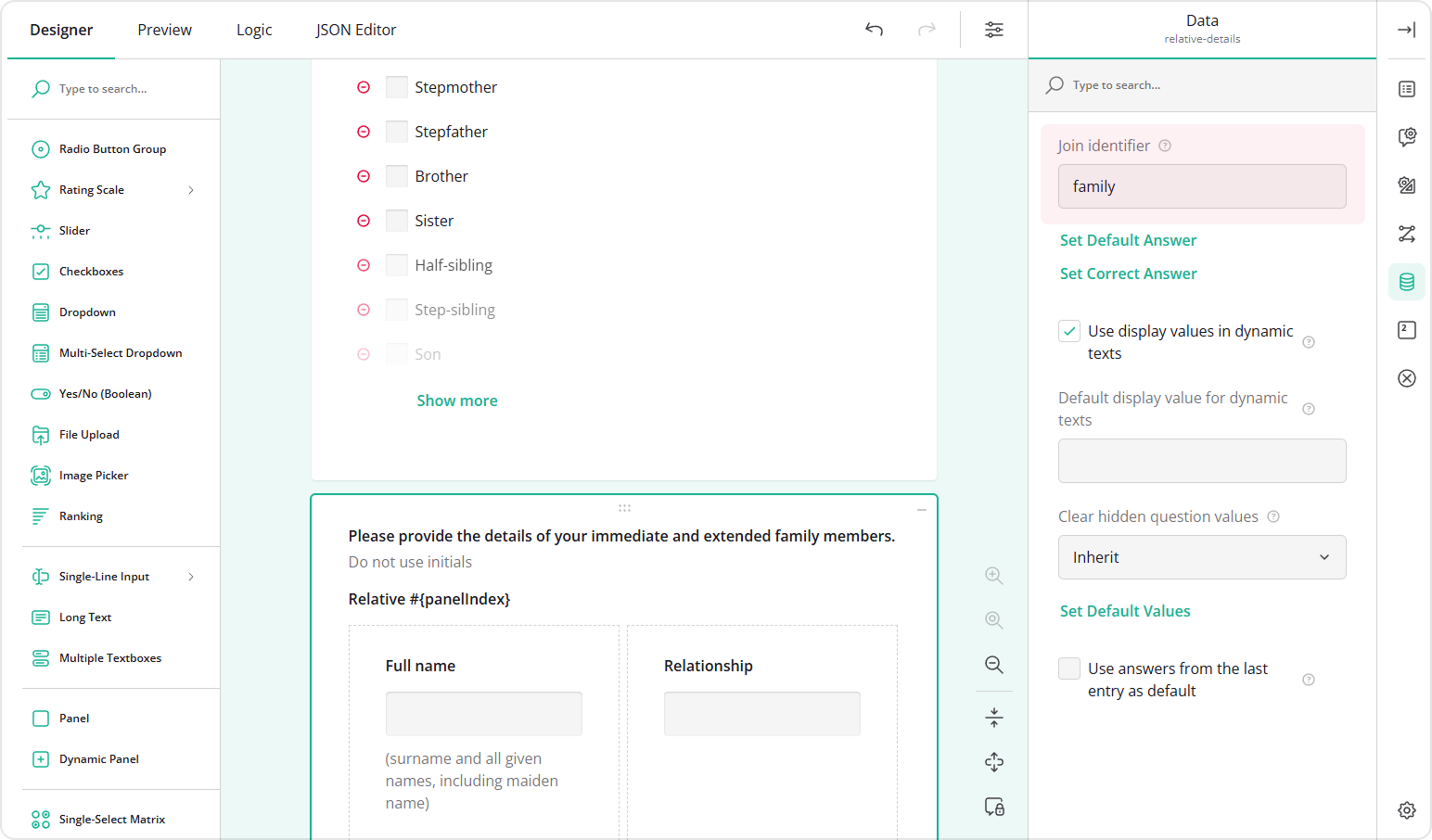
- Go to the Data category and set the same Join identifier value you used earlier (i.e.,
family).
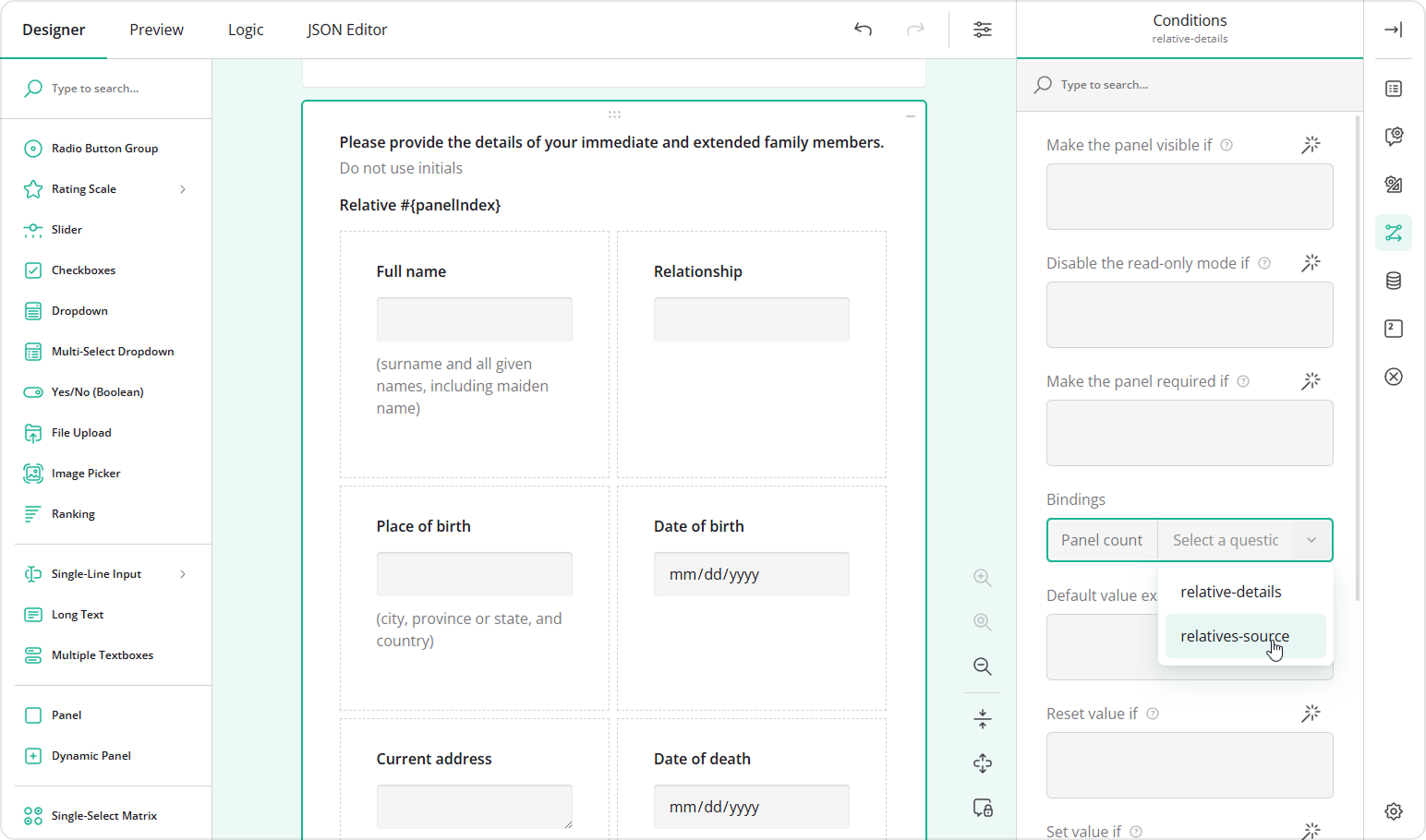
- In the Conditions category, locate the Bindings property.
- Select the question whose selected choices should define the number of entries.
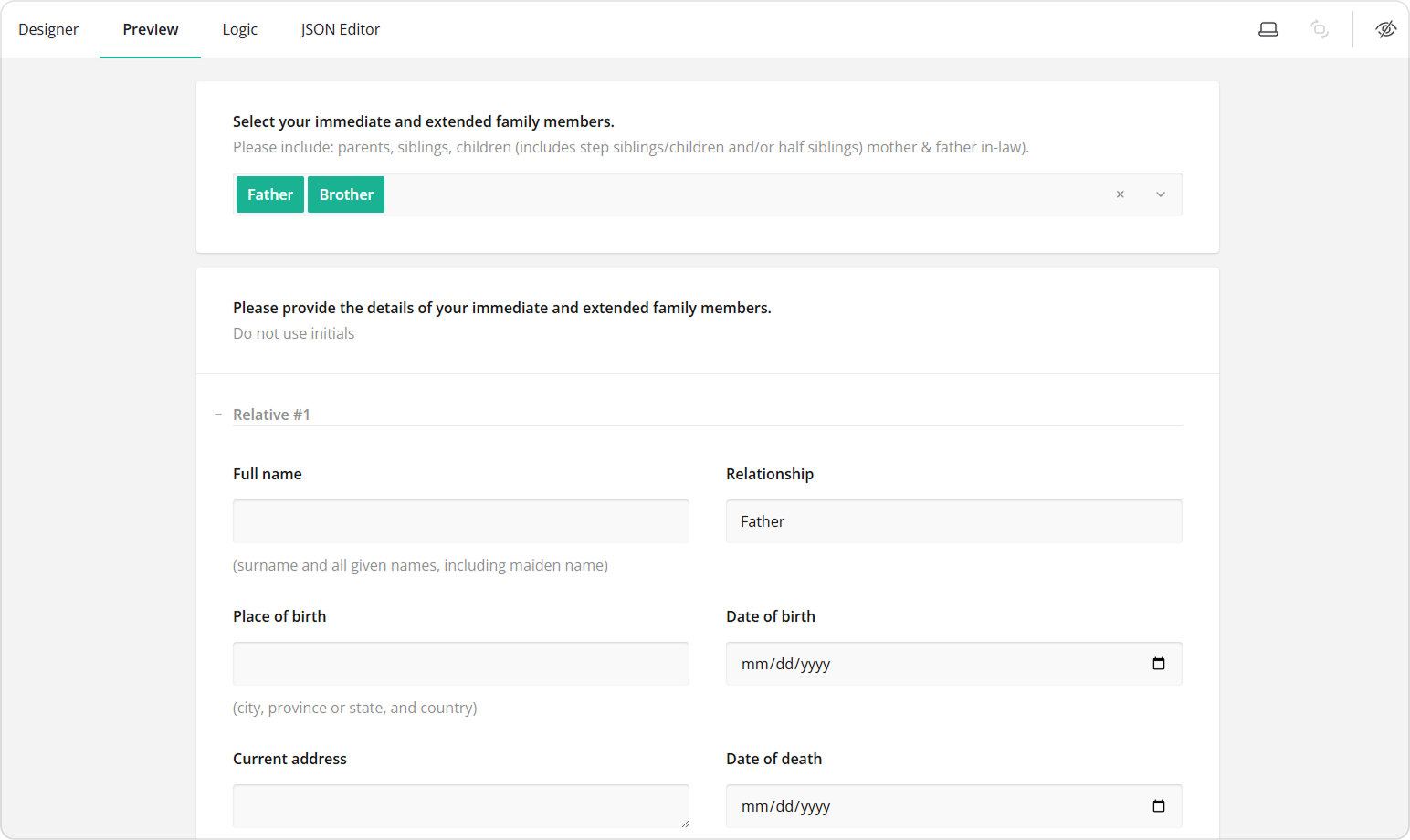
Preview the form and select items in the first question. The Dynamic Panel will automatically add corresponding entries.
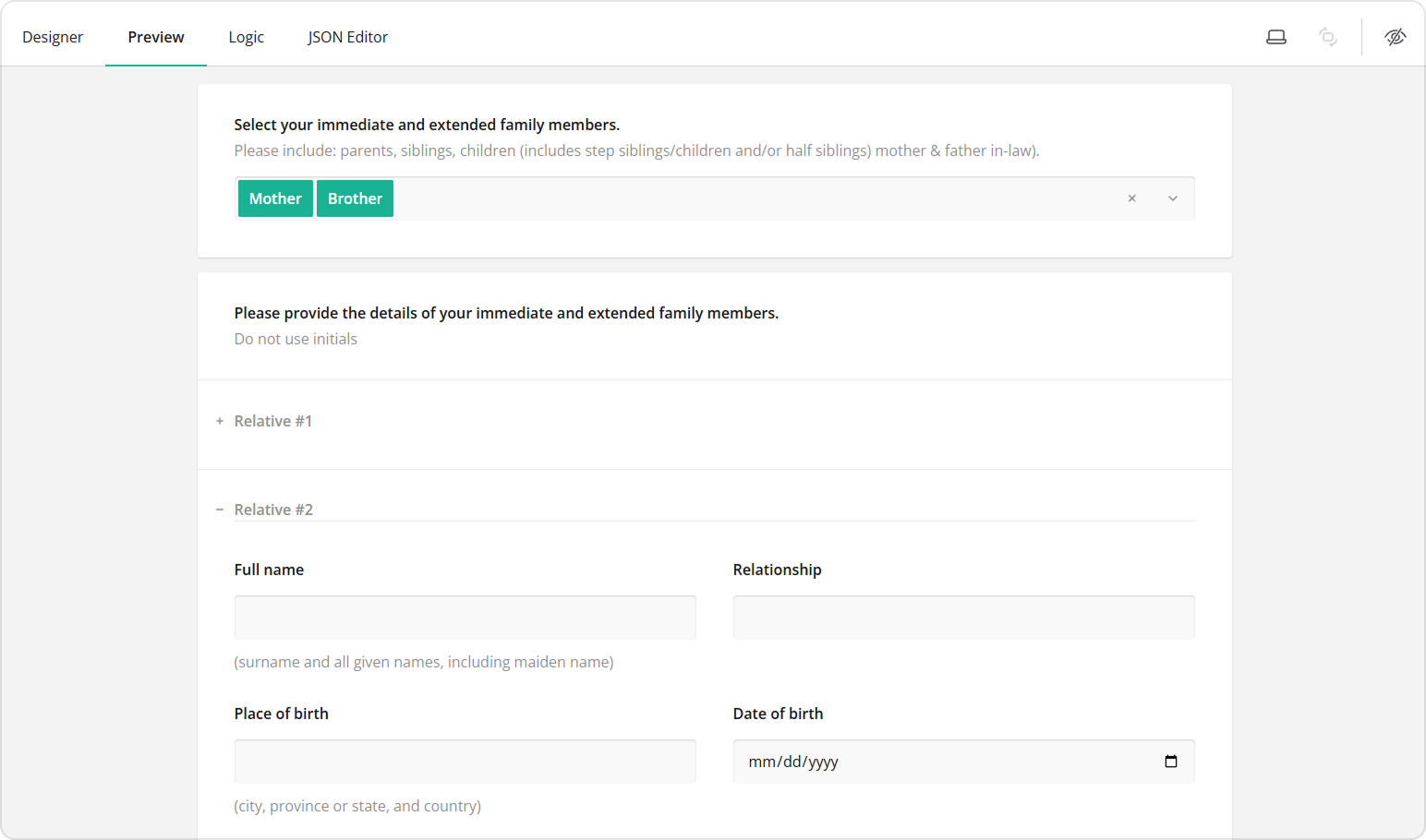
Pipe Selected Values into Nested Questions of the Dynamic Panel
If a question inside the Dynamic Panel collects the same data as the multi-select question, you can automatically populate it using the selected values. To do this:
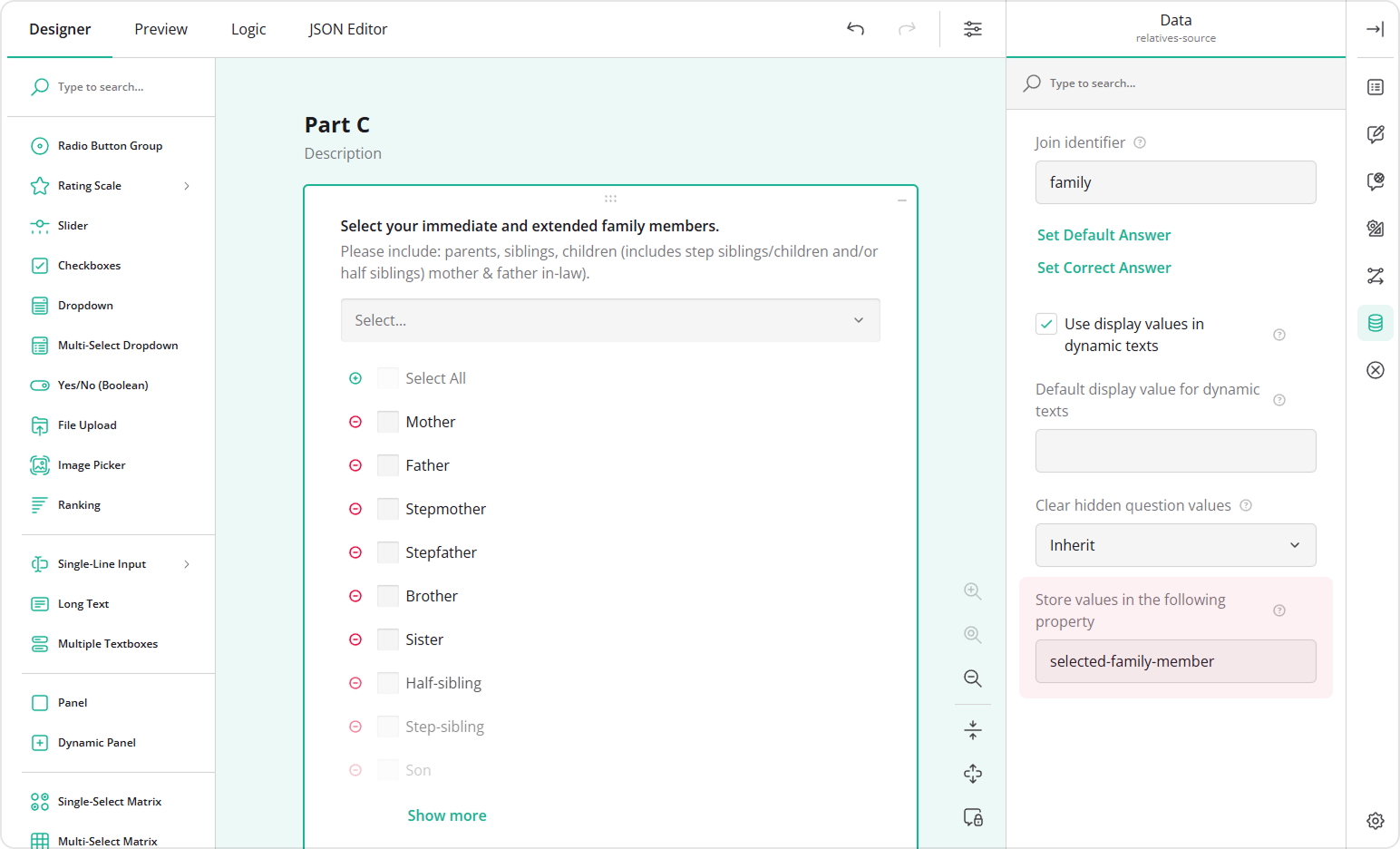
- Select the Multi-Select Dropdown question.
- In the Data category, locate Store values in the following property.
- Enter a value name (for example,
selected-family-member).
- Select the question inside the Dynamic Panel that should receive the value.
- In the Conditions category, locate the Default value expression property.
- Enter the following expression:
displayValue('relatives-source', {panel.selected-family-member}), where:displayValue()is a function that returns the display text of a selected choice.relatives-sourceis the Question name of the multi-select question.{panel.selected-family-member}references the stored value within the panel.
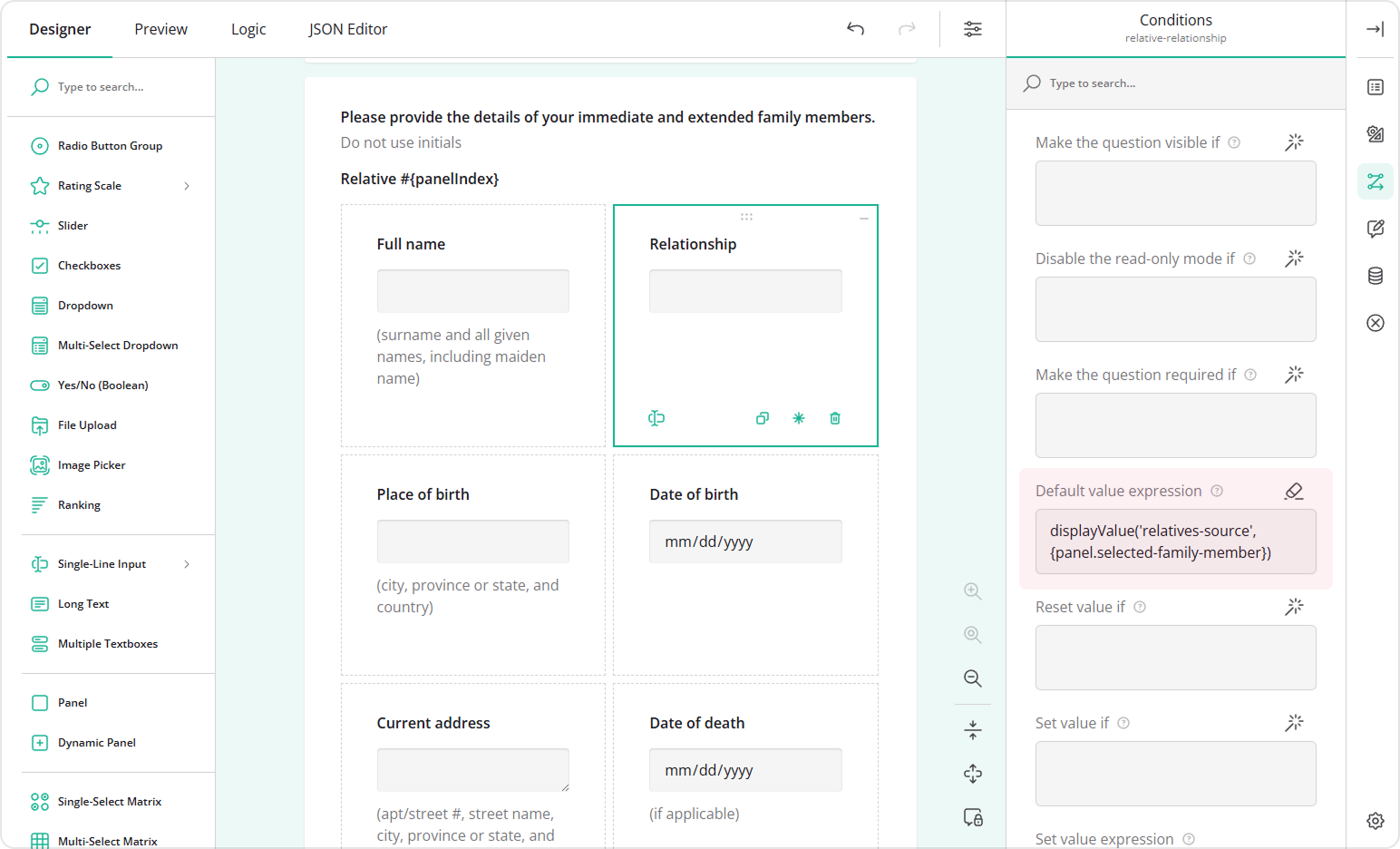
Now, when a respondent selects an option, a new panel entry is created and the corresponding field is filled in automatically.
How to Repeat a Group of Questions Based on a Numeric Input
To repeat a set of questions based on a number entered by a respondent in the previous question, follow these steps:
- Add a Single-Line Input question to your form.
- Set a Question name (ID), Question title, and, optionally, a Question description.
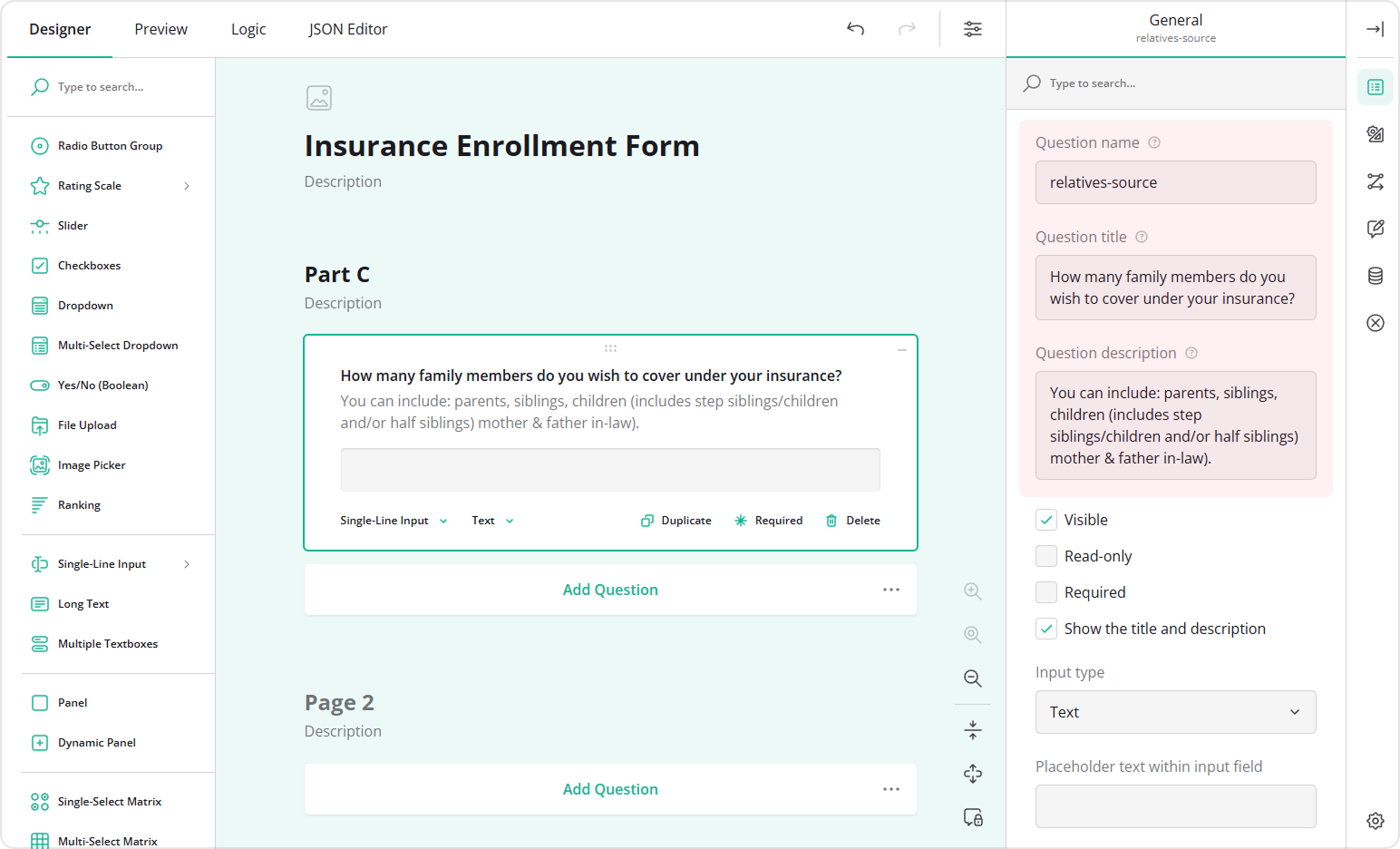
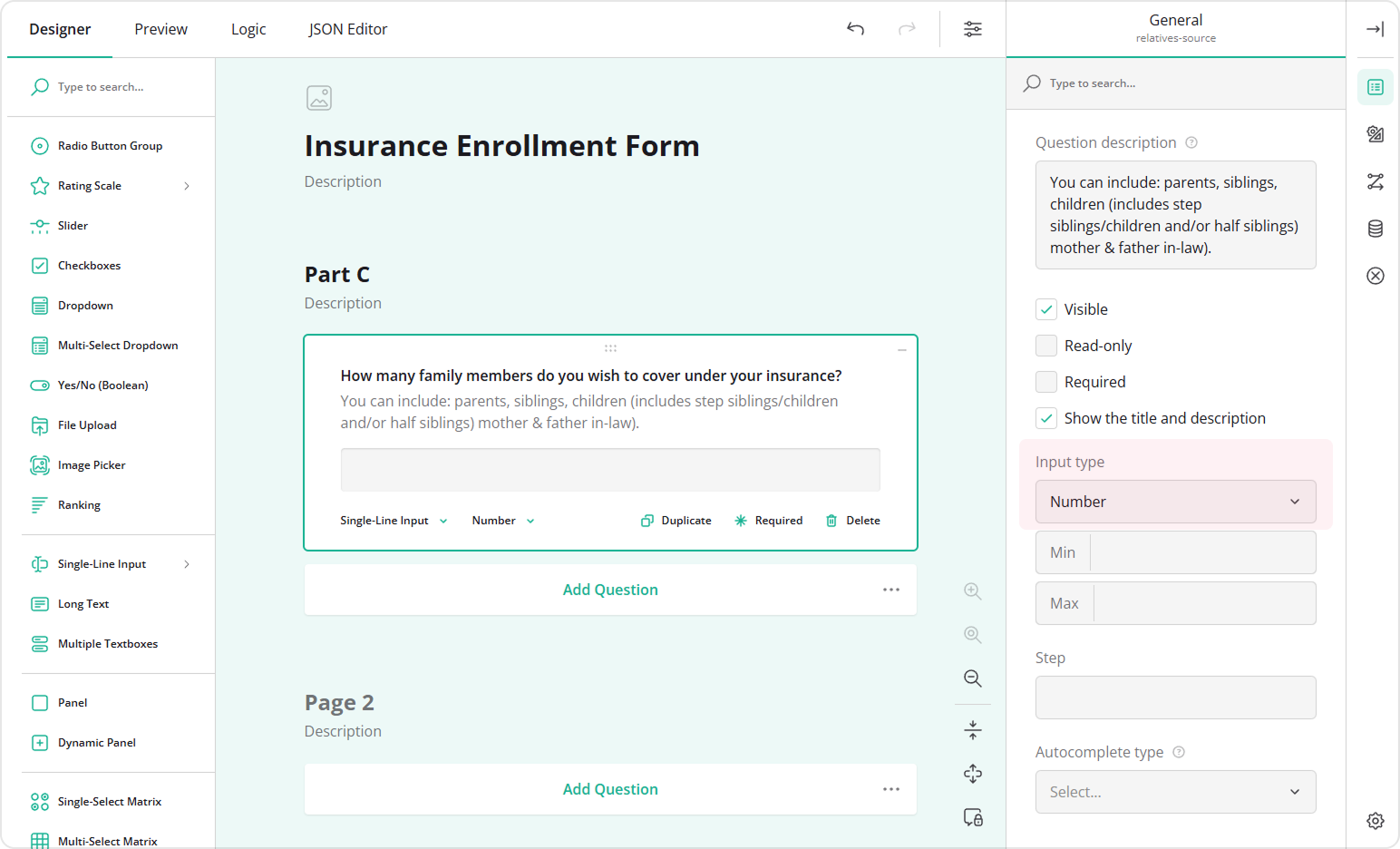
- Set Input type to Number.
- Repeat steps 1-6 from the Configure the Dynamic Panel section.
- In the Conditions category, locate the Bindings property.
- Select the Question name of the Single-Line Input whose value should define the number of entries—for example,
relative-source.
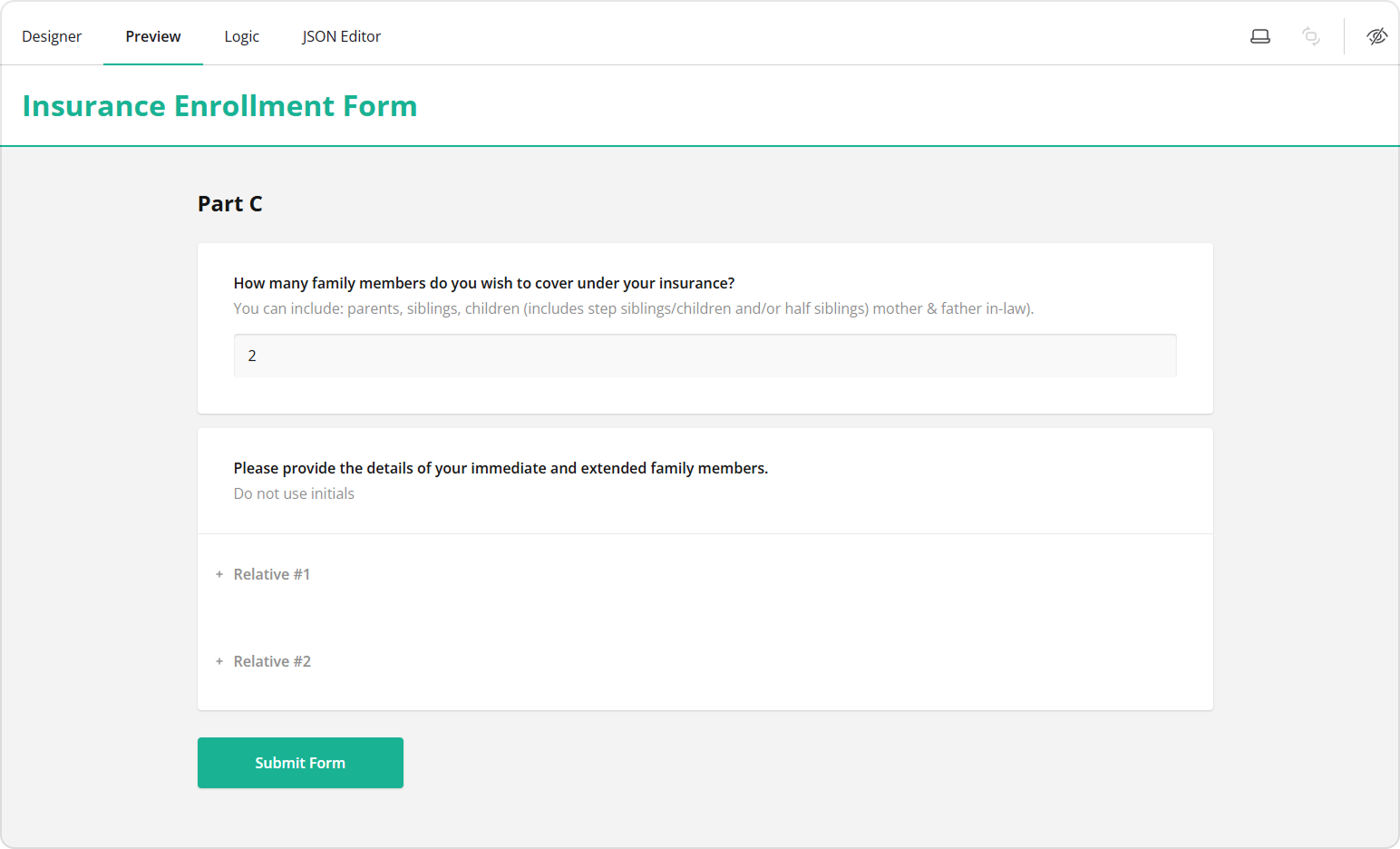
Preview the form and enter a number in the Single-Line Input field. The Dynamic Panel automatically creates that number of entries, so respondents see and complete exactly what is required.
See Also
Send feedback to the SurveyJS team
Need help? Visit our support page