How to Dynamically Set a Date Range Limit in a Date Picker
About Date Picker
The Date Picker question allows respondents to select a date from a calendar in your survey or form. You can use it to collect birthdays, appointment dates, or any other date-related input. The Date Picker also supports validation rules and dynamic limits, which makes it easy to control the dates users can select.
In this guide, you will learn how to use the Date Picker field to validate date-related user input, restrict selectable dates, and define dynamic date ranges. The examples below show how to do the following:
- Verify a respondent's age
- Limit date selection to past or future dates
- Prevent users from selecting specific days of the week
- Allow selection only within a predefined time window
How to Run Age Verification in a Form
If you want to make sure respondents meet a minimum age requirement (for example, 18+), you can add a validation rule to your Date input field using the age() function.
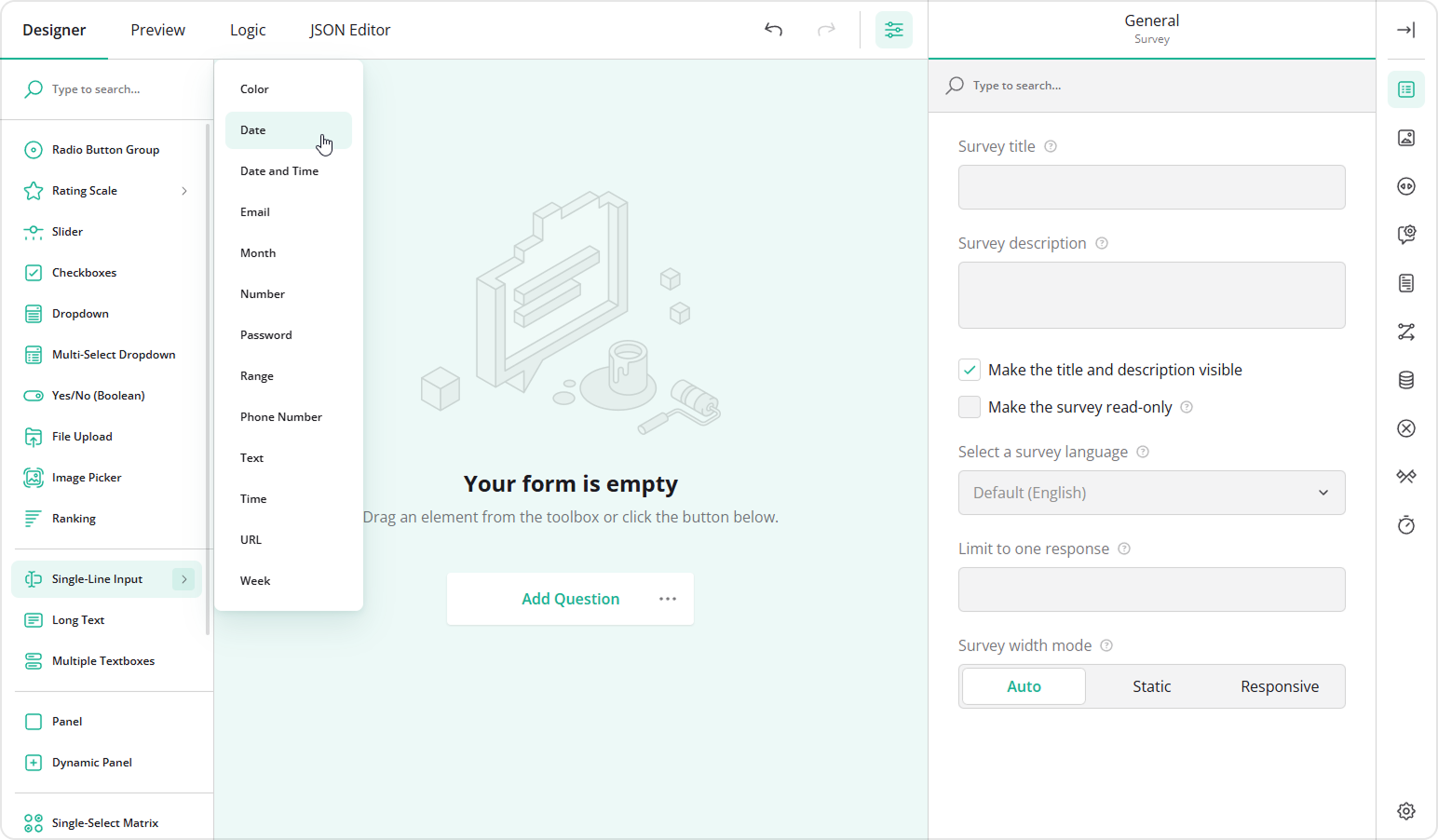
- Hover over the Single-Line Input question in the Toolbox.
- Select Date to add a Date Picker question to your form.
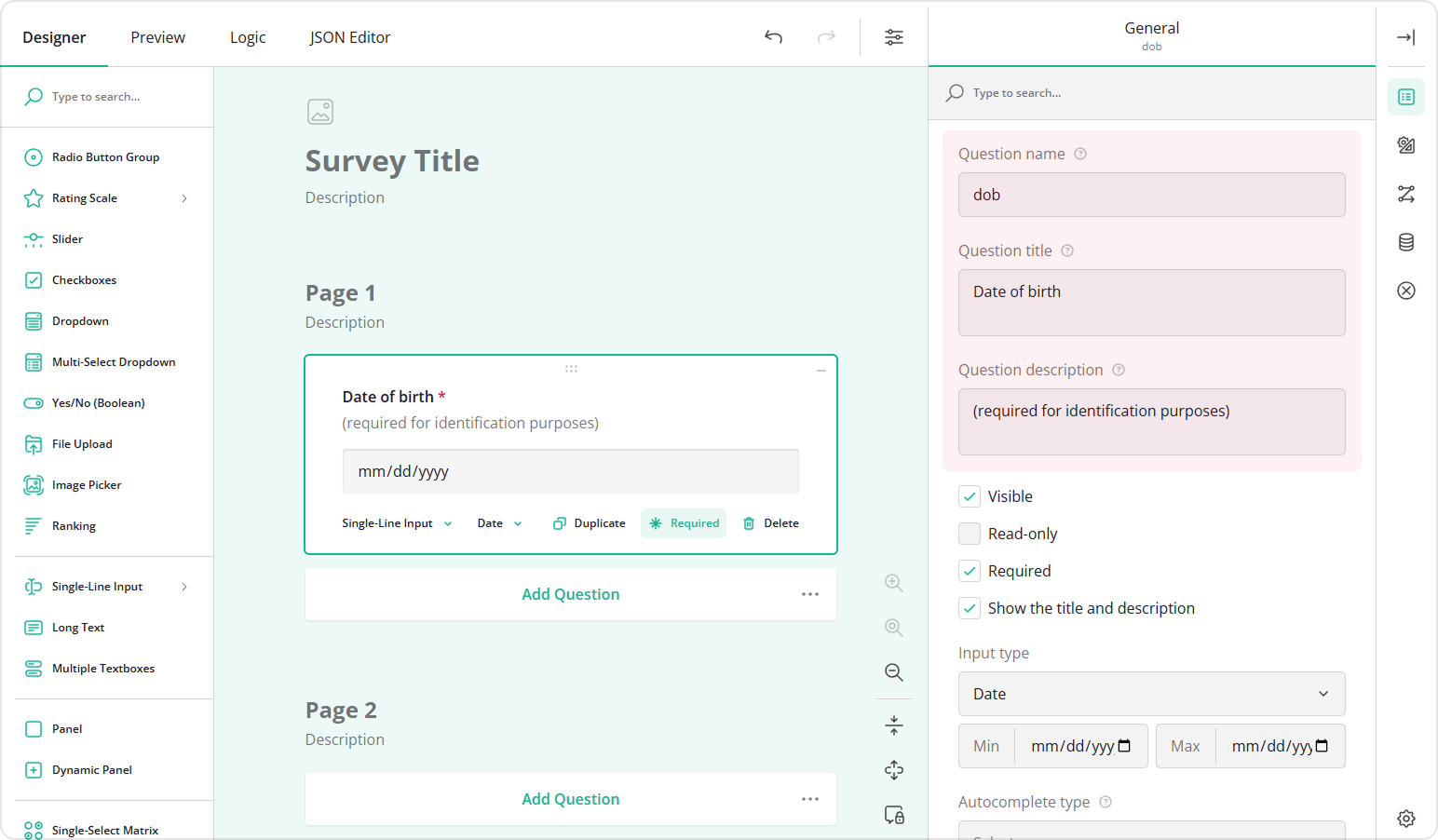
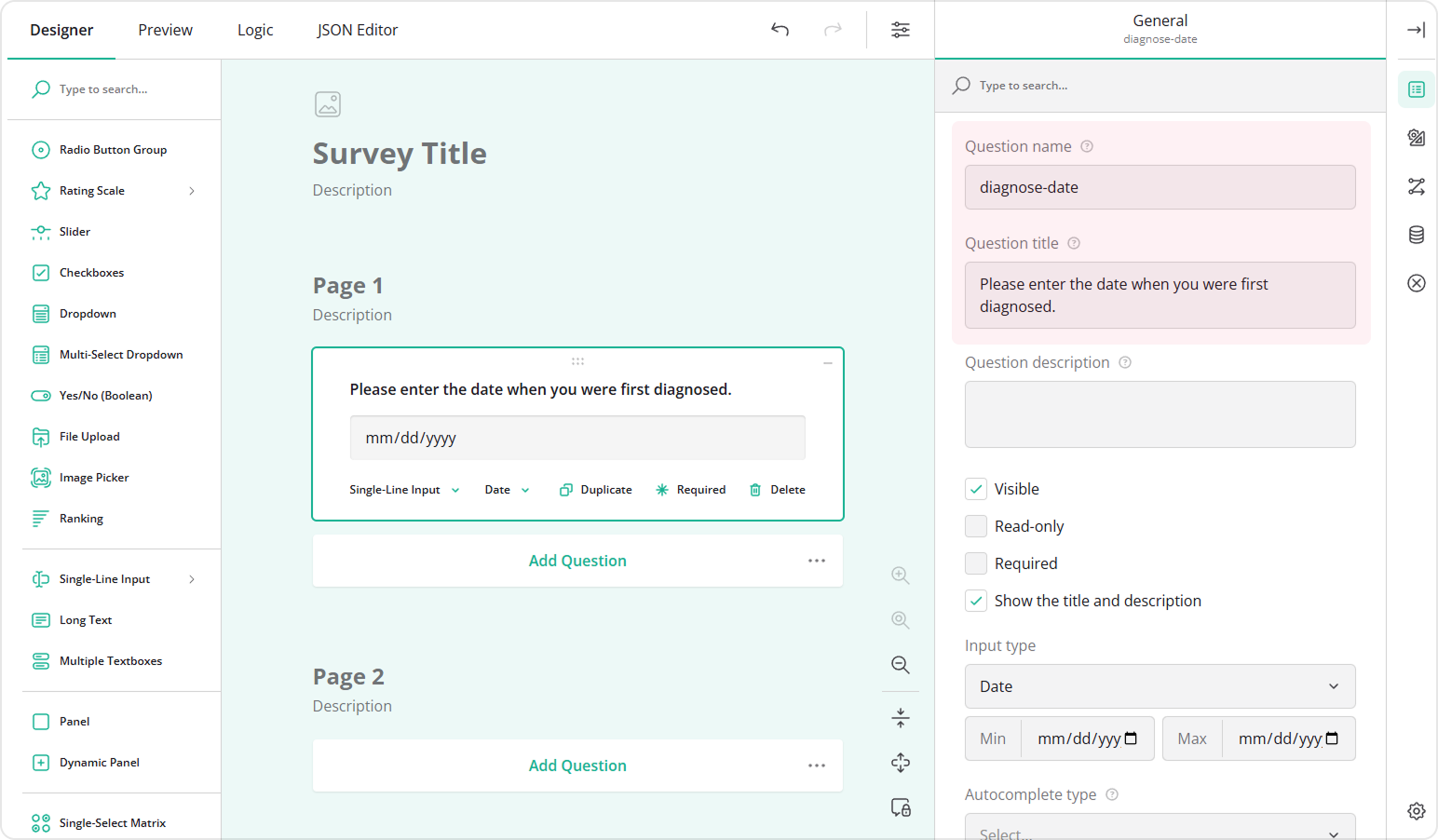
- In the General category, assign the Question name (question ID) and a user-friendly Question title that will be visible to respondents.
- Optionally, add a Question description and mark the question as Required.
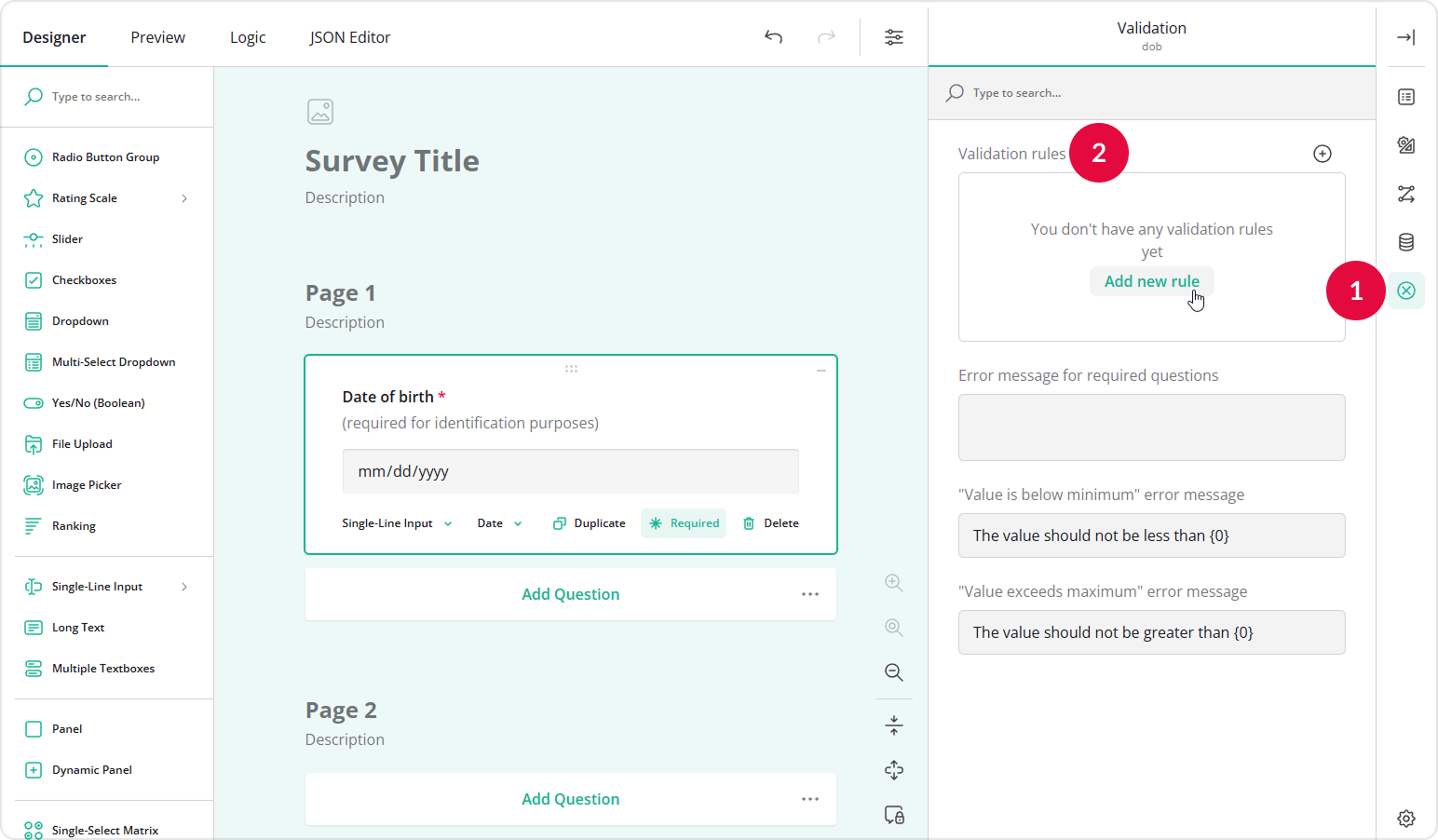
- In the Validation category, locate Validation rules, and click Add new rule.
- In the Valid when field, enter the following expression:
age() >= 18. Here,age()is a built-in function that calculates the age based on the entered date of birth. - Enter a Notification message that will appear if the age requirement is not met.
- Set the Notification type.
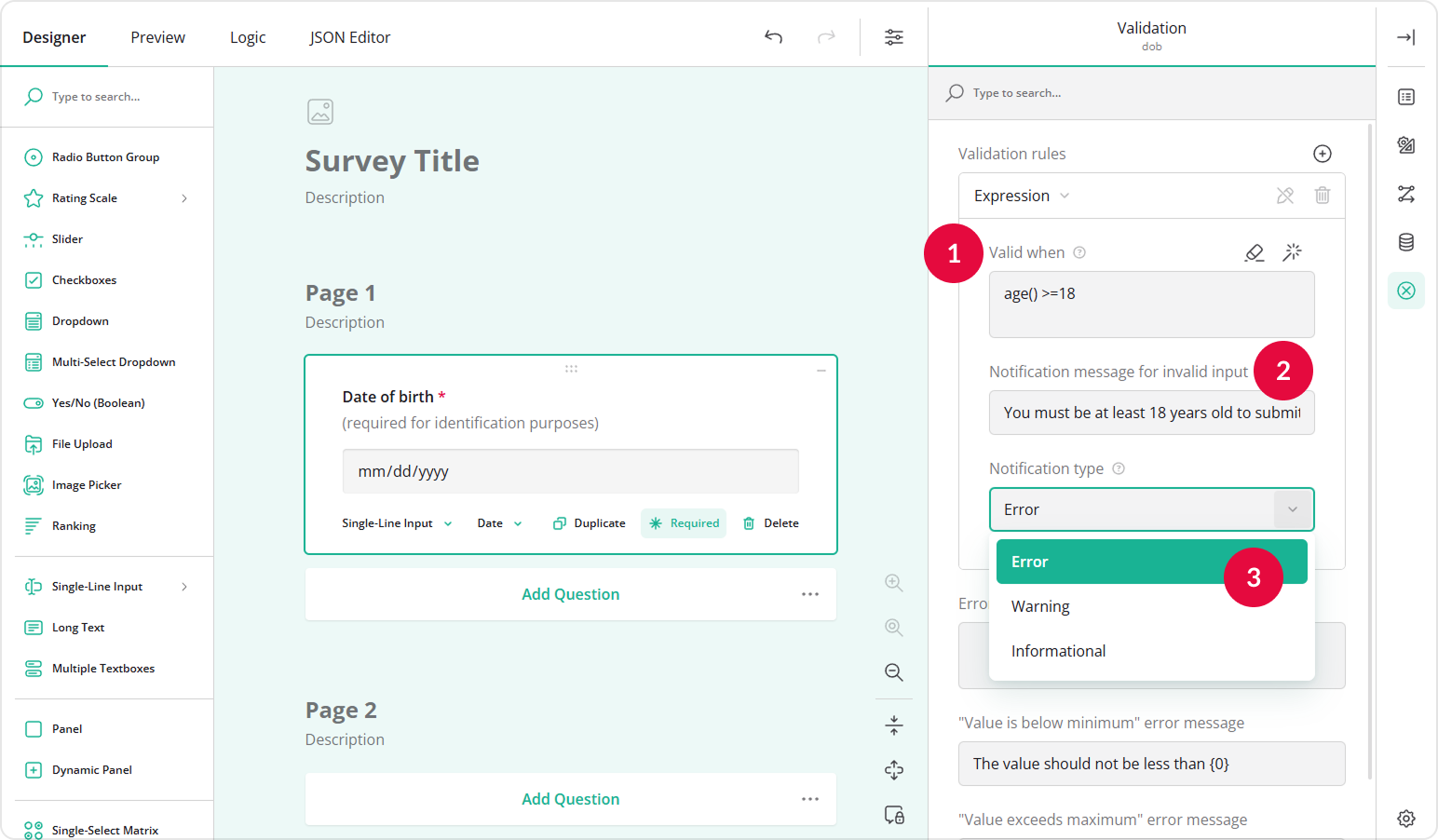
The default Notification type is Error, which prevents form submission. You can also choose Warning or Informational. For more details, see Validator Notification Types.
By default, SurveyJS runs validation when the respondent moves to another page. To run validation immediately after a date is entered, follow these steps:
- At the top of the Property Grid, select Survey to switch to the survey-level settings.
- Under Validation, locate Run validation.
- Select After an answer has changed.
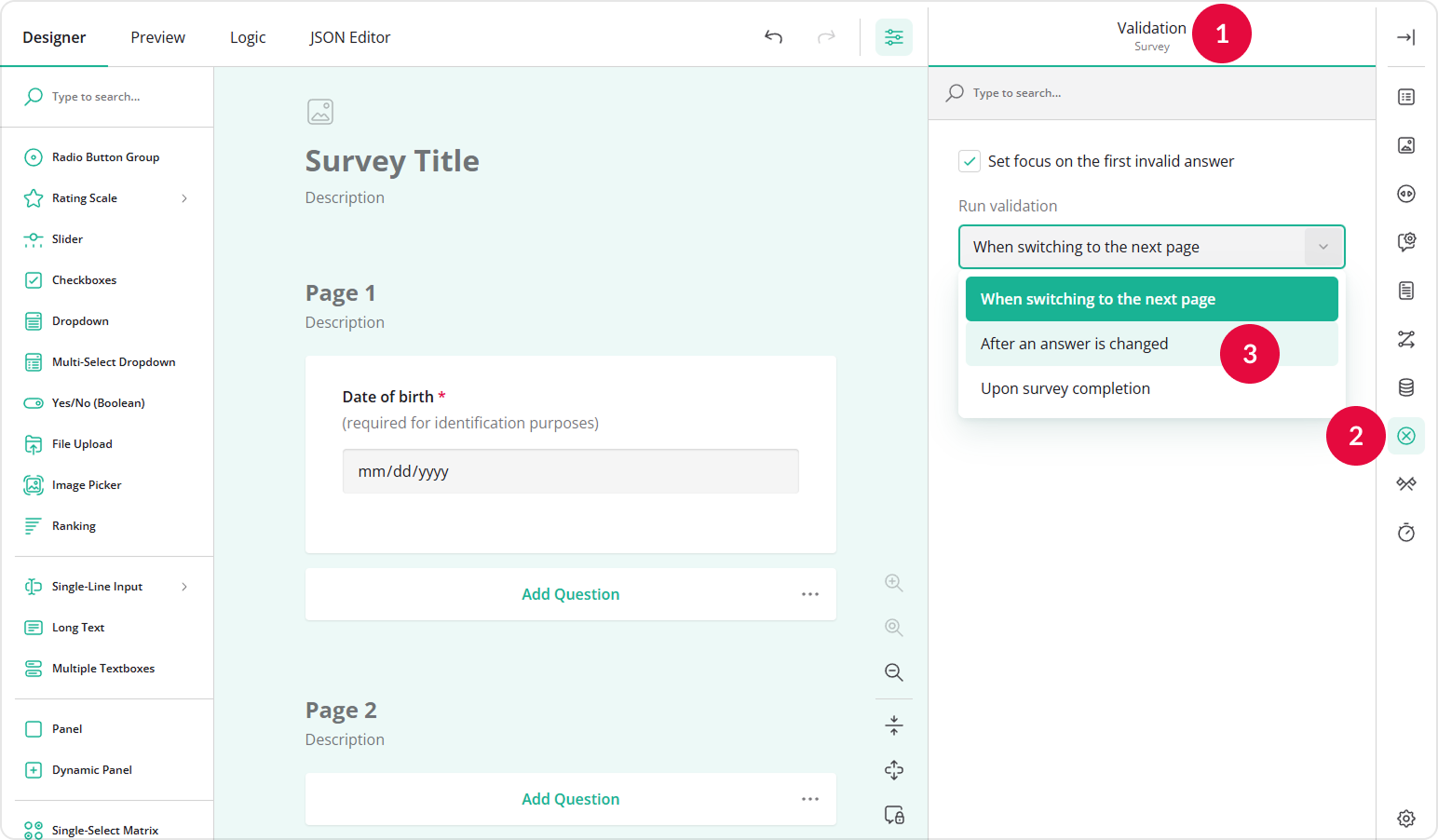
As a result, when a user enters their date of birth and moves to another field, their age is immediately calculated and validated against the threshold of 18.
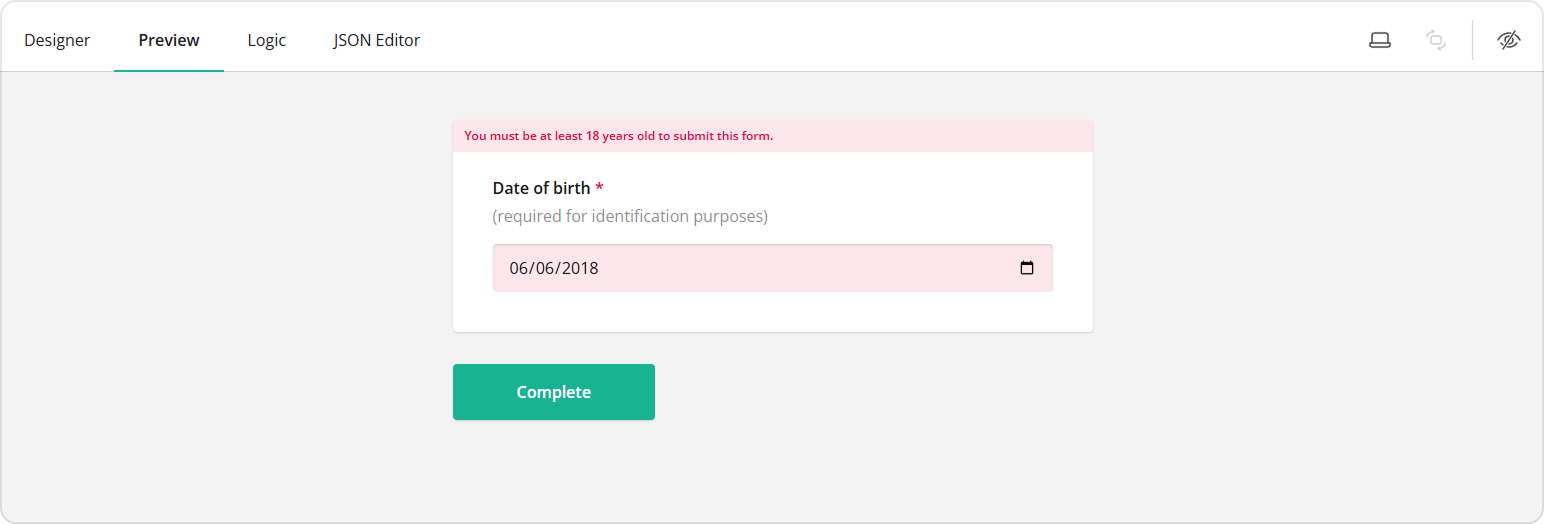
You can validate the age against any other value using the same age() function. For example, the expression age() >= 14 allows only respondents who are at least 14 years old to submit the form.
How to Select Past or Future Dates Only
Sometimes, you may want to restrict respondents to selecting only past or future dates in relation to the date they fill out the form. This is useful for birthday fields, booking forms, or scheduling events. The examples below show how to disable future and past dates.
Disable Future Dates
To prevent respondents from selecting future dates:
- Add a Date element to your form.
- Assign the Question name and a Question title.
- In the Conditions category, locate Max value expression.
- Enter the following function:
currentDate().
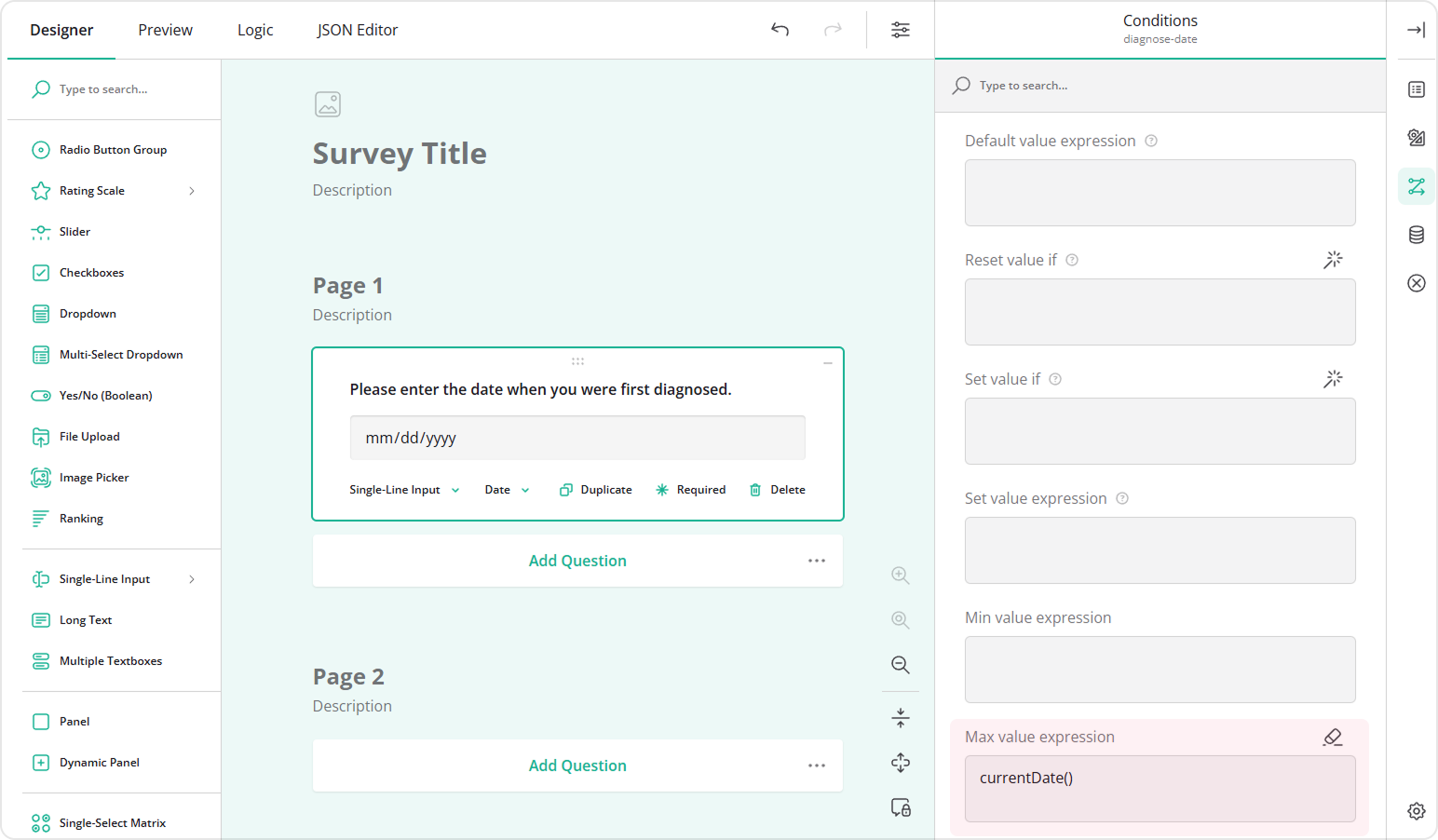
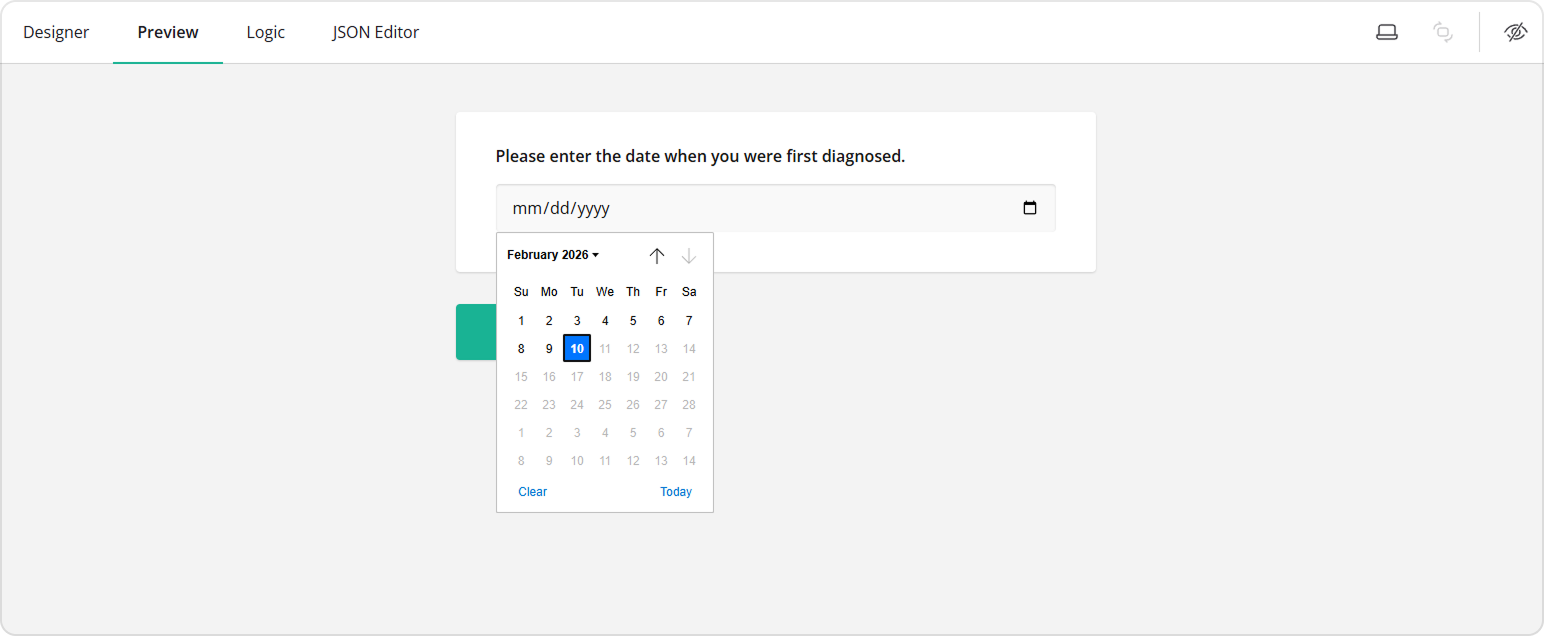
This disables all future dates, making the current date the maximum available for selection. The currentDate() function ensures the limit always reflects the current date, not a fixed one.
Disable Past Dates
If you want to disable past dates and allow users to select only future dates (for example, appointment bookings), follow these steps:
- Add a Date element to your form.
- Assign the Question name and a Question title.
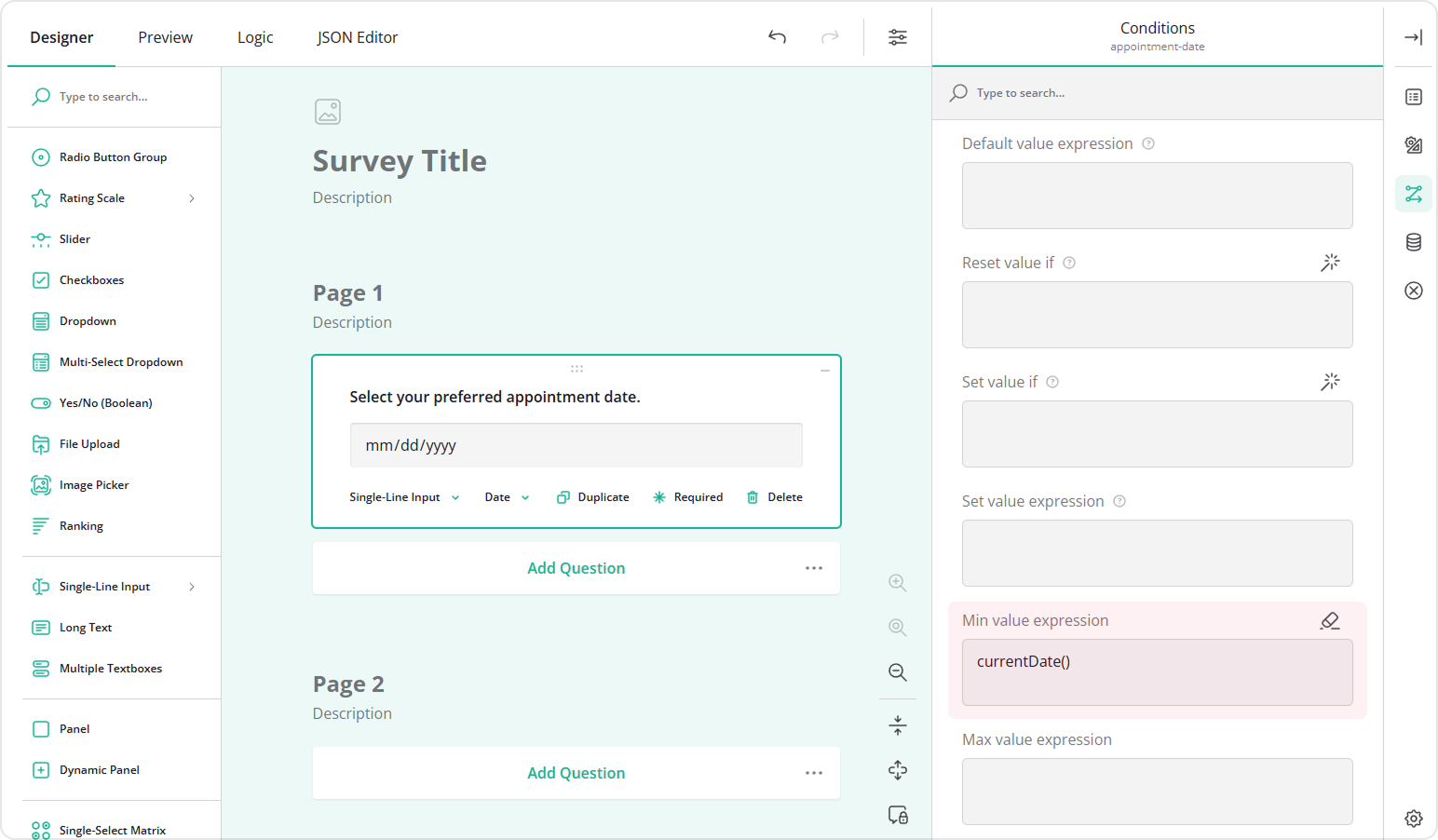
- In the Conditions category, locate Min value expression.
- Enter the following function:
currentDate(). This will prevent respondents from selecting any past dates.
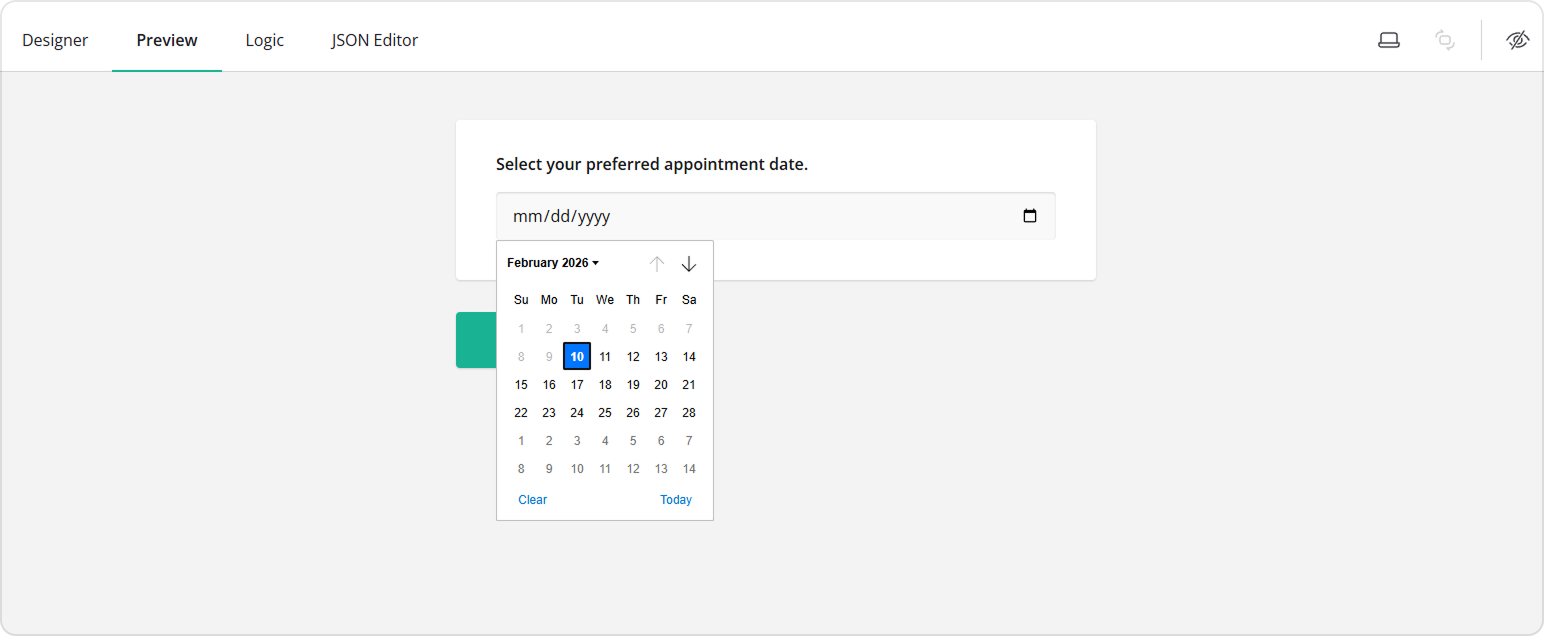
As a result, all dates before the current date will be disabled in the Date Picker.
How to Validate Day of the Week
In certain cases, such as appointment scheduling, you may want to ensure users cannot select specific days of the week (for example, weekends or days when a specialist is unavailable). You might also need to enforce a minimum lead time to prevent users from booking appointments too soon.
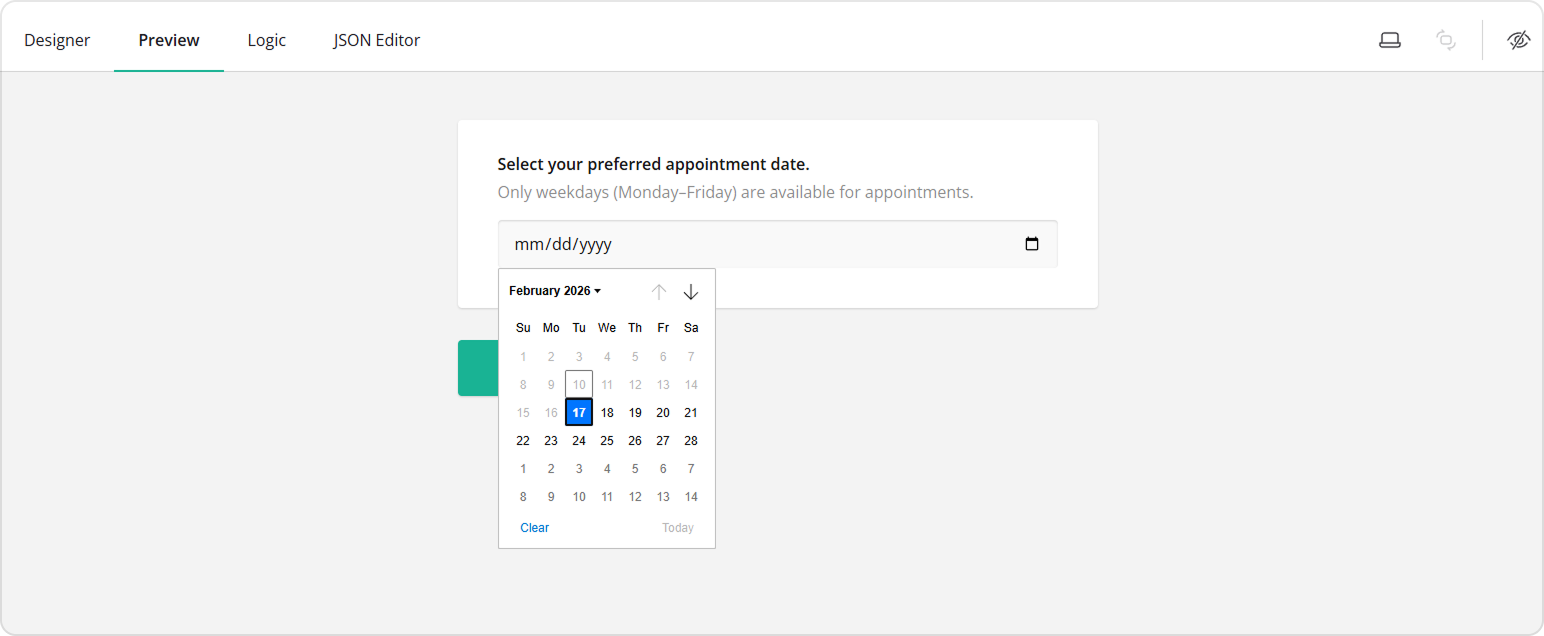
The steps below show how to disable selection of the nearest 7 days and display an error message if a respondent selects Saturday or Sunday for their appointment.
- Repeat steps 1-4 from the How to Run Age Verification in a Form section.
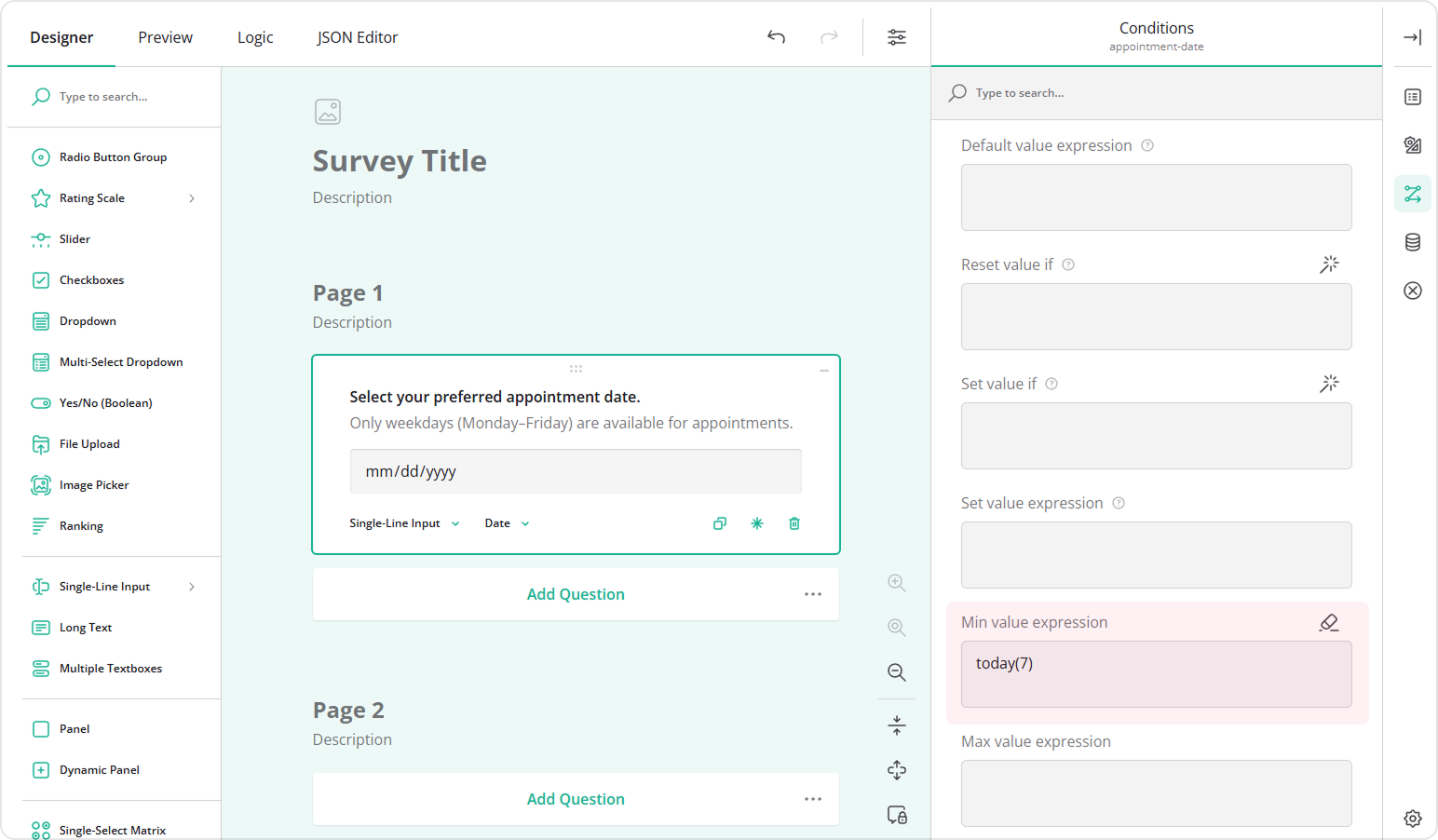
- In the Conditions category, locate Min value expression.
- Enter:
today(7). This prevents selection of the nearest 7 days, including today.
- In the Validation category, click Add new rule.
- In the Valid when field, enter:
weekday({appointment-date}) > 0 and weekday({appointment-date}) < 6. - Enter a Notification message (for example: "Weekends are not available for appointments").
- Keep the Notification type as is. This ensures the user cannot submit the form if they select Saturday or Sunday for their appointment.
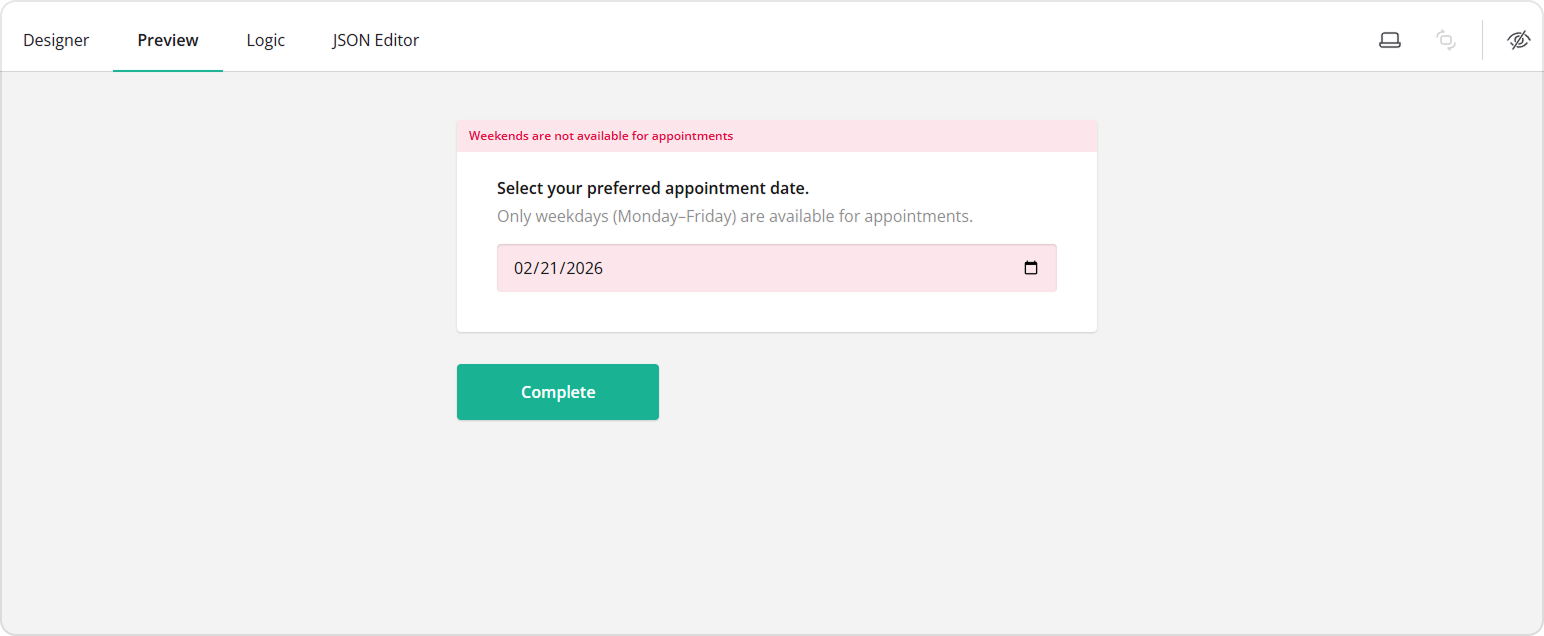
The weekday() function uses numbers for each day of the week:
| Day | Number |
|---|---|
| Sunday | 0 |
| Monday | 1 |
| Tuesday | 2 |
| Wednesday | 3 |
| Thursday | 4 |
| Friday | 5 |
| Saturday | 6 |
For example the expression weekday({appointment-date}) != 3 prevents a respondent from booking Wednesdays. To learn more about comparison operators (e.g. >=, !=, etc.), see Comparison Operators.
How to Dynamically Set Date Range Limits in the Date Picker
You can restrict the Date Picker to allow only a specific range of dates. For example, you might want respondents to select a date within 21 days starting from tomorrow.
- Repeat steps 1-4 from the How to Run Age Verification in a Form section.
- In the Conditions category:
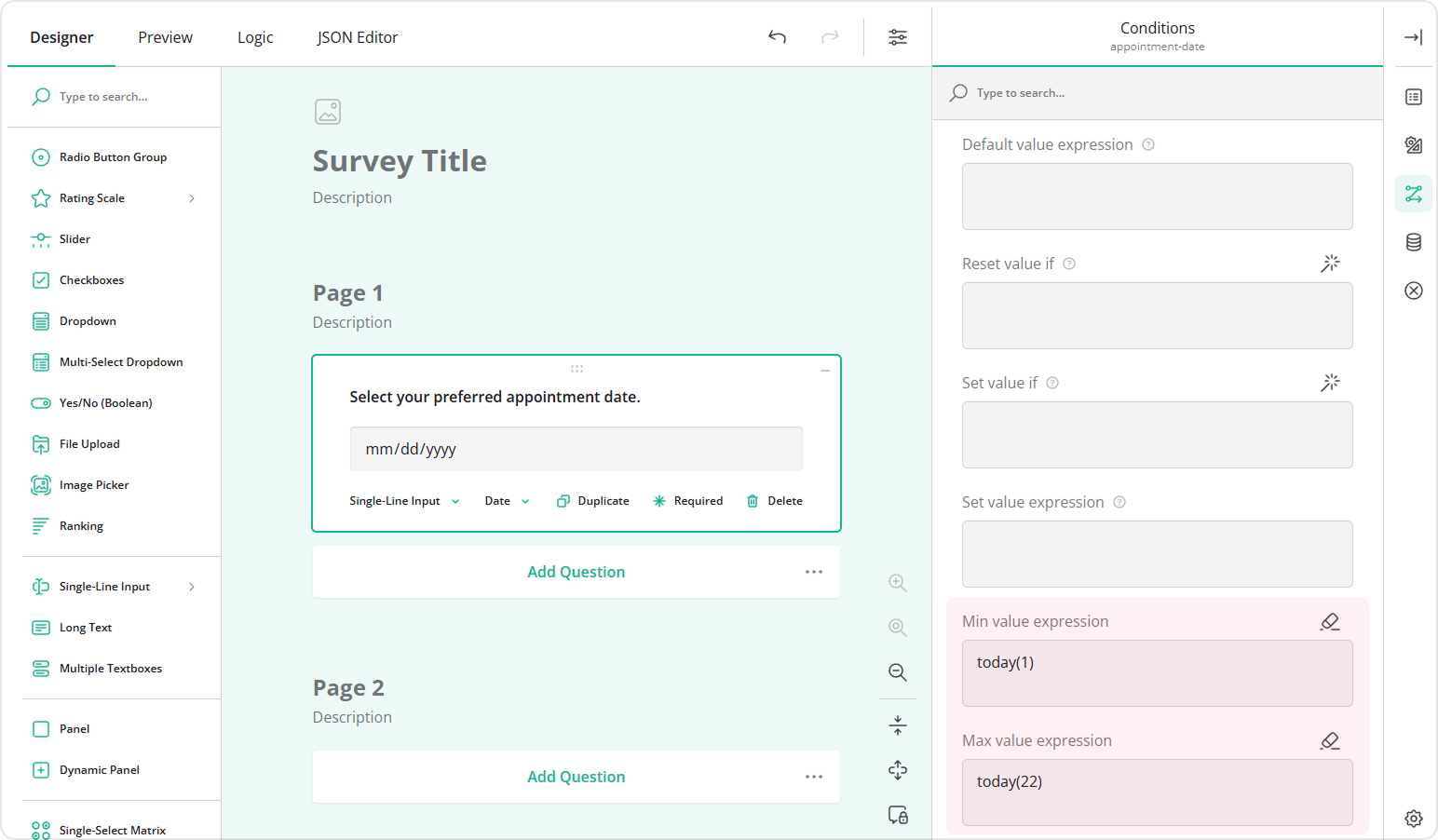
- For Min value expression, enter:
today(1). This makes tomorrow the earliest selectable date. - For Max value expression, enter:
today(22). This allows only the next 21 days (starting from tomorrow) to be selectable.
- For Min value expression, enter:
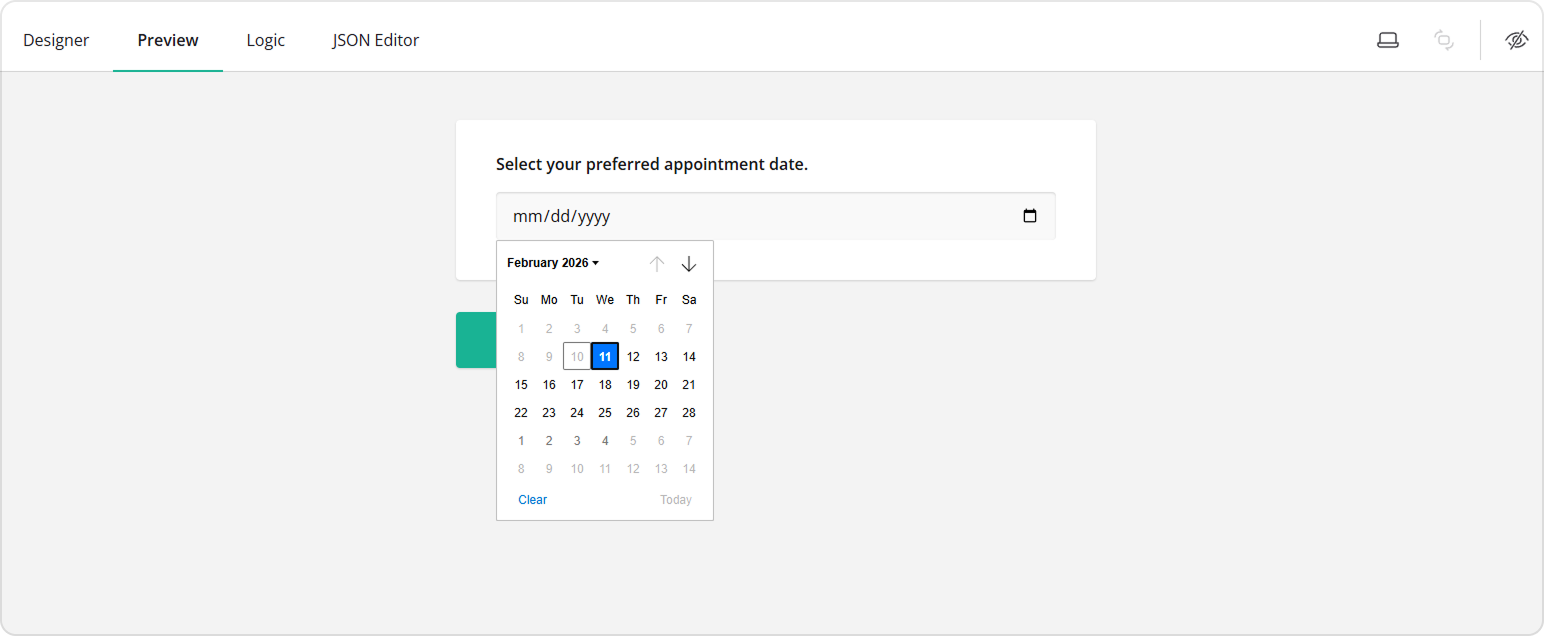
Now your Date Picker is limited to a dynamic date range, automatically updating each day.
See Also
Send feedback to the SurveyJS team
Need help? Visit our support page