How to Set Default Answers to Questions
About Default Answers
A default answer is a pre-filled, editable response that appears in a question when a form is shown to respondents. It can be specified as a static value or generated dynamically based on answers provided earlier in the form. Default answers can save time for respondents, reduce repetitive data entry, and help guide users toward the most common or recommended answer.
Default values are especially useful when:
- A question often has the same initial answer for most respondents
- You want to suggest a typical response while still allowing edits
- You want to reuse answers from previous questions to speed up form completion
- You want to suggest a dynamic response based on some of the answers provided earlier
If a respondent does not change a default value, it is automatically saved as their answer in the form results.
Supported Question Types
Default values are supported by questions that allow respondents to enter or select a value, for example:
- Checkboxes
- Dropdown
- Boolean
- Single-Line Input
- Long Text
- Multiple Textboxes
- and other input-based question types
Questions that do not accept an answer value do not support default values, including:
- File Upload
- Image
- HTML
- Expression
- Ranking
- Signature
How to Set a Static Default Answer to a Question
A static default answer does not change automatically based on other answers in the form. You can specify static default answers for close- and open-ended questions.
Close-Ended Questions
To set a default answer for close-ended questions, follow the steps below. In this example, a Dropdown question is used, but the configuration is the same for all questions with an answer choice.
- Add a Dropdown question to your form.
- In the General category, assign the Question name (question ID) and a user-friendly Question title that will be visible to respondents.
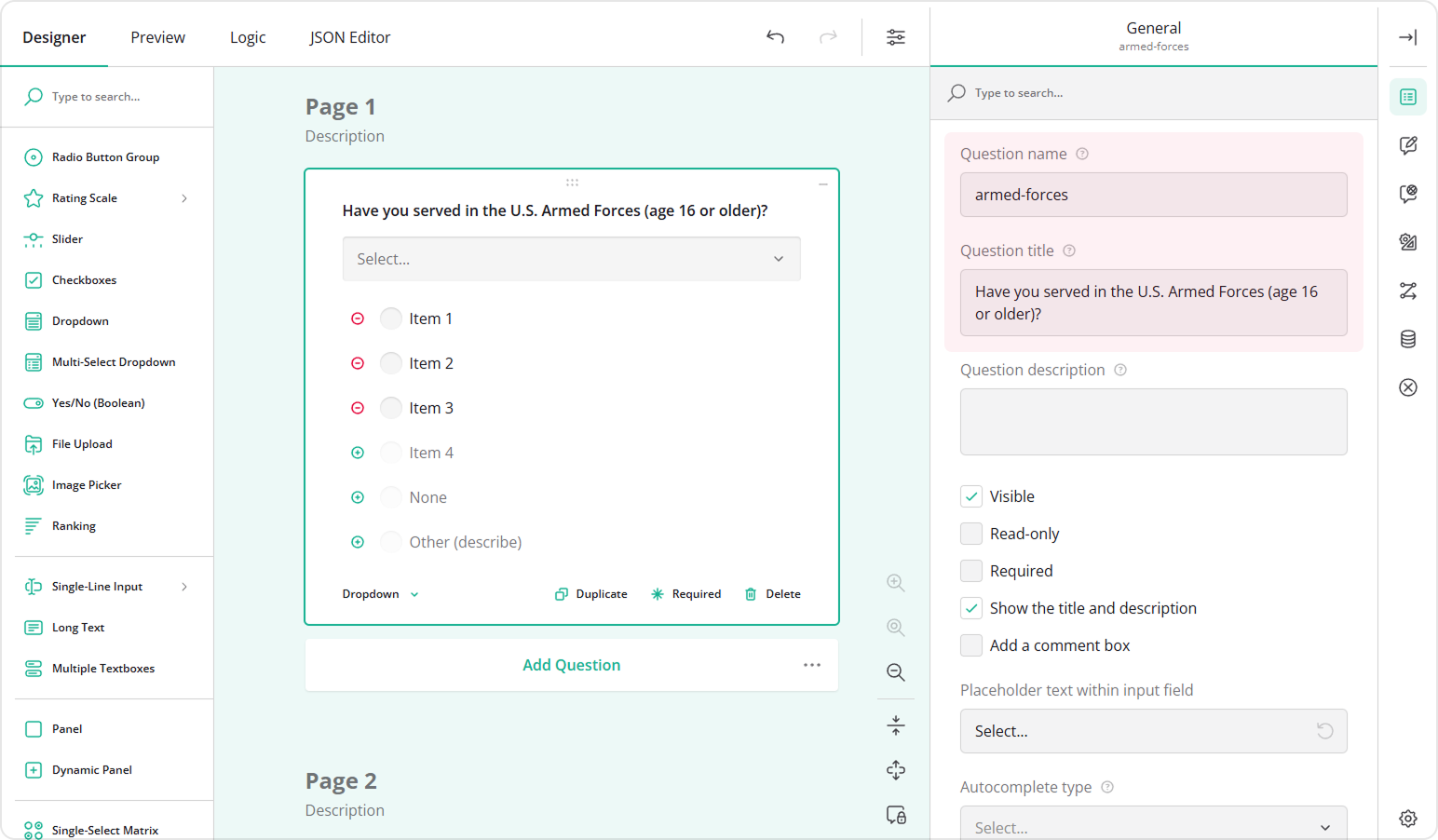
- Switch to the Choice Options category.
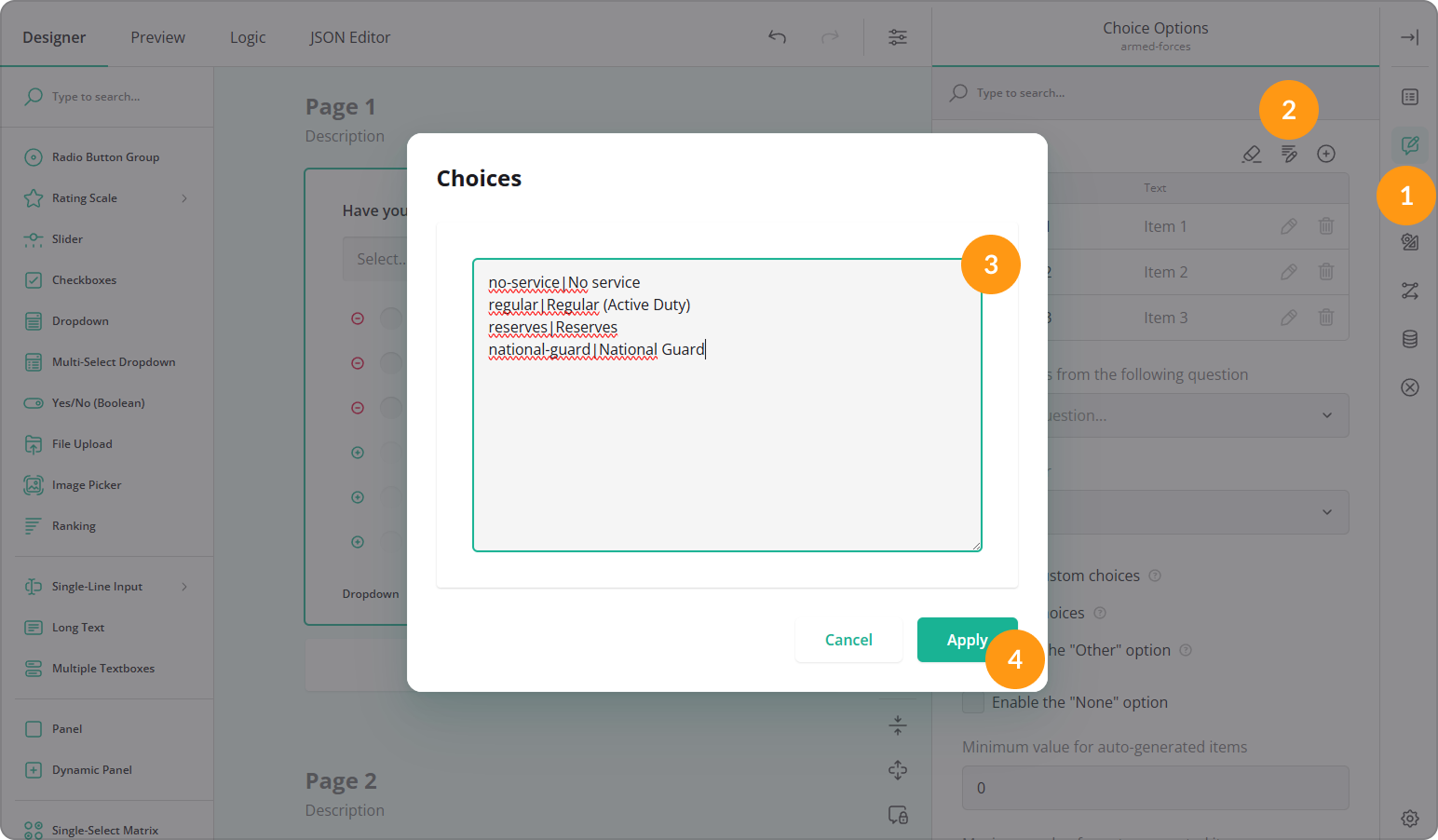
- Fill out the Choices table by specifying Values (choice IDs) and Texts (visible choice options).
Alternatively, you can add choices in bulk:
- Click the Pen icon.
- Paste the list of choices in the
value|textformat. - Click Apply.
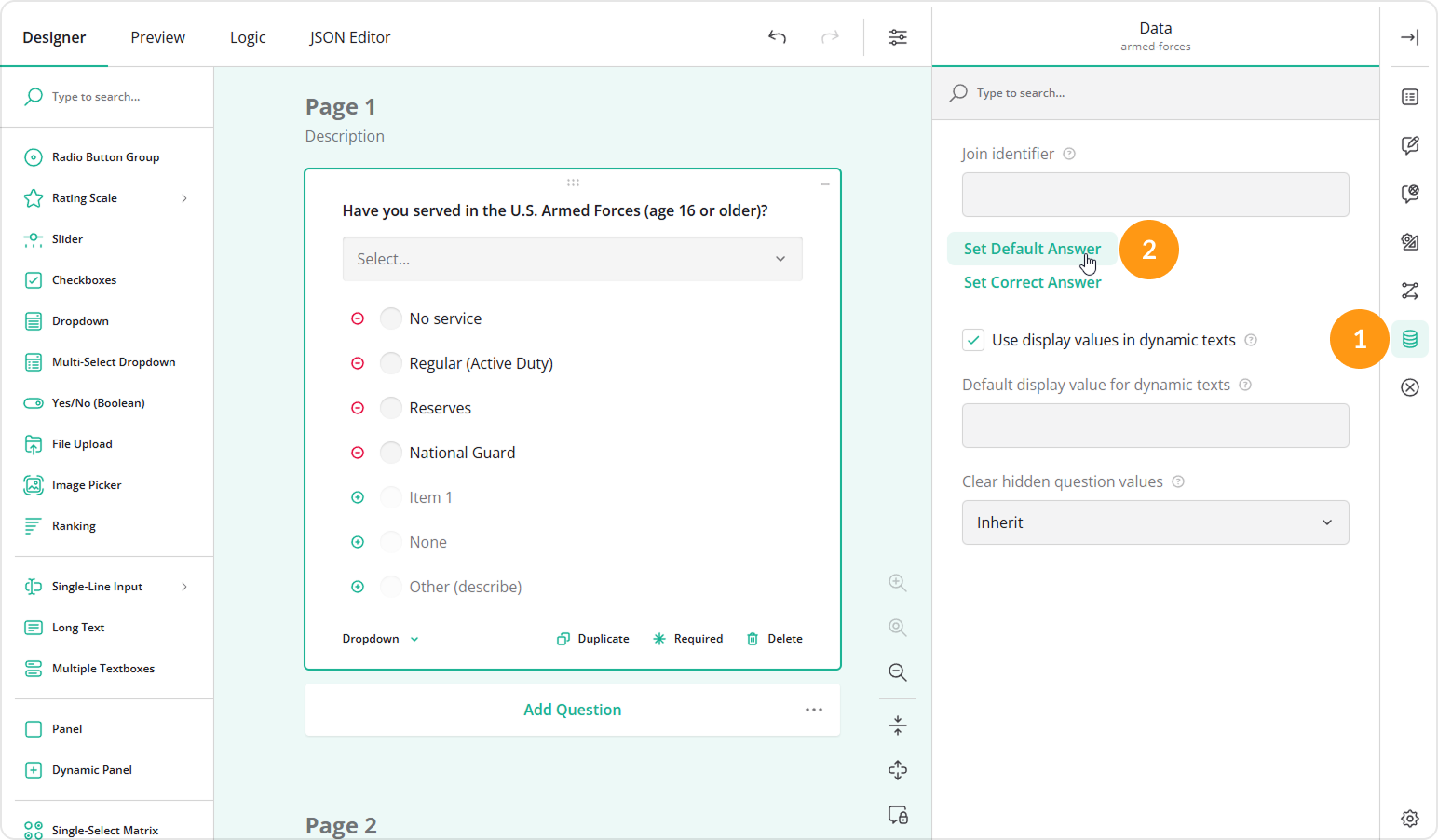
- In the Data category, locate and click Set Default Answer.
- In the pop-up window, select the default answer and click Apply.
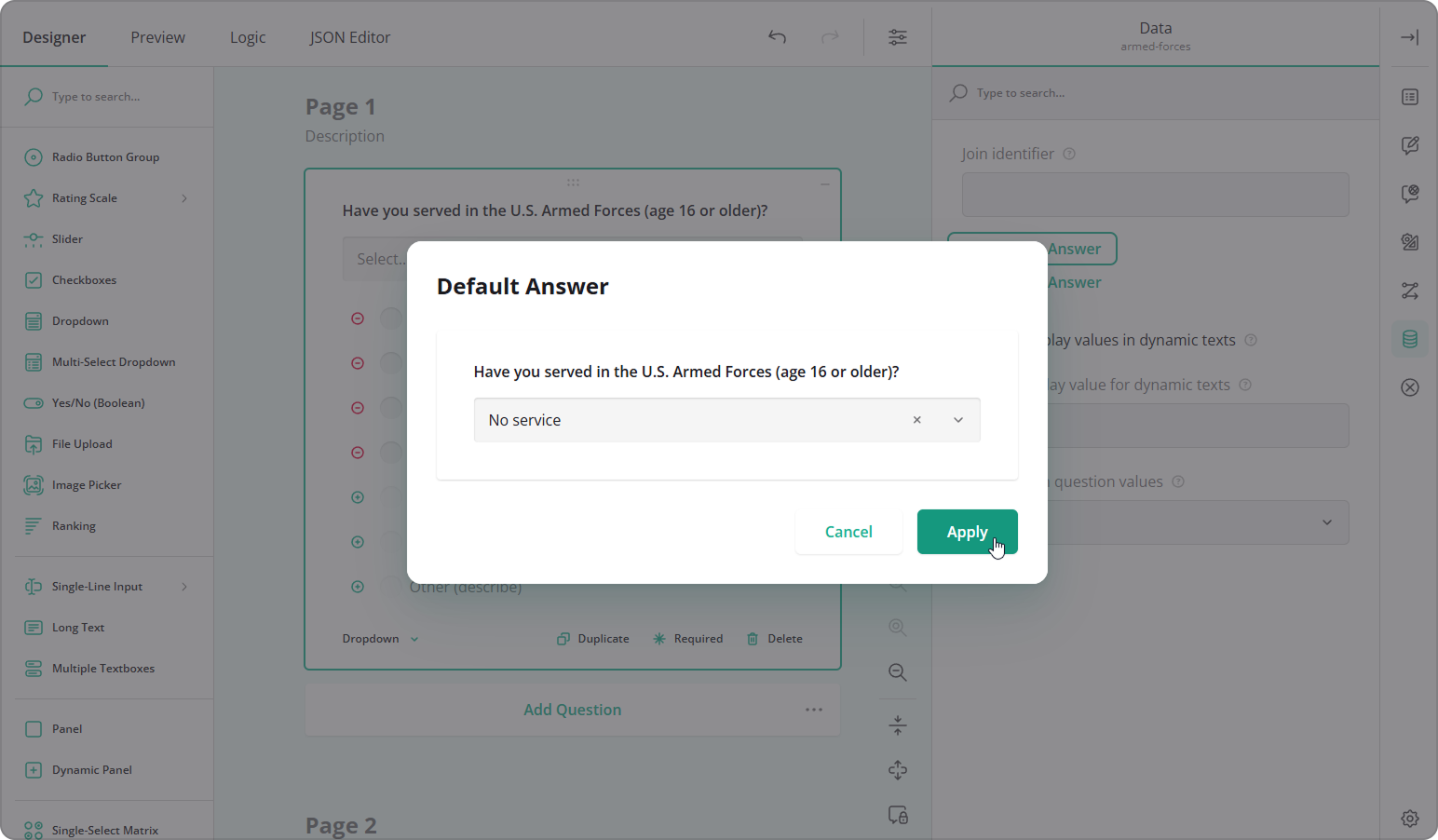
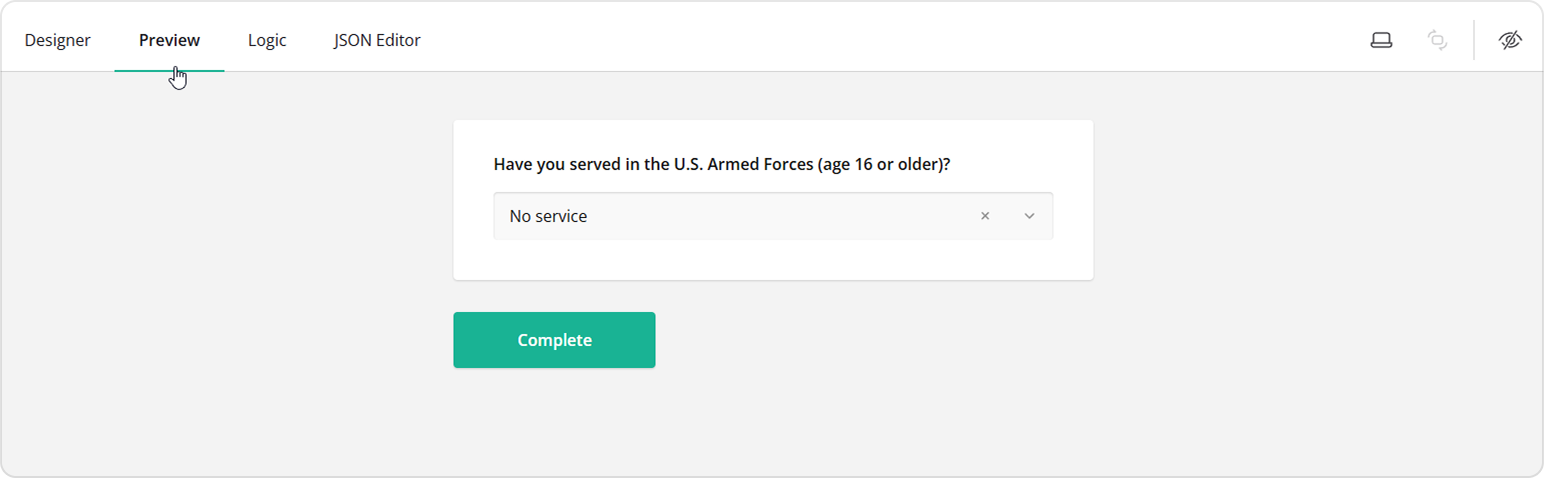
Once a default value is set, it is automatically displayed when the form is shown to respondents. They can replace the default value with another option or remove it to leave the field empty.
Open-Ended Questions
For questions that require manual text entry, such as Single-Line Input, Long Text, or Multiple Textboxes, the default value configuration steps are the same. However, instead of selecting a value, you simply enter the default text in the question input field that appears when you click Set Default Answer.
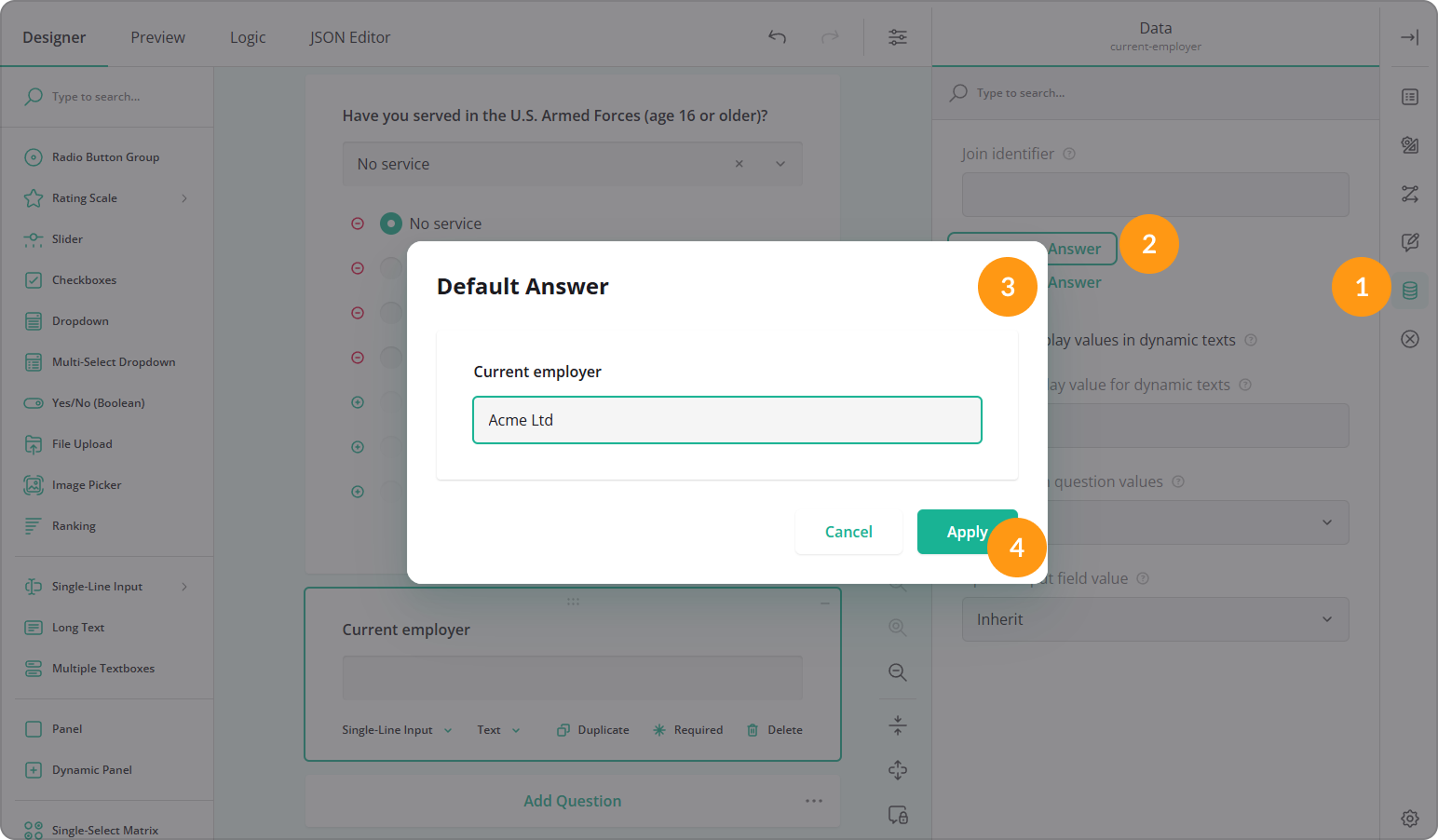
If a respondent does not modify the default text, it is saved as their answer in the form results.
How to Set a Dynamic Default Answer to a Question
A dynamic default answer is calculated automatically based on a respondent's input in other form fields. You can pipe a value directly from another question or calculate the default value using a condition.
Pipe a Default Answer from Another Question
Piping copies the answer from one or more source questions and uses it as the default value for another question. In the example below, the default value is created by combining answers from two different questions.
- Add a source question to your survey.
- In the General category, specify its Question name (for example,
branch) and Question title. - Optionally, add another source question and specify its Question name (for example,
component) and Question title.
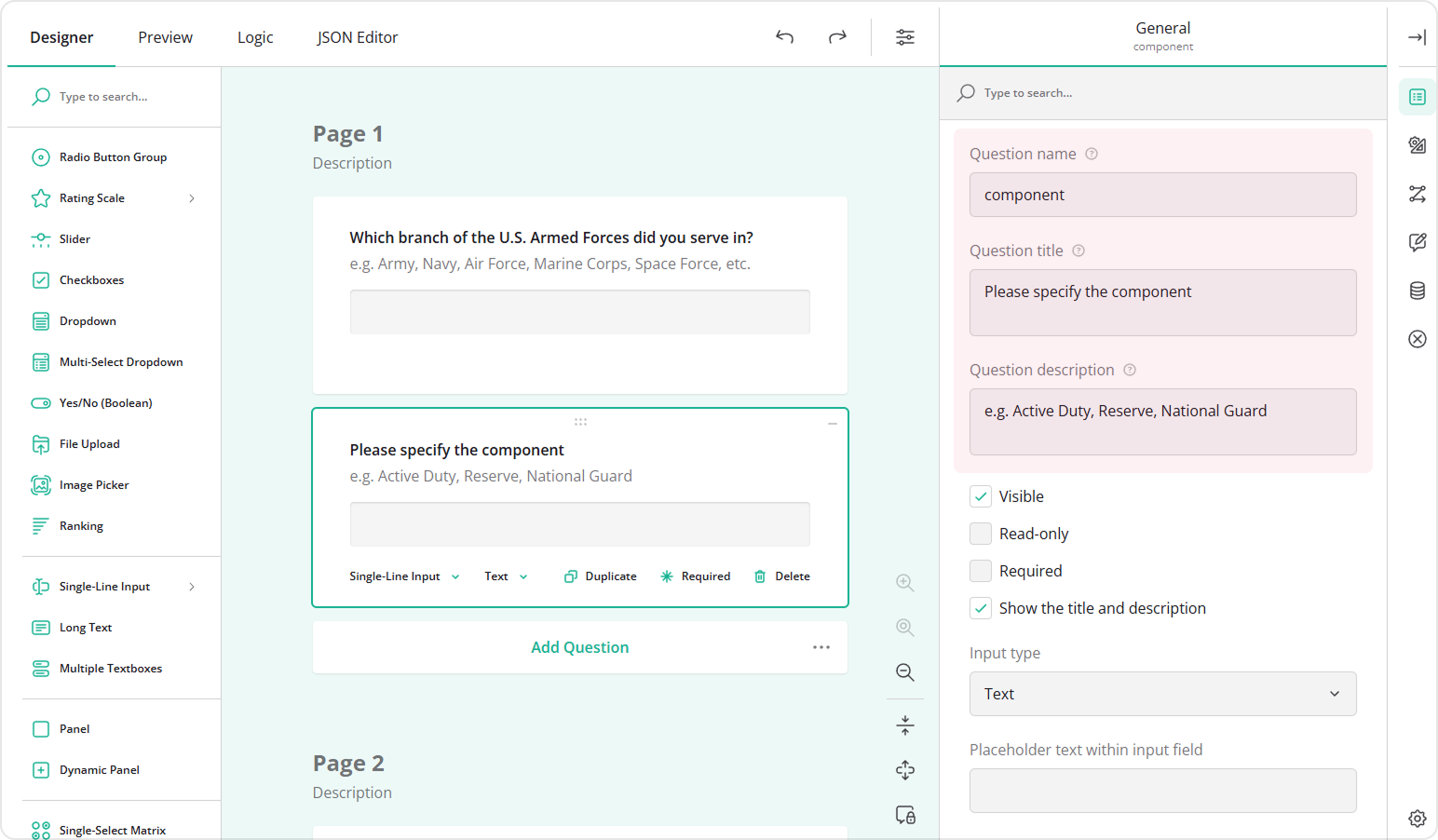
- Add a third question that will receive the default value, and specify its Question name and Question title.
- In the Conditions category, locate the Default value expression setting.
- Enter the following expression:
{branch} + ' ' + {component}
Here, {branch} and {component} are the Question names of the source questions, and + ' ' + inserts a space between the values. When a respondent enters values in the first two questions, those values are piped into the third question. Respondents can edit or replace the generated value if necessary.
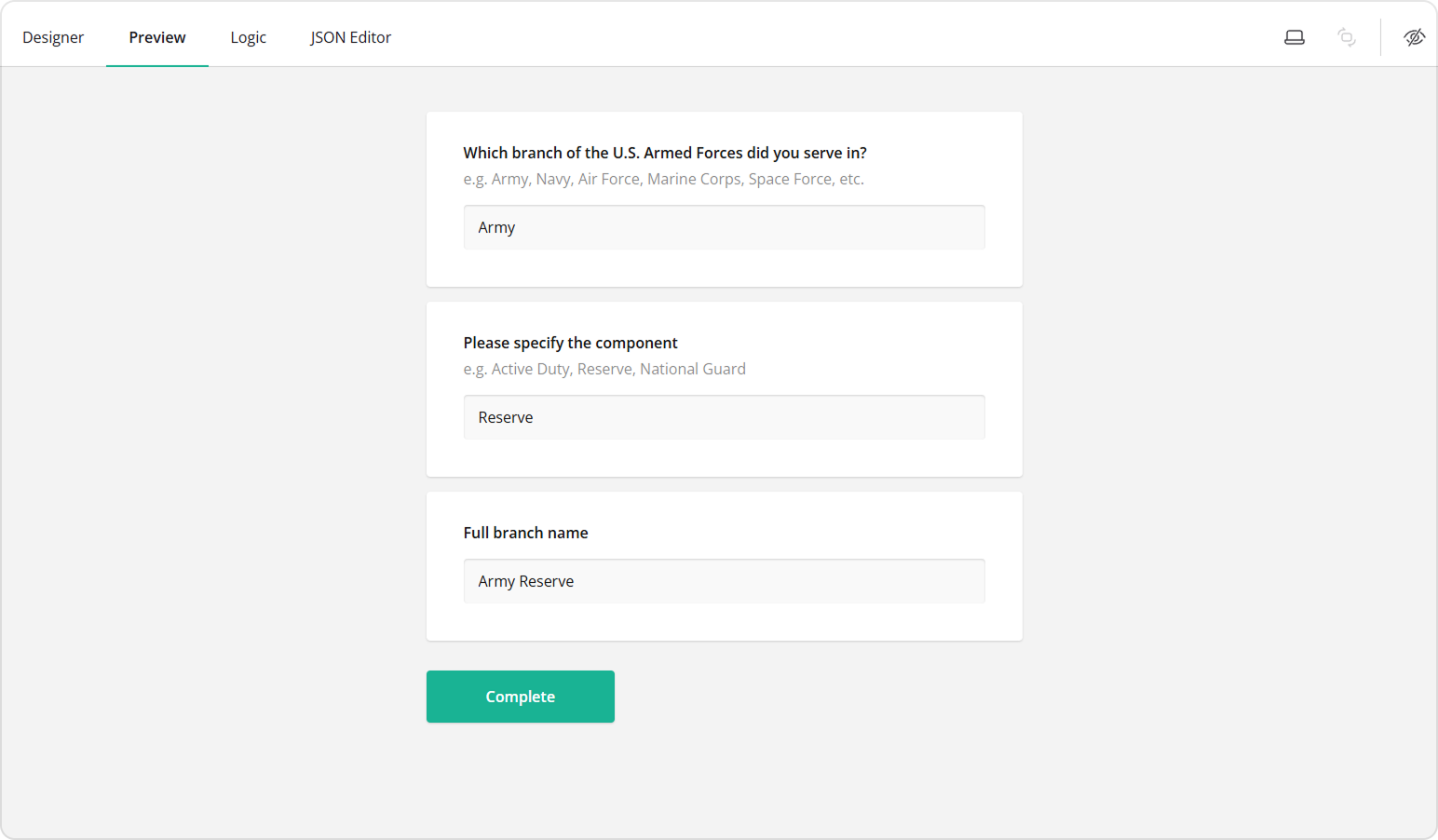
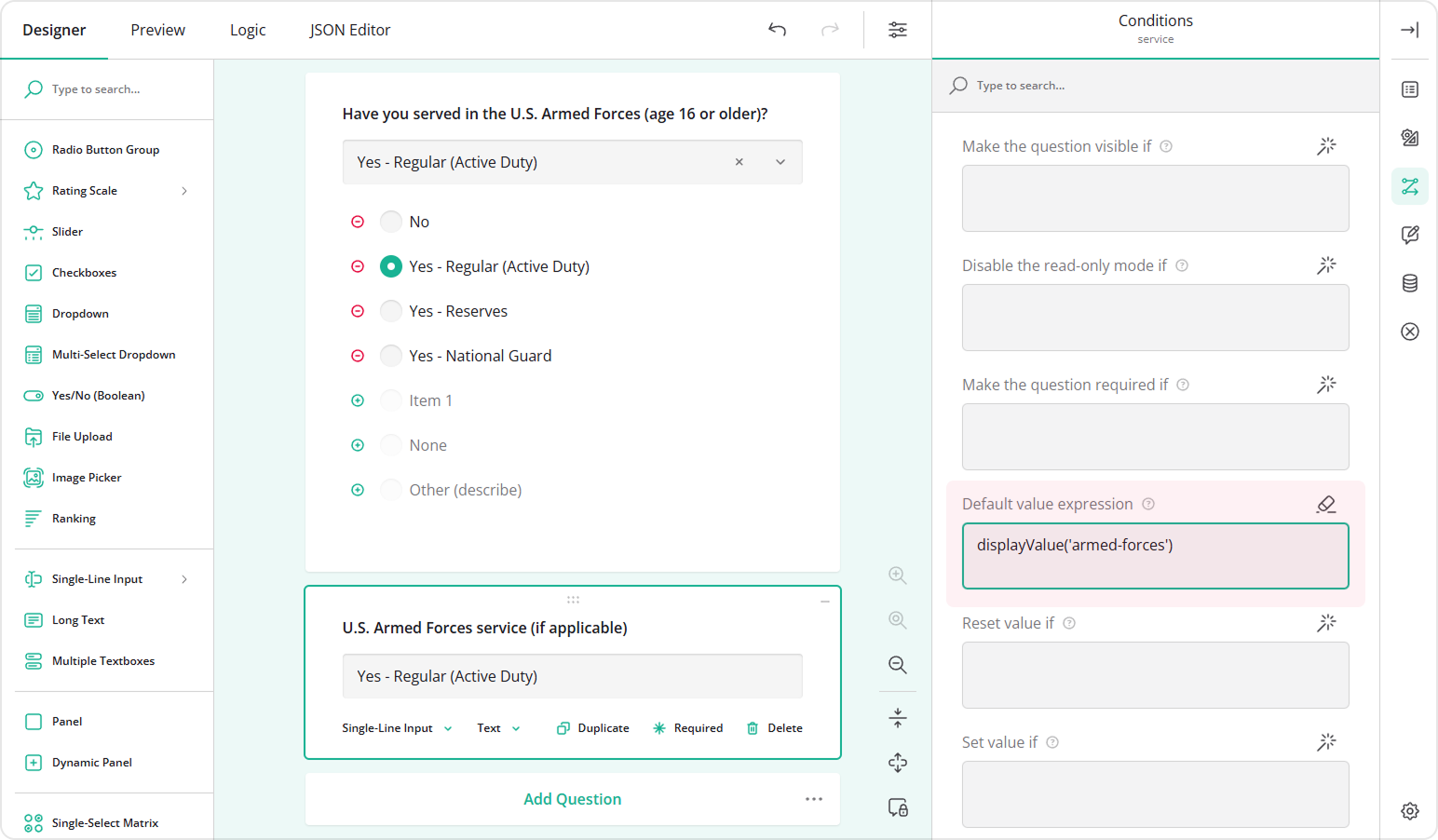
If the source question is close-ended, the piped value corresponds to the choice value rather than the display text. To insert the display text instead, use the displayValue() function in the Default value expression of the target question. For example, the following expression inserts the display text of a choice-based question named armed-forces: displayValue('armed-forces').
Calculate a Default Answer Using a Condition
You can also compute a dynamic default value based on a condition. In the example below, the default value is set to "No" if a respondent selects "No service", and "Yes" for any other option.
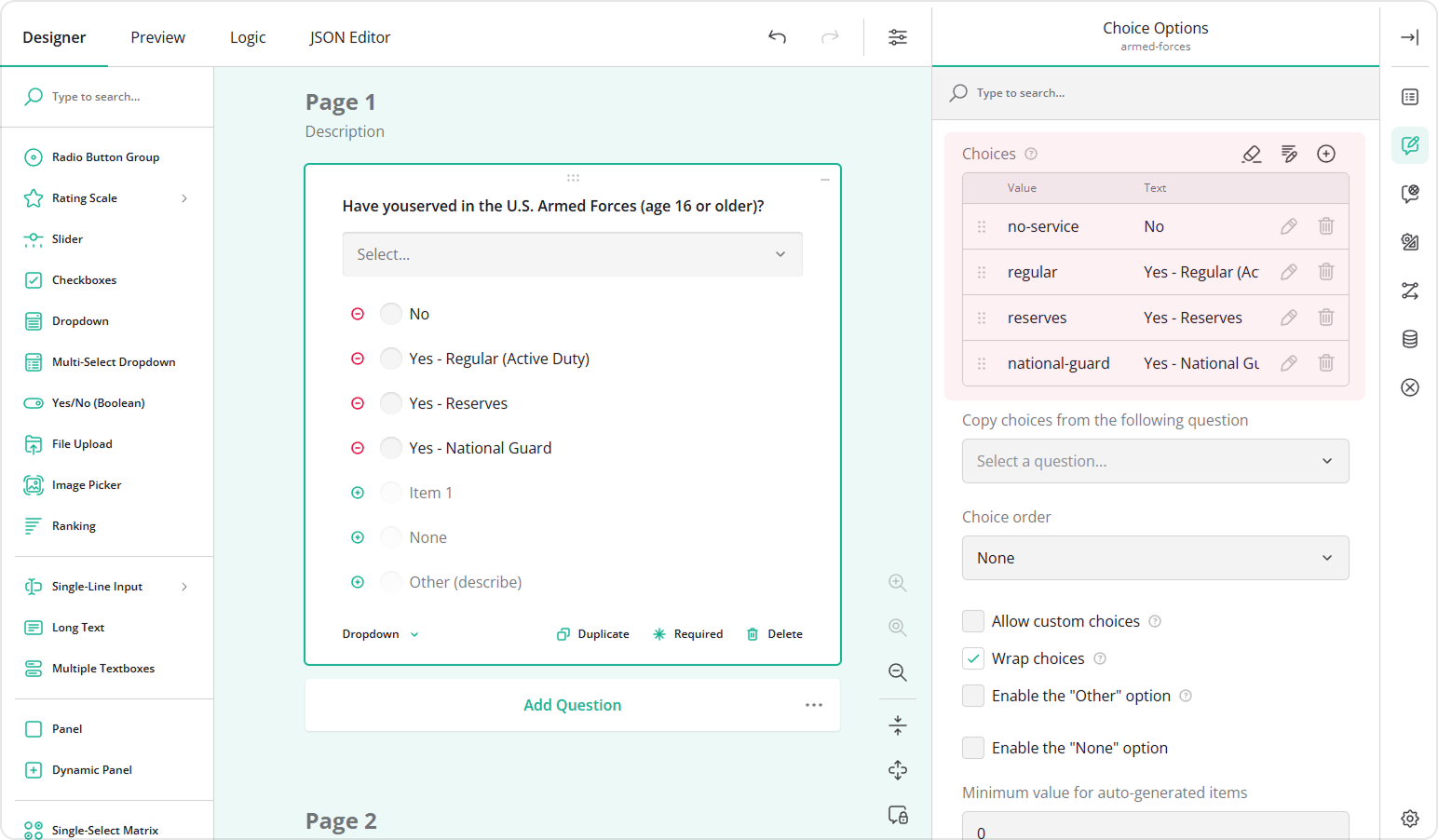
- Add a Dropdown or another choice-based question to your form.
- Specify its Question name (for example,
armed-forces) and Question title. - Fill out the Choices table by specifying Values (choice IDs) and Texts (visible choice options).
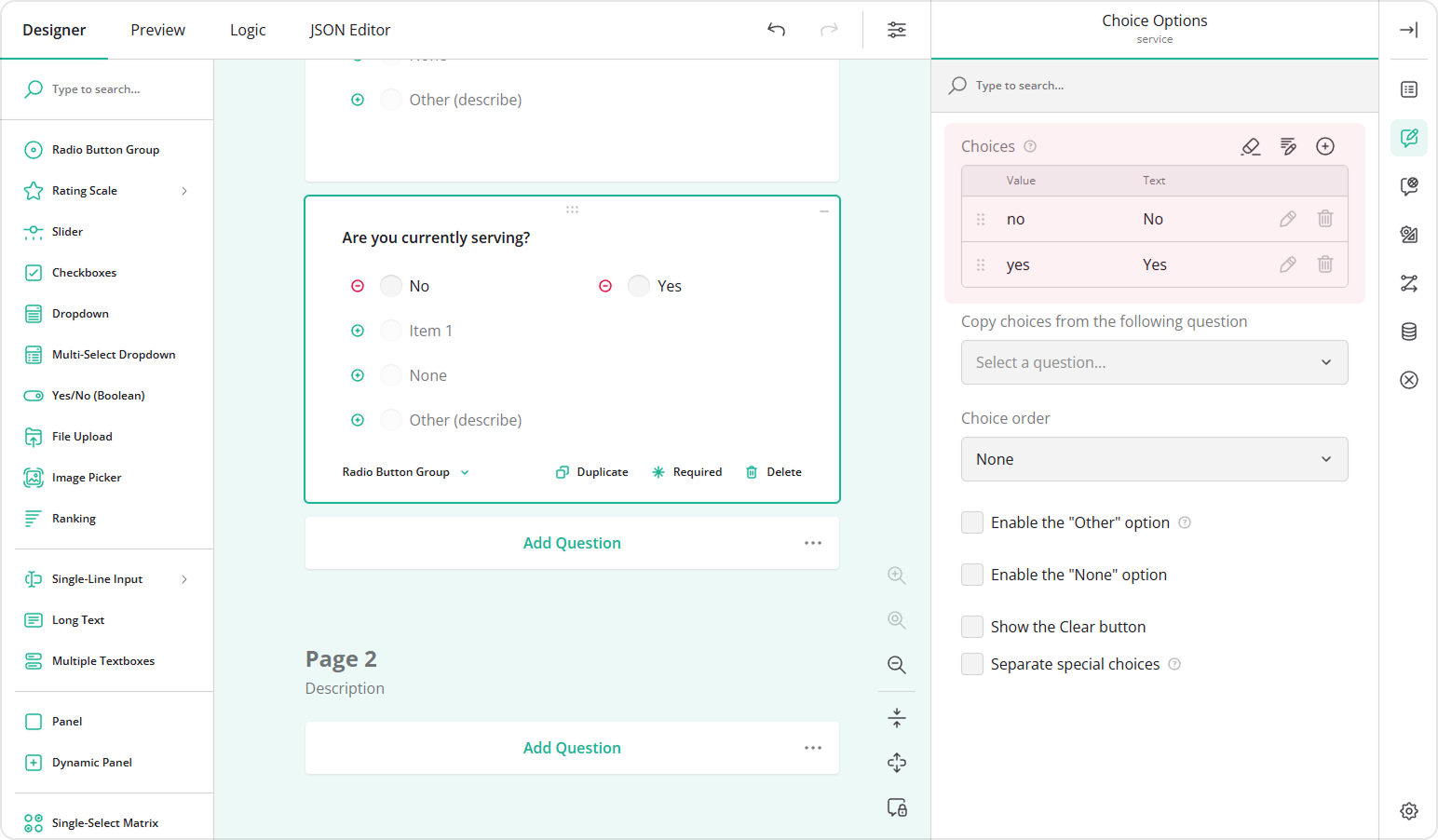
- Add a Radio Button Group question that will receive the default value.
- Fill out its Choices table with the appropriate Values and Texts.
- In the Conditions category, locate the Default value expression setting.
- Enter the following expression:
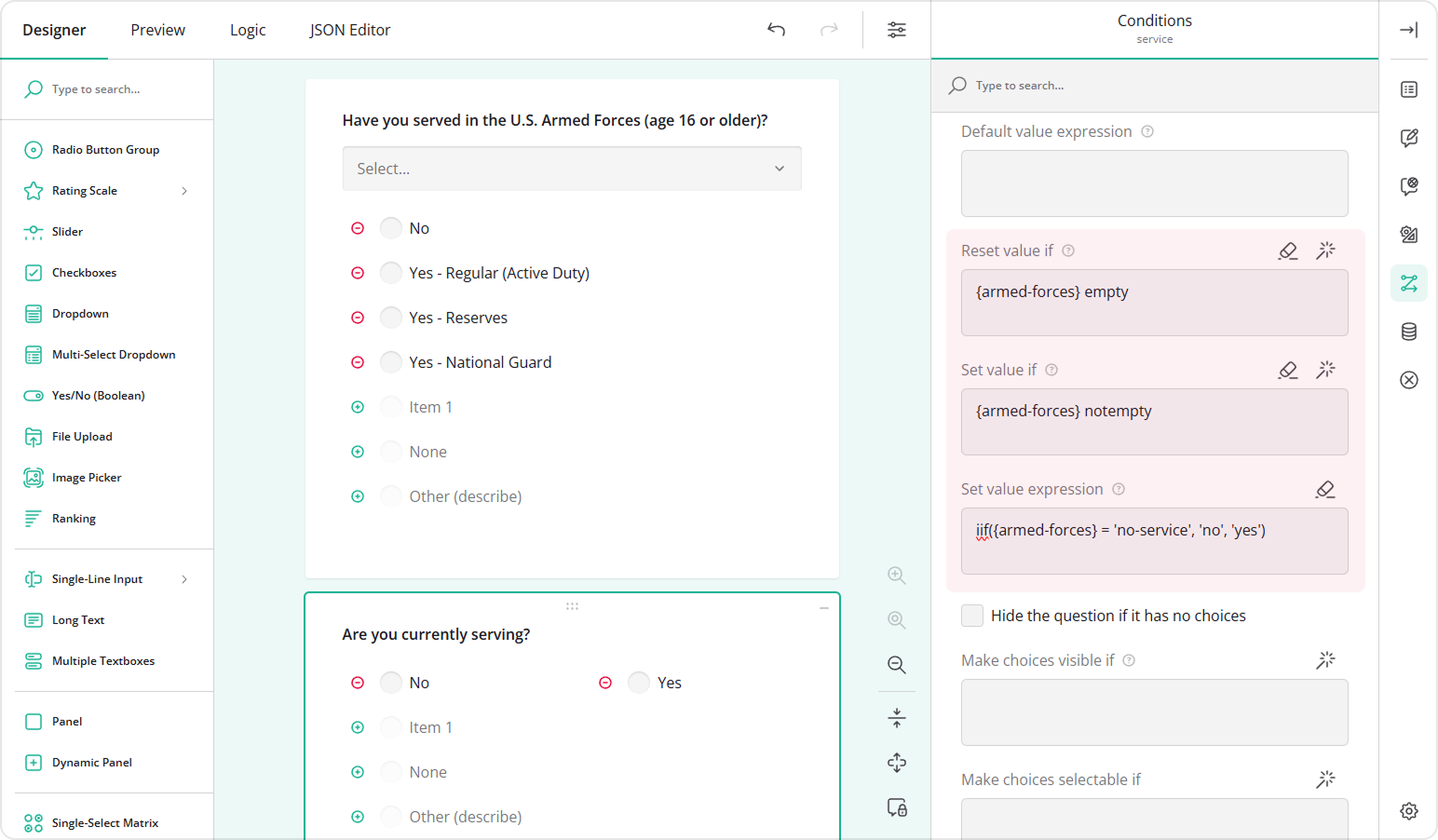
iif({armed-forces} = 'no-service', 'no', 'yes'), where{armed-forces}is the source question name, and'no-service'is the choice value that triggers the "No" default. - To prevent a default value from appearing before a selection is made, locate the Set value if setting.
- Enter the following condition:
{armed-forces} notempty. You can also click the magic wand button to build this condition visually. - Locate the Reset value if setting and enter the following condition:
{armed-forces} empty. This configuration clears the default value if the respondent removes their selection from the source question.
As a result, when a respondent selects any option other than "No service", the "Yes" option is selected by default. Respondents can override this value at any time by choosing a different option in the Radio Button Group question.
See Also
Send feedback to the SurveyJS team
Need help? Visit our support page